

Chrome on Android stores your home and work addresses so checkout forms, sign-up pages, and shipping fields fill themselves in. The addresses live under the unified Autofill and passwords screen, which replaced the old Passwords and Autofill menu.
You can reach the hub under Settings, then Autofill and passwords, then Addresses and more. From there you add an address, fix an old one, or remove entries. We also cover turning autofill off and cross-device sync.
In this guide, I have covered:
Contents
Add an address for autofill
You add an address once. Chrome on Android then fills checkout forms, sign-up pages, and shipping fields with it automatically. Save as many entries as you need for home, work, or any other location.

Starting in Chrome 150 on Android, saved addresses live under the unified Autofill and passwords hub. The old Passwords and Autofill menu retired in that build. If your Chrome version still shows the older entry, tap it to reach the same screen.
- Open Chrome and tap the More
 menu, then Settings.
 - Tap Autofill and passwords (or Passwords and Autofill on older builds).
- Tap Addresses and more.
- Tap the + Add address command at the bottom of the list.
- Fill in the address fields. Anything marked with an asterisk is required.
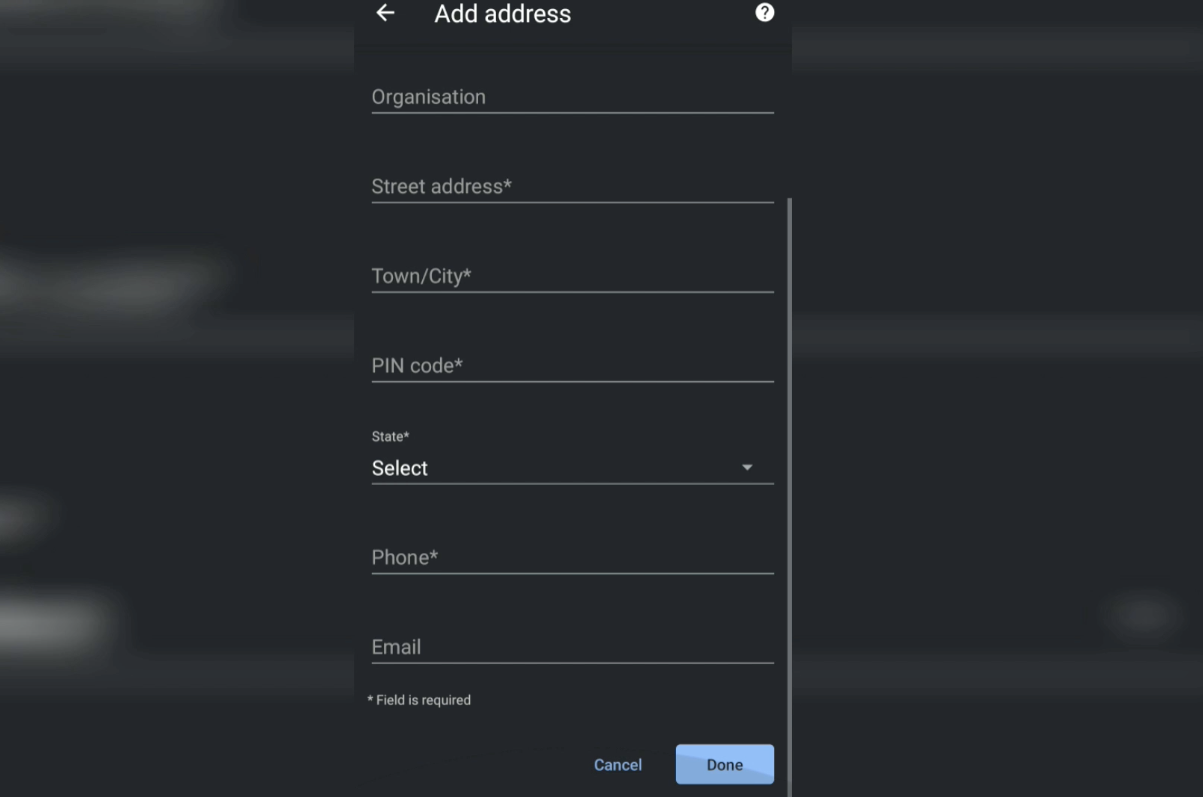
- Tap Done to save the address.
The new address appears in the list with the city and country you entered. Chrome will offer to autofill it on the next matching form. If you also fill the same details on a desktop, the addresses guide for Chrome on a computer walks through the identical setup.
Edit a saved address
Addresses change when you move, get a new postal code, or add a unit number. Updating an entry keeps every form that pulls that address current.
- Open Chrome and tap the More menu, then Settings.
- Tap Autofill and passwords.
- Tap Addresses and more.
- Tap the address you need to change.
- Update any field, including the name, street, city, or phone number.
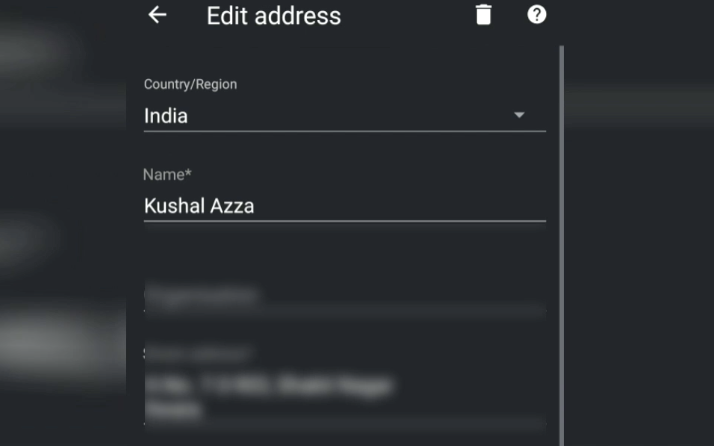
- Tap Done to save the changes.
The updated details are now shown in the list. Chrome will use the new values the next time it offers to autofill that form.
Delete a saved address
Old addresses should go once you stop using them. Removing them keeps the autofill suggestions short and stops Chrome from offering a wrong entry on a checkout page.
- Open Chrome and tap the More menu, then Settings.
- Tap Autofill and passwords.
- Tap Addresses and more.
- Tap the address you want to remove.
- Tap the Trash icon at the top right of the address details page.
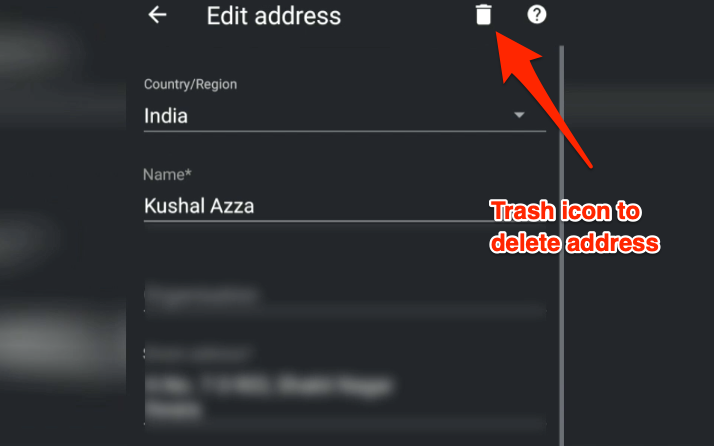
- Confirm the deletion when Chrome asks.
The address is removed from Chrome on this device.
Turn address autofill on or off
If Chrome keeps offering to fill addresses on pages where you do not want it to, you can pause the feature without deleting your saved entries.
- Open Chrome and tap the More menu, then Settings.
- Tap Autofill and passwords.
- Tap Addresses and more.
- Turn the Save and fill addresses toggle off to stop Chrome from offering to autofill. Turn it back on to resume.
Your saved addresses stay on the device, so you can re-enable autofill later without retyping anything.
Sync saved addresses across your devices
When you sign in to Chrome on Android with your Google account, saved addresses normally sync to other devices running Chrome under the same account.
As of Chrome 150 on Android, Google has temporarily paused the cross-device sync of autofill addresses, per the Chrome release notes. New addresses you save on your phone will not copy to your computer or tablet until the pause is lifted. Your existing addresses are still available on every device where you saved them.
To check the sync setting on your phone:
- Open Chrome and tap the More menu, then Settings.
- Tap Autofill and passwords.
- Tap Addresses and more.
- Look at the sync toggle at the top of the list. Leave it on so Chrome is ready to push new addresses once Google resumes sync.
If you also store passwords in Chrome, the guide to managing saved passwords in Chrome on Android walks through the same hub. For card autofill, see how to add, edit, and manage card details in Chrome on Android.

Frequently Asked Questions
Where do I find saved addresses in Chrome on Android?
Open Chrome, tap the menu, then Settings. Tap Autofill and passwords and then Addresses and more. The full list of saved addresses is on the next screen.
Why is my address not syncing to my other devices?
Google has temporarily paused cross-device sync for autofill addresses as of Chrome 150 on Android. Existing addresses are still available on every device where you saved them, but new entries will not copy across until Google restores the feature.
Can I save more than one address in Chrome on Android?
Yes. Open the Addresses and more screen and tap + Add address for every entry you want to keep. Chrome offers each one as a separate autofill suggestion when you fill a form.
How do I stop Chrome from offering to fill addresses on every page?
Go to Settings then Autofill and passwords then Addresses and more and turn the Save and fill addresses toggle off. The saved addresses stay on the device, so you can turn the toggle back on whenever you want.
Will deleting an address remove it from every device?
No. Deleting an address from the Addresses and more screen removes it only from the device you are using. Cross-device sync is currently paused, so the entry will not be removed from your other devices until sync resumes.
The same rule applies on iPhone and iPad: removing an entry there affects only that device. You can find the steps in the iOS guide to managing addresses in Chrome.

In the chrome settings I go to “Addresses and more” and click on “Save and fill addresses “. There is no add button there and the edit button is greyed out. Please help me with this
I guess you’ve turned off the feature. You must turn on the toggle button for the ‘Save and fill addresses’ option. It will enable the adding and editing of addresses.