Need a second page open without losing the one you're reading? That's a new tab. Want a session that won't land in your history or show up on your other Apple devices? That's Private Browsing.
The steps below cover opening a tab, switching to Private Browsing, opening several links at once, reopening a closed tab, and locking private tabs behind Face ID.
In this guide, I have covered:
Contents
Open a New Tab in Safari on iPhone and iPad
You want a second page open without losing the one you’re reading. That’s exactly what a new tab does, and Safari keeps it in your normal browsing profile by default.
- Launch the Safari app on your iPhone or iPad.
- Tap the tabs
 button to open the tab overview.
 - Tap plus
 . In the Compact tab layout the plus sits at the bottom-left of the overview. In Bottom and Top layouts, it sits where the tab strip normally appears.
 - Type a URL or search term and tap to load the new tab.
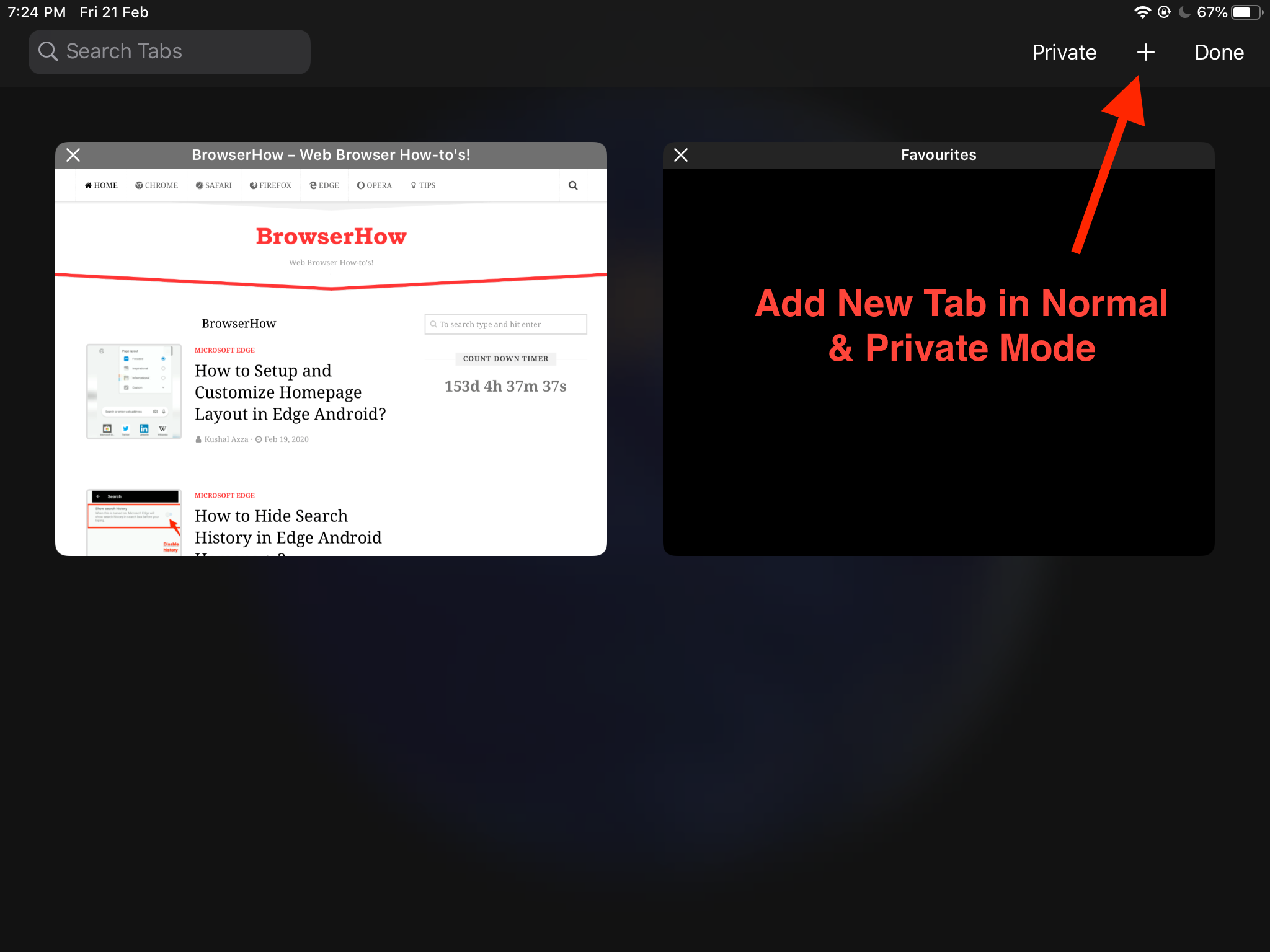
The new tab joins your everyday browsing profile. Pages you visit show up in History, and any logins are saved to AutoFill.
Want the opposite of that? The next set of steps covers Private Browsing.
Switch to Private Browsing in Safari on iPhone and iPad
Some sessions aren’t meant to be saved anywhere: signing into a shared account, checking a surprise gift, or testing how a page loads without cookies. That’s what Private Browsing is for.
The old Private pill on the tabs screen is gone, so the swipe below is what replaced it.
- Launch the Safari app on your iPhone or iPad.
- Tap the tabs button to open the tab overview.
- Swipe right on the tab bar at the bottom of the screen until the Private Browsing page appears.
- If Private Browsing is locked, authenticate with Face ID, Touch ID, or your passcode when Safari prompts you.
- Tap plus to open a new private tab.
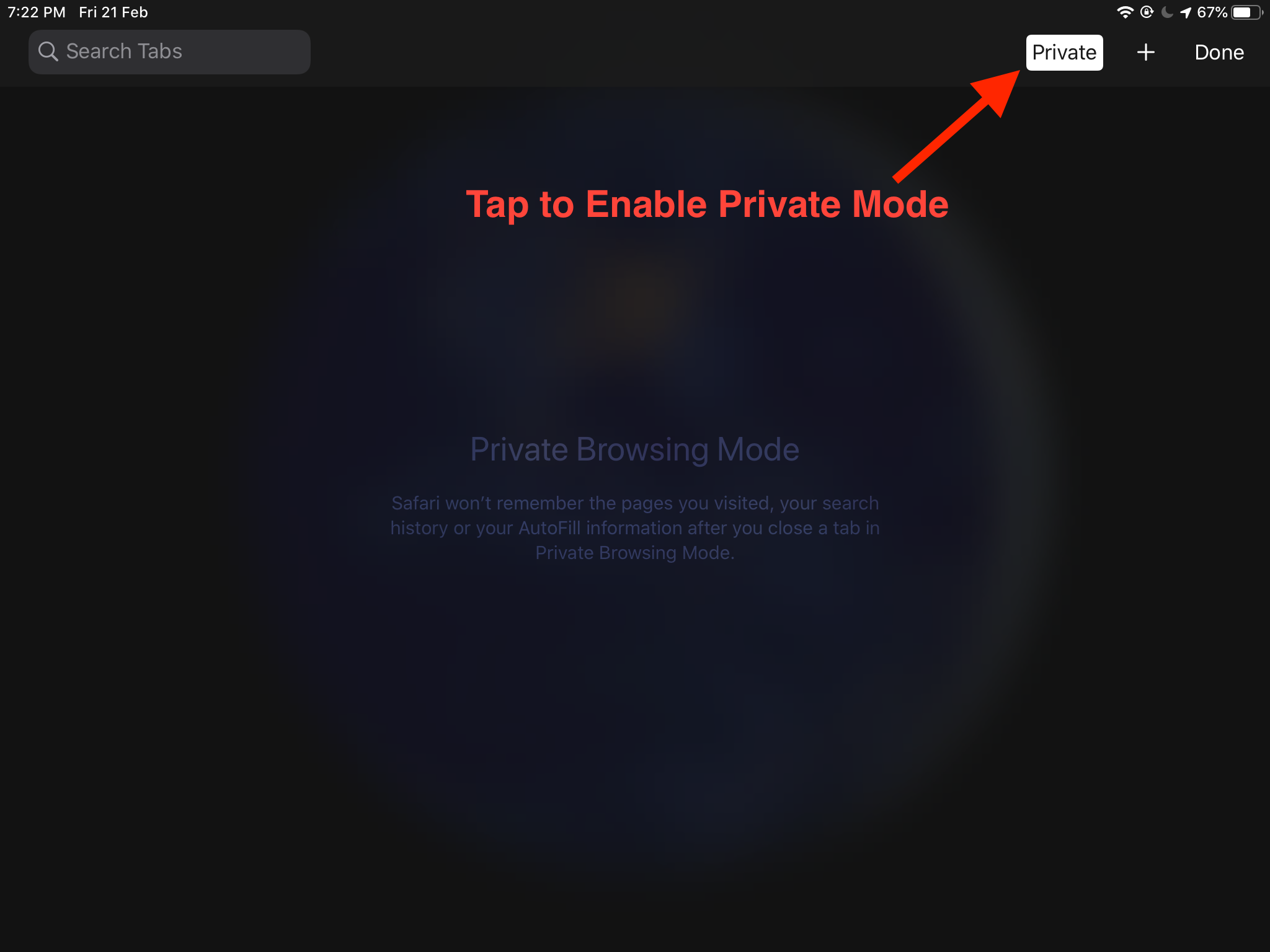
Private tabs do not sync to your other Apple devices through the same Apple Account. Safari also drops the visited pages, AutoFill entries, and cookies from that tab the moment you close it.
Open Multiple Tabs at Once
A search results page often hands you a list of links worth reading. Tapping through them one at a time is tedious, so let Safari open the batch for you.
- Touch and hold any link on a page until the quick menu appears.
- Tap Open in New Tab for one link, or tap Open in [n] New Tabs when Safari has highlighted a group of links.
- Tap the tabs button to see every link opened in the background.
Each link loads behind the page you’re on, so you can finish reading before you switch. The same gestures work in normal browsing and in Private Browsing.
Reopen a Recently Closed Tab
Closed a tab by mistake? Safari remembers the last few you dismissed and can bring one back in two taps.
- Touch and hold the tabs button on the tab strip until the quick menu opens.
- Tap Recently Closed Tabs.
- Tap the page you want back. Safari reopens it in the current window.
Looking for a page from further back? Open the Bookmarks  menu, switch to the History tab, and tap it from the list.
Switch the Safari Tab Bar Layout
If the screenshots here look nothing like your iPhone, your tab bar is set to a different layout. iOS ships three of them, and Apple documents each one in the iPhone User Guide.
- Open the iOS Settings app.
- Tap Apps, then Safari, then Tabs.
- Pick Compact, Bottom, or Top.
- Open Safari. The tab strip moves to match the layout you chose.
Compact hides the tab strip until you open the overview and shows just the address bar. Bottom keeps tabs visible above the address bar. Top pushes tabs above the address bar, the way a desktop browser does.
Lock Private Browsing Behind Face ID
Without a lock, anyone who picks up your unlocked iPhone can read the private tabs you left open. You can now require Face ID, Touch ID, or your passcode before Private Browsing opens, and it locks itself again when Safari isn’t in use.
- Open the iOS Settings app.
- Tap Apps, then Safari, then Require Passcode to Unlock Private Browsing.
- Turn the toggle on.
- Back in Safari, open the tab overview, swipe right to Private Browsing, and tap whenever you need it.
You’ll know the lock is active when Safari asks for your passcode, Touch ID, or Face ID as soon as you swipe over to Private Browsing.
For the rest of Safari’s privacy controls, like hiding your IP address, blocking trackers, and turning off AutoFill inside private tabs, our Safari privacy and security settings walk-through covers every toggle.
Close a Browsing Tab in Safari
Long tab lists slow Safari down and make it harder to find the page you actually want. Closing the ones you’re finished with keeps the grid tidy.
- Tap the tabs button to open the tab overview.
- Tap Private at the top if you want to close private tabs, or stay on the regular tab grid.
- Tap the close
 button on the tab card, or swipe left on the card and tap .
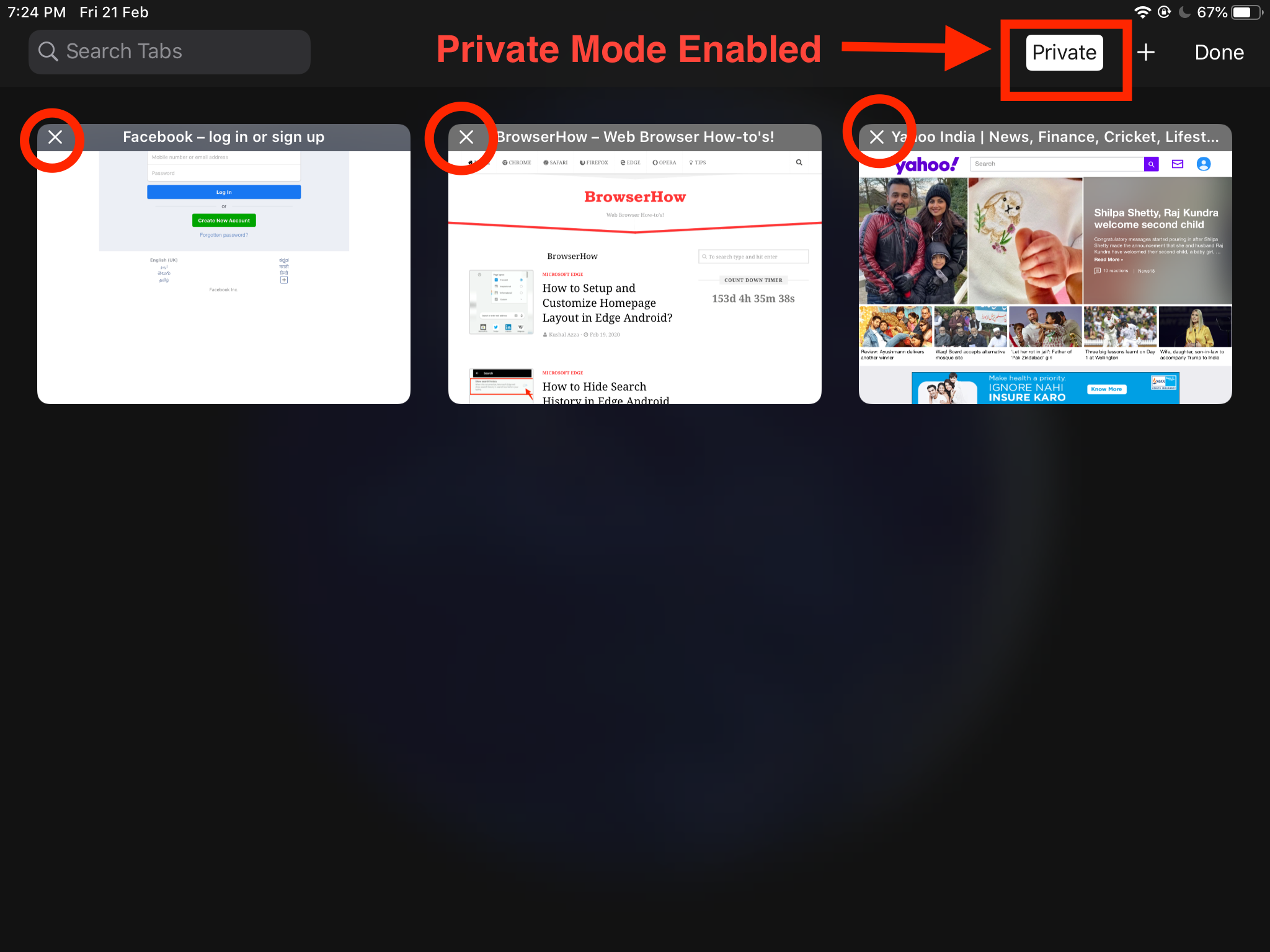
To close every tab at once, touch and hold the tabs button and choose Close All Tabs.

TIP: Close All Tabs spares the tab in front of you. Everything else in the grid closes.
Closing a tab doesn’t wipe what that site stored on your device, though. If a page keeps loading stale content after you reopen it, clearing its cache and site storage is the next step.

Bottom Line
New tabs are for pages you want to find again. Private tabs are for sessions you’d rather leave no trace of. Both live behind the same tabs button, and once you require a passcode, nobody else can open Private Browsing.
If you also use a Mac, the same two modes work the same way there. Our guide to private browsing and new tabs in Safari on Mac covers the Mac side.
Frequently Asked Questions
Short answers to the questions that come up most once you start using private tabs.
Why can’t I find a Private button in Safari anymore?
Apple removed the old Private pill from the tabs screen. To switch to private browsing now, open the tab overview and swipe right on the tab bar at the bottom of the screen until the Private Browsing page appears.
Do private tabs sync to my other Apple devices?
No. Apple’s current Private Browsing design keeps private tabs on the device where you opened them. They won’t appear on your Mac, iPad, or other iPhones even when you’re signed in to the same Apple Account.
Does Private Browsing save any history at all?
Safari does not write the pages you visit, your search history, AutoFill entries, or cookies from a private tab to the shared Safari history. Those records are dropped when you close the tab.
How do I reopen a tab I just closed?
Touch and hold the tabs button and choose Recently Closed Tabs, then pick the page. For older tabs, open the Bookmarks menu and switch to the History tab.
Can I stop someone else from opening my private tabs?
Yes. In Settings › Apps › Safari › Require Passcode to Unlock Private Browsing, turn the toggle on. Safari then asks for Face ID, Touch ID, or your passcode before any private tab opens.