

When the mouse cursor disappears in Google Chrome, a graphics acceleration glitch is usually behind it. Chrome 133 (released February 2025) already fixed a recent regression, so update the browser before you change other settings.
If the cursor still vanishes on tabs or inside web pages, toggle graphics acceleration, disable extensions, restart Chrome from Task Manager, or run chrome://restart for a clean reload.
In this guide, I have covered:
Contents
Why the mouse cursor disappears in Chrome
You move the mouse, but the pointer is not there. In Chrome, that usually comes down to one of three things: a graphics driver that conflicts with your pointer, an extension that hooks the mouse layer and breaks it, or a Chrome regression. A real example was Chrome 132, where users reported the cursor vanishing on regular web pages. The fix landed in Chrome 133 (stable, early February 2025), so a current build may already include the patch.
Open the Chrome menu and choose Help > About Google Chrome before you change any settings. If the version is older than 133, the official patch has not reached your install yet, and the workarounds below still matter.
Update Chrome to the latest version
If the cursor vanishes regularly, start with a clean Chrome update. The Chrome 133 release specifically fixed the disappearing cursor regression, so any newer build includes that patch along with the rest of the stable fixes.
- Launch the Google Chrome on your computer.
- Click on More
 for the options list, and select the Settings menu.
- Switch to the About Chrome tab in the left sidebar pane.
 The browser should automatically start looking for the latest updates.
 - Hit on the button.
 It will complete the Chrome browser update process.
You’ll know it worked when the About page says Google Chrome is up to date. If the cursor still disappears, move on to the workarounds below.
Method 1: Quit Chrome from Task Manager and relaunch it
If the cursor hides after Chrome has been running for a while, a stuck background process is usually to blame. Closing every Chrome thread from Windows Task Manager and reopening the browser forces a clean state.
- Open Task Manager on Windows.
- Right-click each Google Chrome process in the list.
- Click .
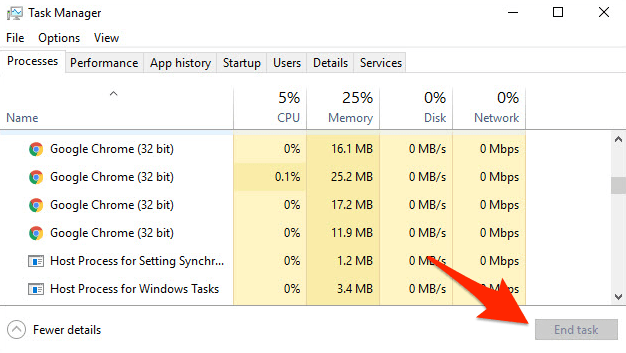
Once nothing Chrome-related is left in Task Manager, reopen the browser and the pointer should show again on every page. It takes a minute, but it works.
Method 2: Restart Chrome with chrome://restart
If Task Manager feels heavy, Chrome has a one-command restart built in. It is one of the basic troubleshooting techniques most Chrome users forget about.
Type chrome://restart into the address bar and press .
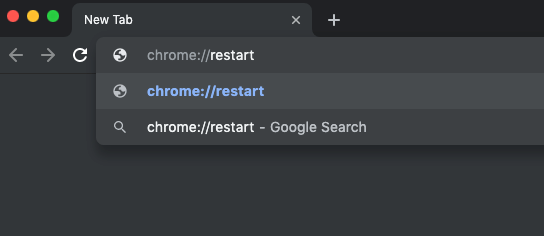
Chrome closes every tab, reopens them, and starts fresh. Save anything you have not submitted yet. Open downloads and unsubmitted form entries are discarded.

TIP: Bookmark the URL chrome://restart and tap it whenever the mouse pointer hides again.
Method 3: Toggle graphics acceleration in Chrome
If the cursor disappears on pages with video or animations, graphics acceleration is a likely cause. Chrome hands off rendering work to your GPU instead of doing everything on the CPU. When the GPU driver and Chrome disagree, the cursor is one of the first things to go. Flipping the toggle on or off is the usual fix. Chrome renamed this setting from Use hardware acceleration when available to Use graphics acceleration when available, and it now lives under Settings > System.
- Open Chrome Settings.
- Click System in the left sidebar. (If your Chrome still groups it under an expandable Advanced section, the path is Settings > Advanced > System.)
- Toggle Use graphics acceleration when available on or off, then relaunch Chrome.
Relaunch Chrome and move the mouse across a page with images, video, or animated content. If the cursor stays visible the whole time, you found the right setting.
Method 4: Disable Chrome extensions one by one
If the cursor only vanishes on certain sites or after you installed something new, suspect an extension. Browser extensions run inside the page and can intercept pointer events. Cursor customizers, dark mode tools, and accessibility helpers are common offenders. Disable all extensions at once, then re-enable them one at a time. That is the standard Chrome extension troubleshooting routine.
- Launch the Google Chrome on your computer.
- Click on the More for the list menu.
- Hover on the More Tools menu and choose the Extensions sub-menu.
 It will open the Chrome Extensions Manager page with the list of installed extensions.
 - Toggle the switch to Disable the extension.

You’ll know it worked when the cursor reappears with every extension off. Turn them back on one by one. The last extension you enabled before the cursor vanished again is the culprit. If nothing changes, extensions are not the cause.
Method 5: Test the cursor in an Incognito window
Not sure whether an extension or a Chrome setting is behind the disappearing cursor? Incognito mode loads Chrome with all extensions disabled by default, so it gives you the answer quickly.
- Launch the Google Chrome on your computer.
- Click on the More menu for the list.
- Select the New Incognito Window option.
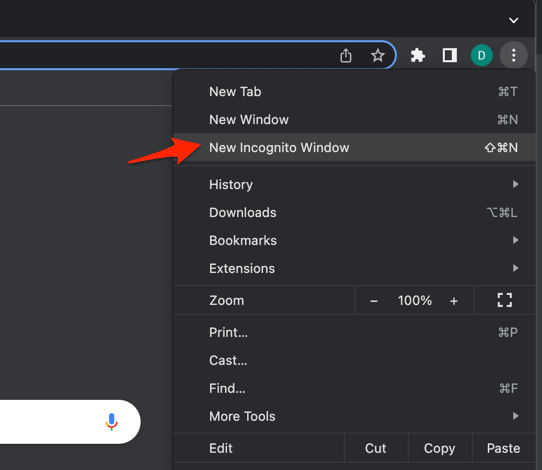 It will start a new incognito window in the browser.
Move the cursor across several pages in the Incognito window. If it stays visible the whole time, switch back to your normal window and apply Method 4. If the cursor also disappears in Incognito, the cause is in Chrome itself or in your operating system.
Method 6: Try Chrome Canary
If you want to check whether a fix is already queued up, Chrome Canary gives you an early look. It is the daily-built version of Chrome and ships with the newest patches before stable. If your cursor bug is a known issue that has already been fixed upstream, Canary lets you confirm it without waiting for the next stable release.
You can download Chrome Canary for free on Windows and macOS.

ALERT: Canary is not a stable Chrome build, and bugs including the disappearing cursor can come back at any time. Use it only as a temporary test, not as your daily browser.
Bonus: Switch to an alternative browser
If the cursor keeps vanishing in Chrome after every workaround above, a different Chromium-based browser can tell you whether the bug is Chrome-specific or system-wide. Chrome, Edge, and Brave share the same base, so the behavior is nearly identical.

Bottom Line
If the cursor still disappears in Chrome after you try these steps, you have probably narrowed the cause down to graphics acceleration or an extension. Updating Chrome to 133 or newer removes the recent regression. Toggling graphics acceleration, disabling extensions, or restarting Chrome through Task Manager or chrome://restart covers the rest. Keep an eye on Chrome updates so future regressions get patched as soon as Google ships a fix.

I had this problem in the past with Chrome. I just shut down Chrome from the taskbar and then reopened it. I have now just had the same problem with the new Microsoft Edge browser. It came back on its own after minimizing and then restoring it a couple of times.
Hi Cutis, Microsoft Edge and Google Chrome are developed with the same Chromium backend. Hence, you can follow the same steps as mentioned in the new Microsoft Edge browser.