Netflix may refuse to load in Safari, loop you back to the sign-in screen, or load a title that never plays. Each symptom points at a different part of the browser.
Start with updates, then extensions, website data, privacy controls, and playback errors. The steps cover Safari on Mac, iPhone, and iPad, with a warning wherever you will be signed out.
In this guide, I have covered:
Contents
Find out where Netflix fails in Safari
Netflix breaks in more than one way, and the symptom tells you which fix to try first. A blank page points at the browser itself. A sign-in loop, or a title that loads but never plays, points somewhere else.
Run this quick test before you change any setting:
- Open netflix.com in a normal Safari window.
- Sign in to your Netflix account.
- Select a title to test.
- Try to play the selected title.
- Write down the exact error message or code Netflix shows.
- Blank page or sign-in trouble: start with Safari updates, extensions, and website data.
- Playback or DRM message: skip to the FairPlay and account checks further down.
After each change, come back to Netflix and use the same title. You’ll know it worked when the homepage loads, your session stays signed in, and the title plays.

Current Safari uses Settings. If your Mac still shows Preferences, use that item for the same browser settings.
Update Safari on Mac
Updating Safari is the first fix worth trying, because playback support and security fixes arrive through macOS. It’s also the least destructive change: your Netflix session and website data stay where they are.
- Click on the Apple
 menu from the menu bar and select the System Settings... sub-menu.
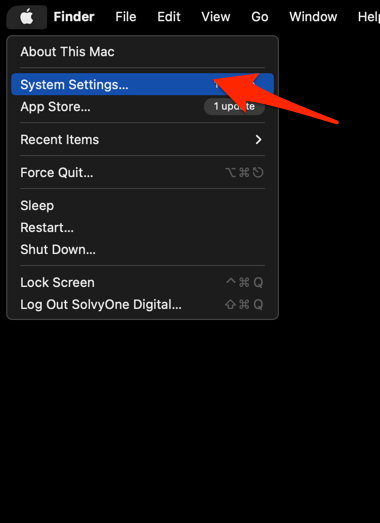 It will open the System Settings window.
- Select the General tab in the left sidebar, and choose the Software Update tab.
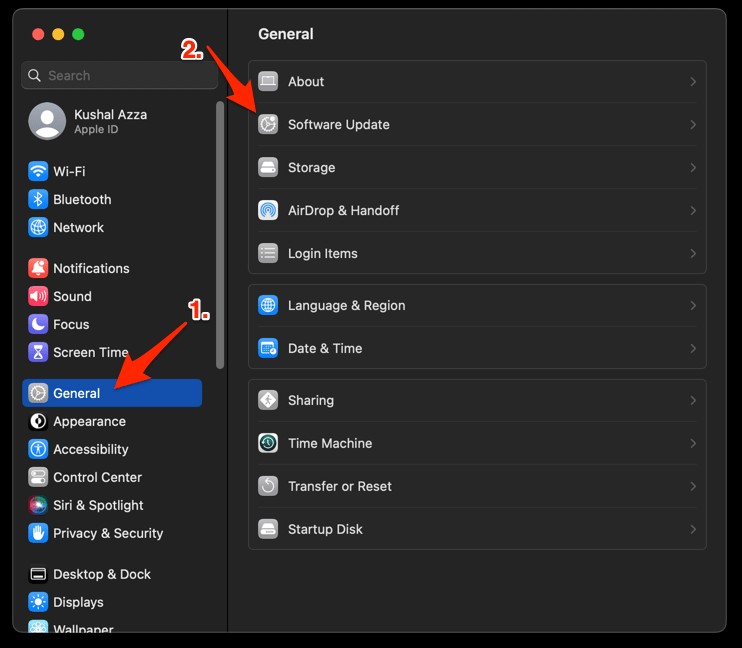 The macOS System will check for any available upgrades in the background.
- Click on the More Info... tab and enable the checkbox for Safari updates (if any are available).
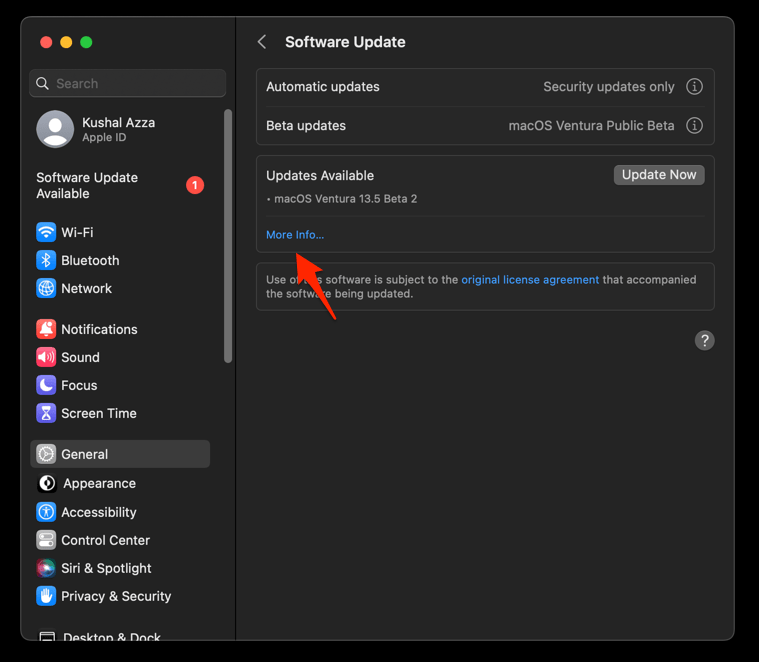
- Hit on the button.
It will update the Safari browser.
Close Netflix, reopen it in Safari, and play the same title. If the error survives the update, keep going.
Update Safari on iPhone
On iPhone and iPad, install any pending iOS update before you touch site permissions or data. You keep your account state, and you confirm the browser has current playback support.
- Open Settings on your phone, and head on to the General section.
- Select Software Update to open the screen.
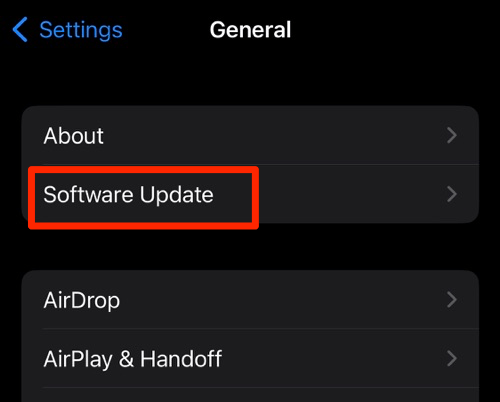 The device will automatically start looking for updates.
- Tap the button.
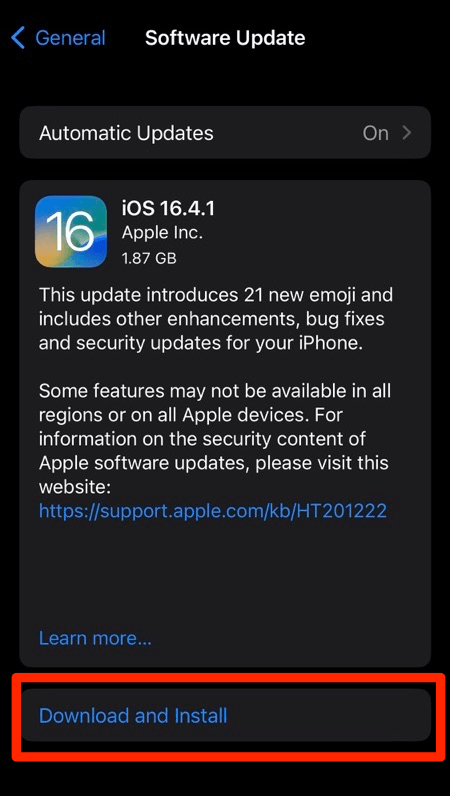 The update will download and install the latest Safari on your device, if available.
Reopen Netflix and retry the same title. If Safari is current, move on to extensions and website data.
Turn off Safari extensions on Mac
Ad blockers, privacy tools, and content blockers can break the Netflix player or the sign-in flow. Switch them off for a few minutes to see whether one of them is behind the failure.
- Launch the Apple Safari app on your Mac computer.
- Click on the Safari menu from the menu bar at the top, and select Settings... sub-menu.
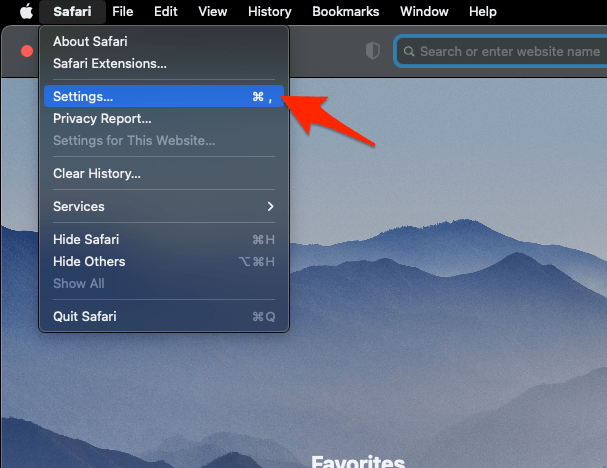 It will open the Safari Settings window.
- Switch to the Extensions tab in the Settings window.
It will display the list of all the Safari extensions installed. - Uncheck the checkbox in the left side pane to Disable the extension.
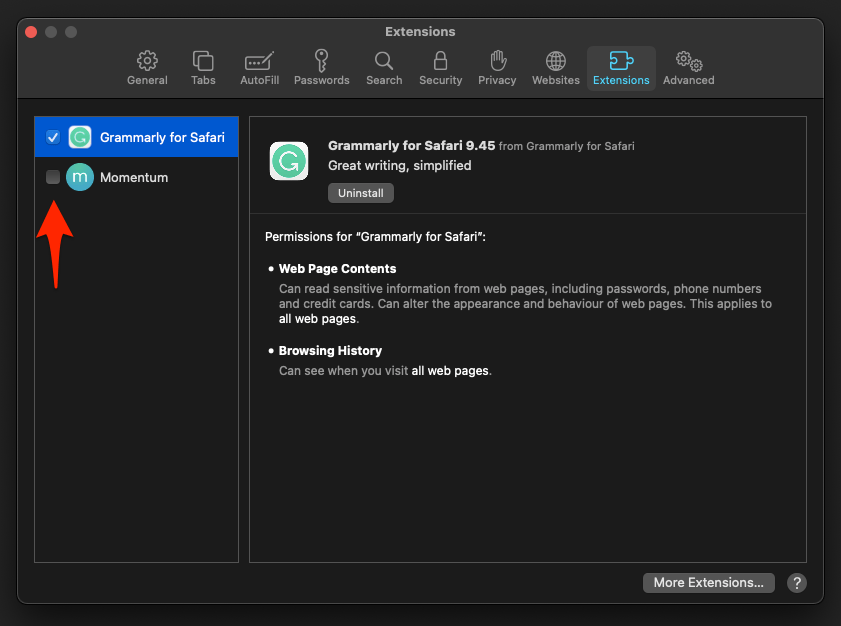
Reload Netflix and test the same title. If playback returns, an extension is your culprit. Turn them back on one at a time to find it.
Turn off Safari extensions on iPhone or iPad
Mobile Safari uses the same extension model, but the switches live in the Settings app rather than inside Netflix. The test works exactly the same way.
- Open Settings.
- Tap Apps.
- Tap Safari.
- Tap Extensions.
- Turn off all installed extensions for this test.
- Reopen Netflix and try the same title again.
If playback comes back, the extension set is the likely cause. If Netflix still fails, go on to website data.
Clear Safari cookies and cache on Mac
Damaged or outdated website data can leave Netflix stuck on a loading screen or a sign-in loop. Clearing Safari cookies and cache on the Mac wipes that data and gives the site a clean start.
- Launch the Safari app on your Mac computer.
- Click on the Safari menu from the menu bar, and select the Settings... sub-menu. It will open the Safari Settings window.
- Switch to the Privacy tab, and click to open the button.
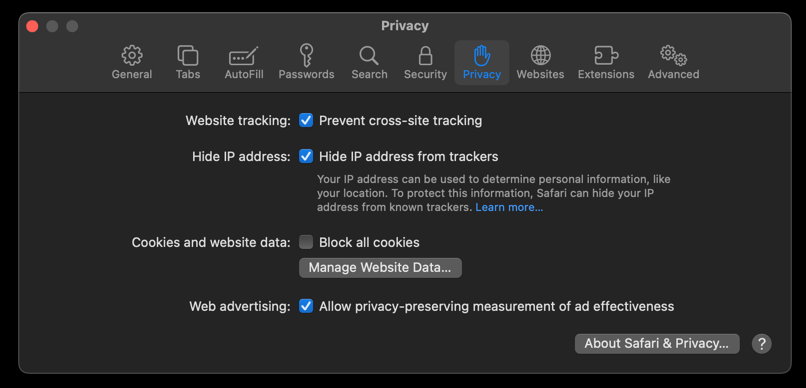 It will load the list of websites currently storing the cache and cookies in the browser.
- Hit on the command and then the button.
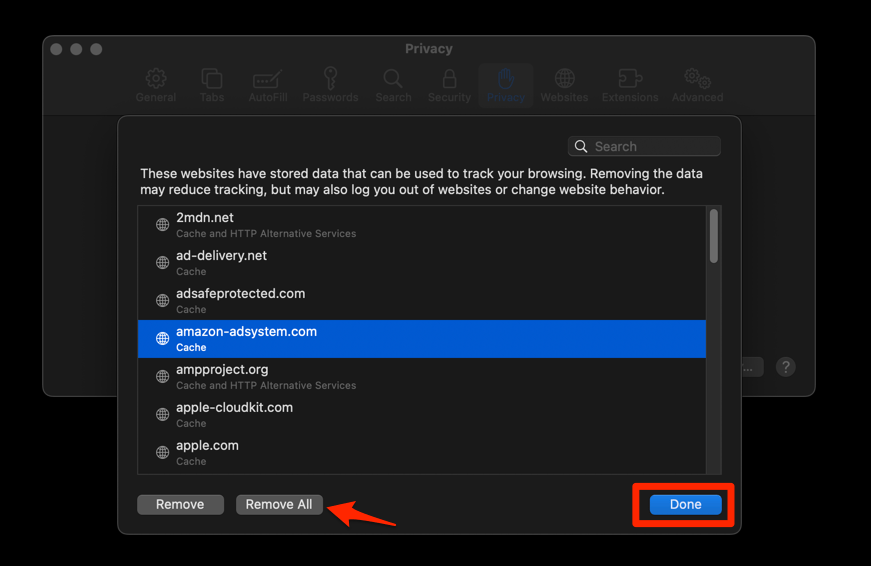 It will flush the cookies and cache for all sites in Safari.
Open netflix.com, sign in again, and test the same title. If stale site data was the problem, Netflix now loads and plays normally.
This clears data for all websites in Safari on the Mac, so you may need to sign in to other services again.
Clear Safari history and website data on iPhone
On iOS 18 and later, the reset sits under Settings > Apps > Safari > Advanced > Website Data. On older iOS versions, look for Settings > Safari > Clear History and Website Data.
- Open the Settings app on your iPhone or iPad
- Scroll down and select Safari for settings.
- Within the Safari settings page, scroll down and tap on Clear History and Website Data option.
- Finally, hit on the command button.
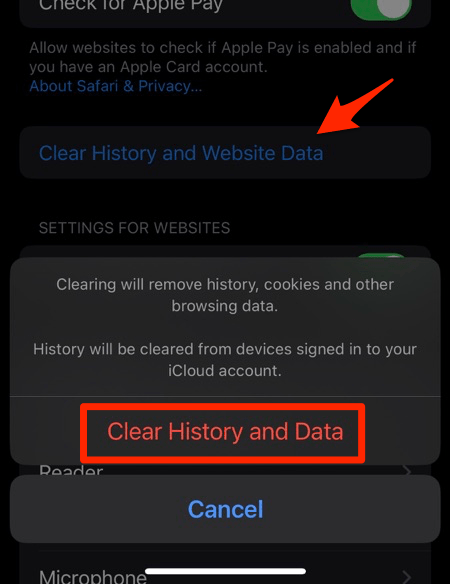 It will completely wipe out the Safari app's browsing history and website data.
Reopen Netflix, sign in, and play the same title. If you want a narrower storage check first, see View Cache and Clear Site Storage in Safari on iPhone & iPad.
Clearing website data signs you out of websites and removes their stored preferences, so expect to sign in again.
Check Safari privacy and pop-up settings
When Netflix loads but stalls at sign-in, tracking protection or pop-up blocking may be cutting off a request. Turn them off for the test only, then put them back.
- Open Settings from the Safari menu bar.
- Open Privacy.
- Turn off Prevent cross-site tracking.
- Reload Netflix and try playback again.
- Open Websites in Safari Settings.
- Open Pop-up Windows.
- Turn off Block pop-ups and other content temporarily.
- Reload Netflix and try the sign-in flow again.
If either change fixes the problem, you have found the blocked request. Re-enable the control unless Netflix genuinely needs the exception.
Do not leave tracking protection or pop-up blocking disabled permanently unless you understand the security tradeoff.
On iPhone and iPad, follow Disable Cross-Site Tracking in Safari on iPhone & iPad for the mobile version of this test.
Test Netflix in Private Browsing
Private Browsing opens a window with fresh, temporary website data. That makes it a clean way to separate a broken regular profile from a wider playback problem. Extensions still run there if they are allowed in Private Browsing.
On Mac
- Choose File > New Private Window.
- Open netflix.com in the new window.
- Sign in to your Netflix account.
- Try the same title.
On iPhone or iPad
- Tap the tabs
 button.
- Tap Private Browsing.
- Open netflix.com.
- Sign in to your Netflix account.
- Try the same title.
Private Browsing is a diagnostic, not a permanent fix. Use the result to decide where to spend your time next.

TIP: If Netflix works in Private Browsing but not in your normal window, go back to the extension and website-data steps. If it fails in both, continue with the DRM and network checks.
Clear Safari’s DNS cache if Netflix cannot be found
If Safari says it cannot find the server, or the Netflix address will not open at all, clear the DNS cache after you check the network connection. This step leaves cookies, extensions, and your Netflix session alone.
- Open the Apple Safari app on your Mac, and select Safari > Settings... from the menu bar.It will open the Safari Settings window.
- Switch to the Advanced tab, and enable the checkbox for the Show Develop menu in the menu bar option.
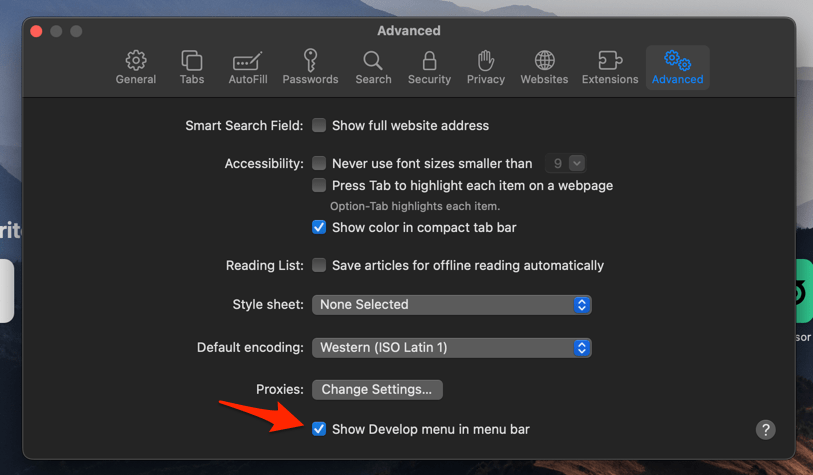 It will enable a new Develop menu in the Safari menu bar.
- Click on the Develop menu and select the Empty Caches command.
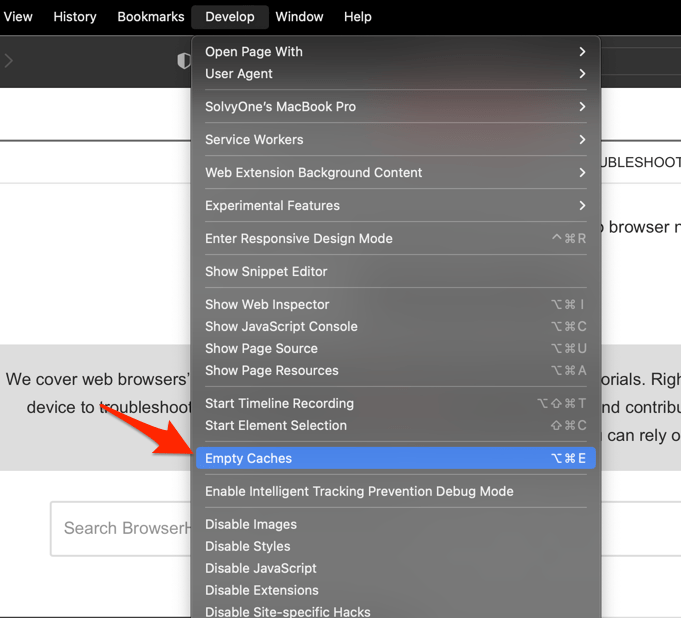 It will clear all cache, including the Safari DNS host cache.
Restart Safari, reopen netflix.com, and try again. If the page still will not load, test another device on the same network.
Check FairPlay playback errors
Safari plays protected Netflix video through FairPlay, and there is no manual FairPlay switch to flip. An error tied to protected playback needs three things: an updated browser, the exact Netflix error, and a comparison on another supported browser or device.
- Record the exact error message or code shown by Netflix.
- Close the Netflix tab.
- Open Netflix again in a normal, non-private Safari window.
- Sign in again if the player returns to the account screen.
- Try the same title in another supported browser or device.
- Open Netflix’s official playback help.
- Find and follow the guidance for your exact error.
If the title plays elsewhere but not in Safari, keep working through extensions, privacy controls, updates, and website data. If it fails everywhere, Safari is not the problem.
Rule out a network, service, or account problem
When Netflix fails in Private Browsing and in another browser on the same device, the fault probably is not Safari. A service incident can look exactly like a browser problem.
- Disconnect any VPN or proxy that is active on the device.
- Open Netflix on another device using the same account.
- Try a different network if one is available.
- Contact Netflix support and include the exact error code if the failure continues.
If every browser and device shows the same playback error, your Safari setup is unlikely to be the cause.

Frequently Asked Questions
Quick answers to the questions that usually follow these fixes.
Why does Netflix not work in Safari after I clear cookies?
Clearing cookies removes the saved Netflix session and can fix a corrupted sign-in state, but extensions and privacy controls can still block the player. Reopen Netflix, sign in, and test the same title after each remaining change in Safari.
Does Safari need a separate Netflix DRM setting?
No. Safari handles protected playback through FairPlay, so there is no DRM switch to turn on. Update Safari, note the exact Netflix error, and compare the same title on another supported browser or device.
Should I leave Prevent cross-site tracking turned off?
Only long enough to test whether it is blocking Netflix. Turn it back on afterward unless you have confirmed that your setup needs a permanent exception.
Will Private Browsing permanently fix Netflix?
No. Private Browsing gives you temporary website data and helps you isolate the cause. Use the result to decide whether to clear Safari data, adjust an extension, or keep going with the playback and network checks.
Most Netflix failures in Safari come down to an outdated browser, an extension, or stale website data. Work through them in that order, retest the same title each time, and you’ll usually land on the cause in a few minutes.