

You found a page worth passing along and copying the address bar feels clumsy on a phone. Chrome on iPhone and iPad skips the middle step by handing the link to the system share sheet.
Open the page, tap Share beside the address bar, and pick an app, a contact, a QR code, or another signed-in device. If the link never arrives, check that the app finished sending before the sheet closed.
In this guide, I have covered:
Contents
Send a Chrome Page Link From Your iPhone or iPad
You’re reading something worth passing along, and copying the address bar feels clumsy on a phone. Chrome on iPhone and iPad skips that step by handing the link to the system share sheet, the same one Safari and Messages use.
Chrome shares the current page address, not a saved copy of the page. The recipient can open it in any browser, and you can turn that address into a QR code without copying it first.
You’ll know it worked when the share sheet slides up with the page title and URL along the top.
Watch the Video Tutorial
Share a Link Through an App or Contact
Choosing the app or the person is the real decision here. The Share button sits in Chrome’s top toolbar next to the address bar, not inside the address field where you might expect it.
Google’s official Chrome help for iPhone and iPad shows the same location.
- Open Chrome on your iPhone or iPad.
- Open the website you want to share and wait for the page to load.
- Tap the Share icon in the top toolbar next to the address bar.

 The system share sheet appears with suggested apps and frequent contacts.
- Tap the app or frequent contact you want to use.
 Chrome passes the webpage link to your selection.
- If the destination opens in a separate app, choose the recipient.
- Tap or to send the webpage link.
The link should appear in the chosen message, email, or post. Pick a frequent contact straight from the sheet and Chrome may finish the share without opening a separate app screen.
Create a QR Code for the Website Link
Sometimes the person who needs the page is standing right next to you. A QR code beats reading out a long address, and Chrome builds one from the open page with no copying involved.
- Open the website in Chrome and wait for it to load.
- Tap the Share button next to the address bar.
- Tap Create a QR Code in the share sheet.
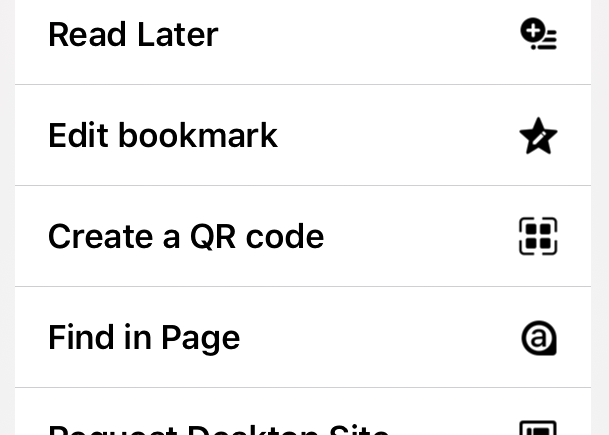
- Tap below the generated code if you want to send the QR image through another app.

Scanning the code should open the same page. If you only need it on screen, stop once Chrome draws the code and let the other person scan.
Send the Link to Another Chrome Device
Your own laptop is a different destination from a friend’s phone. Chrome can push the open page to another device signed in to the same Google account, which saves you from emailing yourself the link.
- Open the page in Chrome on your iPhone or iPad.
- Tap the Share button next to the address bar.
- Tap Send to your devices in the share sheet.
- Select the device that should open the link.

The receiving device must be signed in to the same Google account. If it does not appear in the list, check that device’s sign-in before anything else.
If it still will not show up, the send to devices feature in Chrome on iPhone covers the connection and setup.
You can also share the website link from Chrome on your computer to your iPhone when both devices are signed in to the same Google account.
Choose the Right Chrome Sharing Option
Three options live in one sheet, and they do different jobs. Use the system share sheet for a direct link to an app or contact, Create a QR Code for something scannable, or Send to your devices for another signed-in Chrome device.
Check the page before you send it. If the address looks wrong or the site is unfamiliar, view its security information in Chrome on iPhone and iPad first.

Frequently Asked Questions
Where is the Share button in Chrome on iPhone and iPad?
In Chrome’s top toolbar, next to the address bar. Tap it once and the system share sheet opens.
Can I share a Chrome link with another app?
Yes. Open the page, tap Share, and choose an app or contact from the sheet. What you see there depends on the apps installed on your iPhone or iPad.
How do I create a QR code for a website link in Chrome on iPhone?
Tap Share, choose Create a QR Code, and Chrome draws a code that opens the current page when scanned. The Share button below the code sends that image through another app.
Can I send a Chrome link to my computer or another phone?
Yes. Choose Send to your devices in the share sheet and pick a device signed in to the same Google account. The page opens there in Chrome, ready for you to pick up where you left off.
Is it just me or when I try to share a website on my iphone 11 using Google Chrome, there is no option to send the link directly to the Apple imessage app so I can text it to someone else. Prev when I was using my iphone 8, I was able to do this on google chrome, but it doesn’t seem like that option/extension exists now. I can share it to mail, Teams, chrome, etc but not to imessage. Looked all over the internet and cannot find any specific reference to this feature that used to exist. Possible conflict between Google and Apple?
Can we use any app installed in my safari browser? Need to share using the Teams app.
Hello Alex, yes! You can absolutely use any app installed on your phone. You can also customize the apps that are appearing in the sharing pop-up. Click on the Edit pencil icon and you will have the option to either add or remove the available medium from the list.