Large Android font sizes can push the Page Font Size and Immersive Reader buttons on top of each other in Edge for Android, so neither is easy to tap. The fix starts with text size, not with repeated taps.
Lower Edge's own text size first, then set the Android font size back to 100% if the buttons still collide. Update the app, clear its cache, and use text selection to open Immersive Reader while you wait for a permanent fix.
In this guide, I have covered:
Contents
Why the text size and Immersive Reader icons overlap in Edge
You open a page in Edge for Android and the Page Font Size and Immersive Reader buttons sit on top of each other. Neither is easy to tap, and the page looks broken even when the site itself is fine.
That overlap usually appears when your Android system font size is set above 100%. On pages that support Immersive Reader, Edge for Android can place both controls in the same part of the address bar.
The problem can happen in portrait and landscape. Rotating the phone may change the available space, but it often leaves the buttons just as crowded. The useful fixes are to reduce text size, reload Edge’s interface, or open Immersive Reader another way.
Reduce the text size in Edge for Android
If you only need Edge to behave, start with the browser’s own text size control. It is the quickest way to see whether the address bar recalculates its layout correctly.
- Open Microsoft Edge on Android.
- Tap the
 menu.
- Open Settings.
- Select Accessibility.
- Move the Text size slider to a smaller value or its default position.
- Return to the affected page and check whether the Page Font Size and Immersive Reader buttons are separated.
If the buttons are easier to select, keep that setting. If they still overlap, move on to the next checks instead of dragging the slider back and forth.
Set the Android system font size to 100%
If Edge’s own slider did not help, the next suspect is the Android font size itself. The overlap is tied to a system font size above 100%. Resetting it to the default can give Edge enough room to place both controls correctly.
- Open Settings on your Android device.
- Select Display.
- Open Display size and text.
- Set Font size to 100%.
- Open Edge again and load the page that showed the overlapping icons.
- Check the Page Font Size and Immersive Reader buttons in the address bar.

Resetting the Android font size affects many apps, not only Edge. If you need a larger system font, try the browser-level accessibility adjustment first.
If the icons separate now, you know the system font size was the trigger. If they do not, keep the size at 100% for the remaining checks so you test one change at a time.
Update Edge for Android
If the buttons started overlapping after an Edge update, install the next available update before you reset anything else. A corrected Edge release may change how the address bar handles large system fonts.
- Open the Google Play Store on your Android device.
- Tap the Profile icon from the top right corner, and select the Manage apps & device menu.
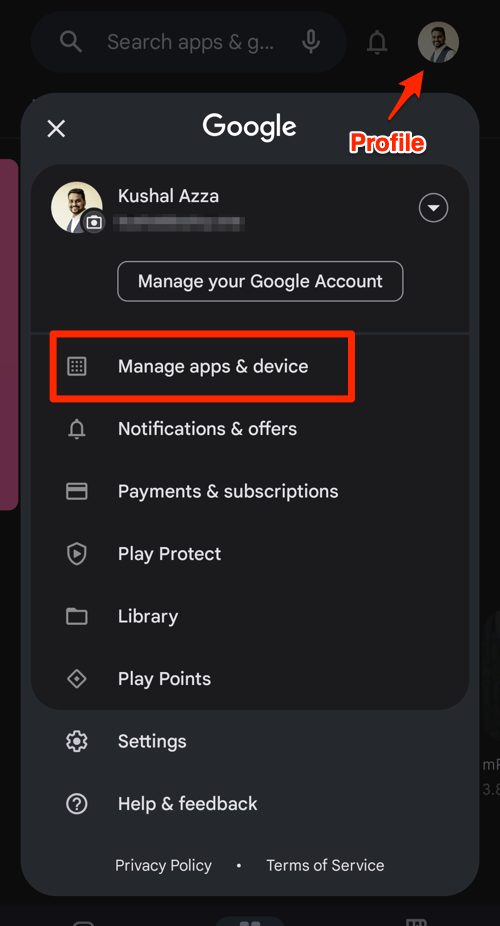
- Tap on the See details command under the Updates available menu.
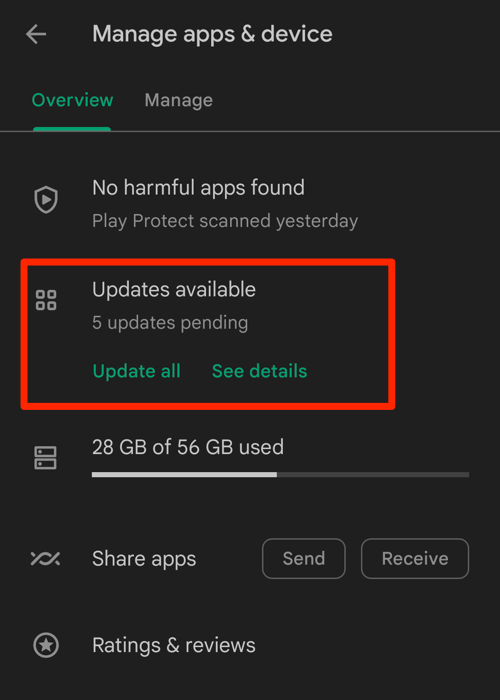
- If Edge is on the list of apps within the available updates, tap on the command next to it.
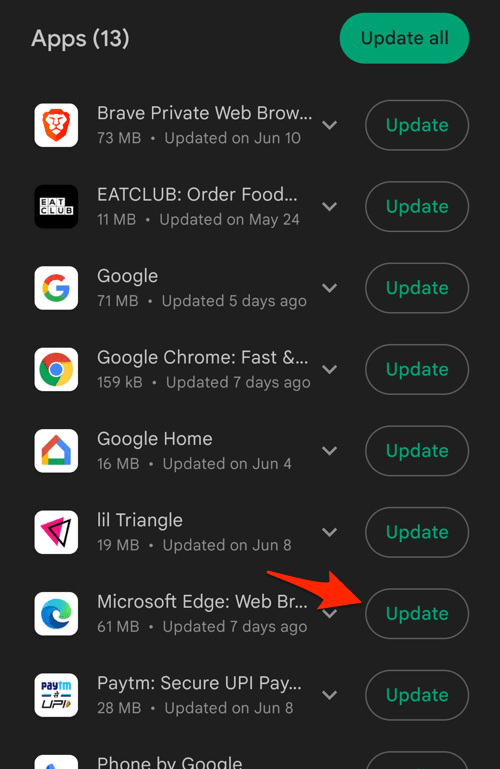 It will display the update progress for the Edge browser.
When the update finishes, fully close Edge and open it again. Load the affected page and check whether the two icons have separate touch targets. You’ll know it worked when both buttons respond to a direct tap in the address bar.
Clear Edge’s cached data
If an update changes nothing, Edge may be holding on to a bad layout from its stored app data. Clearing Edge’s cache and data can reset that stored interface state. This removes browsing data, so close any important work before you continue.
Reopen Edge and load the same page. You’ll know it worked when the Page Font Size and Immersive Reader icons no longer cover each other. If the overlap remains, use the reader shortcut below so you can still read pages.
Open Immersive Reader without the address bar icons
You still need to read the page, even if the Immersive Reader button is hard to tap. Select the page text and use the Immersive Reader option from the selection. That gives you a second way in when the address bar controls are crowded.
- Long-press any word in the body of the page to start a selection.
- Drag the selection handles to cover a few sentences.
- Tap Open in Immersive Reader in the floating toolbar.
- Wait for Edge to load the simplified layout.
Immersive Reader should open without you pressing the overlapping icon. You’ll know it worked when the article appears in reader view and the text is easy to scroll. For background on the feature, see how to enable Immersive Reader in Edge for Android.
Check whether the page supports reading mode
Not every page shows the same controls, so confirm that the site supports reading mode before you blame the overlap. Use Edge’s menu to check whether a reading or reader option is available for the current site.
- Open the affected webpage in Edge.
- Tap the menu.
- Look for an Immersive Reader or Reading mode option.
- If the option is available, open it and confirm that the reader view remains usable.
If the option is missing, the page may not support Immersive Reader. You can also review how to enable Force Zoom in Edge for Android. Force Zoom is separate from Immersive Reader, but it can make page text easier to read while the icon layout remains unresolved.
Report a persistent overlap
If the buttons still overlap after a smaller text size, an update, and a data reset, treat it as an app bug. A report with your device details and the Android font size that triggers the problem can help Microsoft investigate it.
- Open the Microsoft Edge Insider Discussions page on the Microsoft Tech Community site.
- Find the discussion associated with the overlapping Edge for Android text size and Immersive Reader icons.
- Reply with your device model, Android version, Edge version, and the system font size that triggers the problem.
- Include screenshots showing the overlap in portrait and landscape orientation.
Use the Microsoft Edge Insider discussion about the overlapping text size and Immersive Reader controls as the starting point. State whether the icons separate after you set the Android font size back to 100%.

Frequently Asked Questions
These are the details readers ask about most when the two buttons will not separate.
Why do the Page Font Size and Immersive Reader buttons overlap?
The overlap is tied to an Android system font size above 100%. Edge may place the Page Font Size and Immersive Reader controls too close together in the address bar.
Does rotating my Android tablet fix the overlapping Edge icons?
Not always. The overlap can occur in portrait and landscape, so rotation may change the available space without separating the controls.
Can I still use Immersive Reader if the icons overlap?
Yes. Select text on the page and open Immersive Reader from the selection. That avoids the crowded address-bar button.
Will clearing Edge data delete my passwords and history?
Clearing Edge’s cache and data removes browsing data stored by the app. Save any important work before you use that troubleshooting step.
What should I include when reporting the Edge Android bug?
Include the device model, Android version, Edge version, Android font size, and screenshots of both orientations. Say whether the problem persists after you reset the font size and update Edge. That gives Microsoft enough detail to reproduce the problem.