When you type in the address bar in Edge on Android, every term you have searched before shows up as a suggestion. That list grows fast, especially on a phone you share with someone else.
Edge keeps those terms on the phone, which means you can delete the whole list in one pass or stop it from saving new ones. Both routes are covered here, along with browsing that leaves no trace.
In this guide, I have covered:
Contents
Clear Search Term History in Edge on Android
Every term you type into the address bar in Edge for Android is saved on the phone. Tap the bar later and those old searches come back as suggestions, which gets awkward fast when the phone is shared.
To wipe the list, run a Clear browsing data pass with Browsing history checked. That removes the stored search terms along with the pages you visited. If you want the full picture of every category on that screen, see the guide to clearing browsing data in Edge on Android.
- Open the Edge app on your phone.
- Tap on the More
 menu and select the History menu.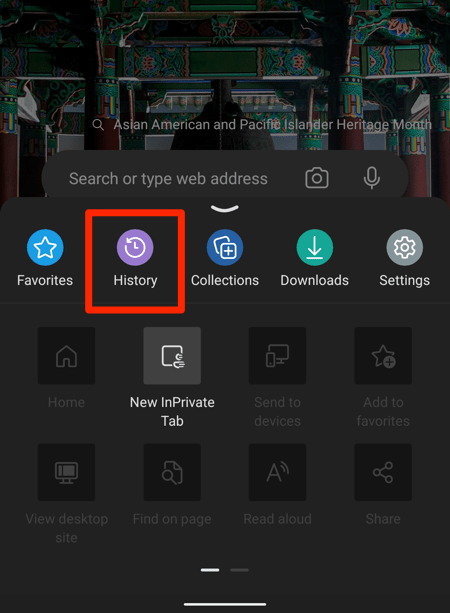
- Tap on the Trash icon on the History page.
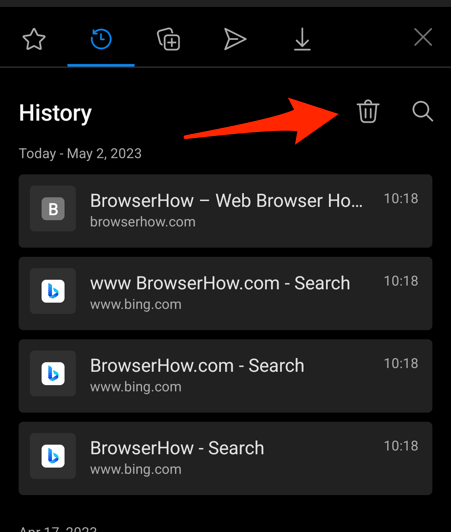 It will open the Clear browsing data page.
 - Enable the checkbox for Browsing History and hit on the command button.
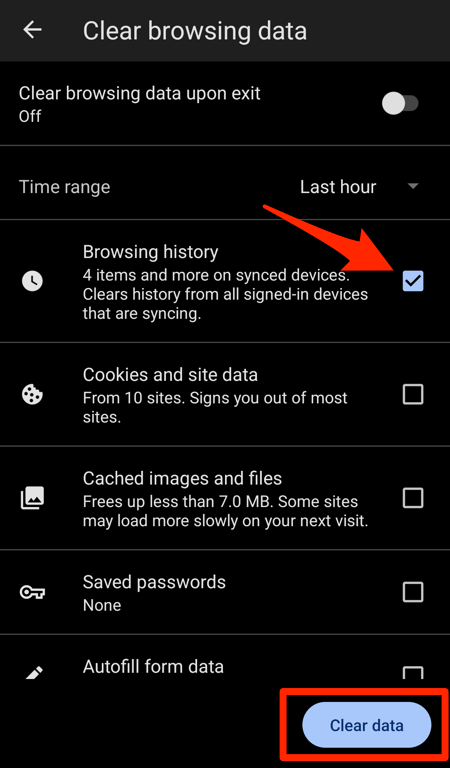 The browsing history will be cleared from your Android device.
Open the address bar again. You’ll know it worked when none of your old terms appear as you type.
Prefer to keep the saved terms and only stop new ones from piling up? The next section has that toggle.
Stop Edge From Saving Search History Going Forward
Deleting the list is one fix. If you would rather Edge never saved those terms in the first place, there is a toggle for it. It hides search history from the address bar and stops new terms from being added.

This toggle does not delete anything already stored. Older entries stay on the device until you run a Clear browsing data pass, as covered above.
- Open Microsoft Edge on your Android phone.
- Tap the More
 menu and choose Settings.
 - Scroll down to Search and tap it.
- Toggle off Show search history.
Tap the address bar to confirm. Past terms stop showing up as suggestions, and Edge stops adding new entries to the list.
Browse in InPrivate to Avoid Saving Searches
Sometimes you just want a session where nothing gets recorded. An InPrivate tab does that: no search history, browsing history, cookies, or site data. Close the last InPrivate tab and the session is gone.
Tap the More menu in the bottom toolbar and choose New InPrivate tab. The tab opens in incognito  mode. For a full walkthrough, read how InPrivate tabs work in Edge on Android.

TIP: InPrivate covers the current session only. Searches you made before opening it stay on the phone until you clear them.

Frequently Asked Questions
Does turning off “Show search history” delete saved search terms in Edge on Android?
No. That toggle only hides the suggestion list in the address bar. The terms stay on the device until you run Clear browsing data with Browsing history checked.
Will clearing browsing history sign me out of websites in Edge on Android?
Not if you only tick Browsing history. The Cookies and other site data box is what signs you out, so leave that one unchecked unless you want a full sign-out pass.
Do search terms sync between devices in Edge on Android?
If you are signed in with a Microsoft account and have sync enabled, some browsing data can sync between your devices. Open Settings to see which categories are being shared and turn off anything you do not want.
Disabling sync stops new data from uploading. It does not delete what Edge has already stored on this device.
Can I recover search terms after clearing them in Edge on Android?
No. Once Clear browsing data finishes, the entries are gone from the device. There is no built-in undo for this action on Android.