

Closed the wrong Chrome tab, or lost a whole window? Bring back the most recent item with one keystroke, or pick an older page from the Recently closed list.
Press Ctrl+Shift+T on Windows, Linux, or Chromebook, or Cmd+Shift+T on Mac. Press it again for earlier tabs, or open Chrome's History menu to restore a specific page or window.
In this guide, I have covered:
Contents
Get the Last Closed Tab Back With Chrome’s Shortcut
You closed a tab by mistake, or an entire window disappeared. One keystroke usually brings it back.
- Press + + on Windows, Linux, or Chromebook. On macOS press + + .
- You'll see the most recently closed tab return first.
- Press the shortcut again to bring back the next most recently closed tab.
- Keep pressing until every needed tab is back, or until Chrome stops restoring new entries.
Chrome restores the most recently closed item first, in a new tab. Press the shortcut again for the tab before that, and again for earlier ones. A closed window comes back with all of its tabs.
On Mac, use where Windows, Linux, and Chromebook use . Google documents the command in its Chrome keyboard shortcuts list.
If you quit Chrome completely, relaunch it and press the shortcut right away. For a wider set of commands, see the keyboard shortcut reference.
Choose a Specific Tab From the Recently Closed List
The last tab is not always the one you need. Chrome also keeps a short list of closed pages and windows.
- Click the Chrome menu
 and hover over History.
 - In the submenu, look at the top section labeled Recently closed. Each line shows a count like "5 tabs" or "1 window".
- Click the entry that matches the tabs or window you want back.
- For older entries, click History at the bottom of the submenu (or press + ) to open the full History page.
- On the History page, open the Recently closed tab on the left and choose any tab or group from the list.
You’ll know it worked when the page opens as a new tab, or the whole window reappears with its tabs in place. A closed window shows up as one grouped entry, which saves restoring tabs one at a time.
Reopen the Latest Closed Tab With the Tab Strip Menu
No keyboard, or you would rather use the mouse? The tab strip right-click menu does the same job, one tab at a time.
- Right-click an empty area of the tab strip.
- Select Reopen closed tab.
- Right-click the empty tab-strip area again.
- Select Reopen closed tab again.
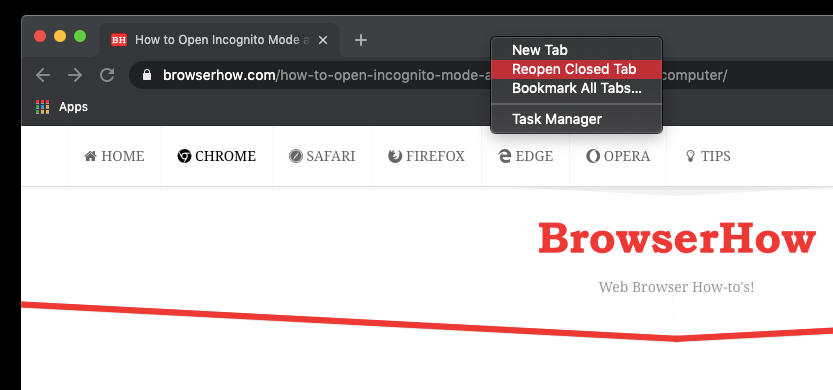
Newer Chrome layouts may put Show tabs vertically in the same menu. Skip that option when your goal is to restore a closed tab.
The tab opens as soon as you pick the menu item. Repeat steps 3 and 4 for earlier tabs.
Watch the Video Guide
Some steps are easier to watch than to read. The clip below runs through tab restoration in Chrome on a computer.
Once you have seen it, use whichever method matches how many tabs or windows you need to recover.
Reopen Closed Tabs on Chrome for Android or iPhone
Chrome on a phone has no tab strip to right-click, so the steps differ. On Android, follow the device-specific instructions to reopen recent closed tabs in Chrome on Android.
On iPhone and iPad the idea is the same, but the controls sit in a different place.

Frequently Asked Questions
What is the shortcut for reopening closed tabs in Chrome on a computer?
Press + + on Windows, Linux, or Chromebook, or + + on Mac. Press it again to restore earlier closed items in order.
Can Chrome reopen a closed window with all its tabs?
Yes. The shortcut restores a recently closed window, and the Recently closed section of the History menu shows it as a grouped entry.
How do I restore tabs after closing Chrome completely?
Open Chrome and press + + , or + + on Mac, right away. The previous session can still be restored after the browser has been closed.
How do I reopen several tabs that were closed by mistake?
Press the shortcut repeatedly. Chrome restores closed tabs in the order they were closed, so stop when the tabs you need are back.
Can I choose an older closed tab from a list?
Open History from Chrome’s main menu and pick an item under Recently closed. The tab-strip right-click menu restores one item at a time and does not show that list.
Most of the time, the shortcut is all you need. When the tab you want sits further back, the History list gets you there faster than pressing the keys over and over.
On my Task Bar I have the Chrome icon. I used to be able to right click it and see my pinned sites. I’ve just upgraded and now the one that I use the most is not there – the others are! I’ve tried all sorts to re-pin the site but to no avail. The nearest I can get is dragging the web address down to the icon. It changes from a circle with a line through to a box with a + sign in it. But it still doesn’t ‘stick’. I thought the feature was to add favourite sites, but now the most used and most ‘favourite’ will not pin any more. I have got ‘the favourite’ pinned to my task bar, but would prefer to find it pinned to Chrome. Can you follow all that and can you help?
Not helpful – no explan on how to restore the 75 tabs on one window that didn’t reopen (3 other windows did). About 2,000 items of history to get to doing it through H! clearly hopeless. Ctrl or cmmd + shift + T repeatedly does not work
Please consider using the History tab in the browser. Once the browser session is closed, the Reopen Recently Closed tab won’t work.