

Chrome on Android can put a website shortcut link on your phone's home screen from the three-dot menu. The current option is Install and create shortcut, and it works on both regular sites and Progressive Web Apps.
The old name was Add to Home screen. Google renamed it in Chrome 150 (July 2026), which is why some older guides refer to a label you can no longer find in the menu.
In this guide, I have covered:
Contents
Add a Shortcut Link to Your Home Screen with Chrome on Android
If you want a website one tap away from your Android home screen, Chrome can pin one for you. Open the site, open the menu, pick the option that reads Install and create shortcut, then choose where the icon lands. It takes about thirty seconds.
The steps below walk through the current Chrome for Android. If you opened this page because the older Add to Home screen option no longer shows up, the section after the steps explains what changed.
- Open the Chrome app on your Android phone.
- Open the website you want to pin to the home screen.
- Tap the
 three-dot menu in the top-right corner of Chrome.
 - Tap Install and create shortcut. If the site supports a Progressive Web App (PWA), Chrome shows Install app instead.
- Tap Add on the confirmation. Tap Install instead if the previous step showed Install app.
- Touch and hold the icon to drag it to a specific spot on the home screen, or tap Add Automatically to let Android drop it on the next empty slot.
Success check: the site icon now lives on your Android home screen. Tap it once to open the page in Chrome.
If you would rather keep a link without pinning it, you can open a new tab or incognito tab in Chrome on Android. To send that link to another app or contact, the share steps for Chrome on Android cover the rest of the menu.

The screenshots below come from an older Chrome build. The flow is the same, but the menu item you will see is Install and create shortcut, not Add to Home screen.
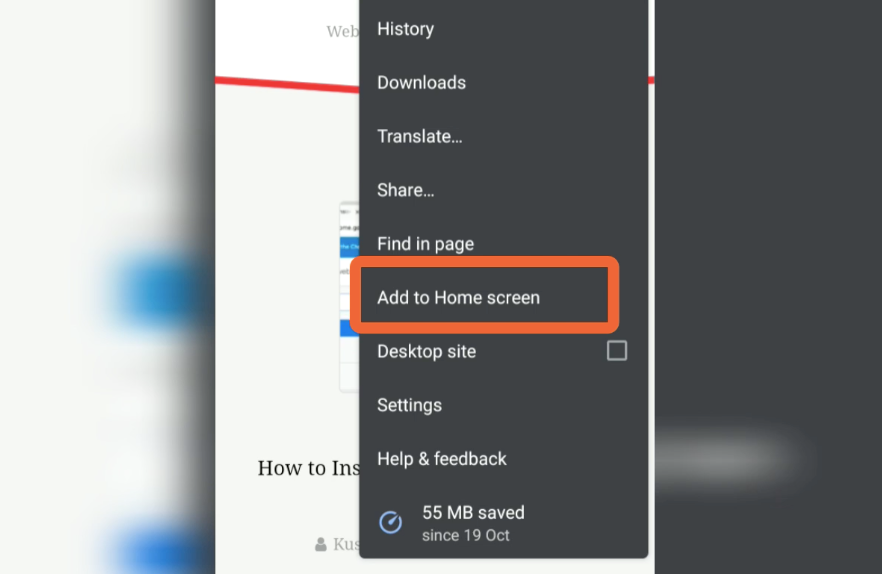
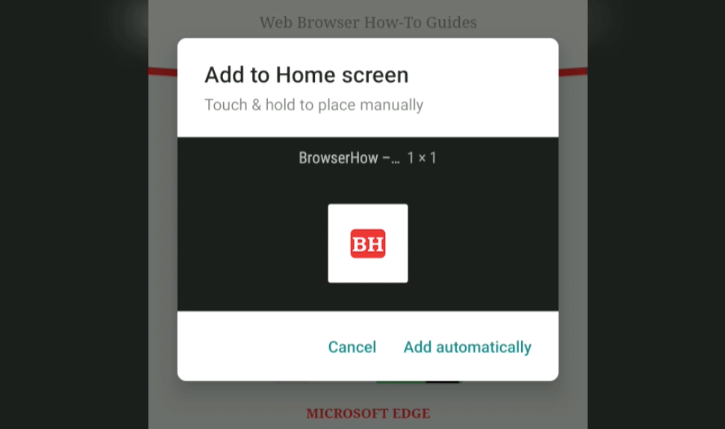
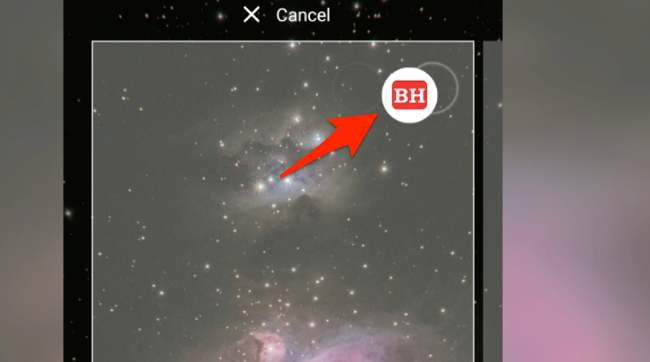
Why the Menu Now Says “Install and Create Shortcut”
Google renamed this entry in Chrome 150 (July 2026), the same release that added a dedicated back arrow at the top of the three-dot menu. The new label spells out what happens next: Chrome both installs the page and creates a shortcut for it on the home screen.
The exact wording you see depends on what the site supports:
- Install and create shortcut shows up for regular websites. Tapping the icon opens the page in a new Chrome tab.
- Install app shows up for sites with a Progressive Web App. Chrome installs the PWA and opens it in its own window, separate from your other Chrome tabs.
Google’s Chrome help page on adding shortcuts to the home screen uses the same wording, so if you want a second reference, that is the official one.
If “Install and Create Shortcut” Is Missing from the Menu
When the entry is not there, the cause is usually one of four things:
- Chrome is out of date. The new label shipped with Chrome 150. Open the Play Store, search for Chrome, and tap Update if the button is active.
- You are on a Chrome internal page. Pages such as chrome://newtab do not offer the option. Open the actual site you want to pin.
- The site is already pinned. Android hides the option once a shortcut exists for the page. Check the home screen, or remove the old shortcut first.
- You are inside a different app’s WebView. Only Chrome itself exposes this entry. If you opened the link from Gmail, Slack, or another app, copy the URL into Chrome first.
From inside the same three-dot menu, you can also open Chrome’s site settings on Android to clear the site’s data, which sometimes forces Chrome to re-offer the shortcut option.

What Happens When You Tap the Shortcut
For a regular site, tapping the shortcut opens the page in a new Chrome tab. Chrome uses your default profile, so any saved logins or cookies already on your phone work normally. Touch and hold the icon any time to rename it, or drag it to Remove at the top of the screen to delete the shortcut.
Need the same page on a laptop? You can send a link to Chrome devices from your Android phone, and then open it there.
For a PWA, tapping the shortcut opens the installed app in its own window. The PWA gets its own entry in Recents and behaves more like a native app.
To remove it, touch and hold the icon and tap Uninstall. If you also want to manage the saved logins Chrome uses to sign you in, the Chrome password guide for Android covers that flow.
Bottom Line
If the site offers a Progressive Web App, Chrome installs a lite native-style app. Otherwise, Chrome drops a shortcut icon on your Android home screen and opens the page in a new tab when you tap it. Either way, the new menu label is Install and create shortcut.
The same idea works on a laptop. You can also create a desktop shortcut link in Chrome on a computer, where PWAs install as Chrome web apps.
Frequently Asked Questions
Where did “Add to Home screen” go in Chrome on Android?
Google renamed it to Install and create shortcut in Chrome 150, the July 2026 update. The new label still creates a home screen icon and opens the site in Chrome when you tap it.
Why does my menu show “Install app” instead of “Install and create shortcut”?
The site you have open supports a Progressive Web App. Chrome installs the PWA in its own window and adds a shortcut to the home screen at the same time.
How do I remove the shortcut if I no longer need it?
Touch and hold the icon on the home screen, then drag it to Remove at the top of the screen. If the entry was a Progressive Web App, tap Uninstall instead.
Can I rename the shortcut after I add it?
Yes. Touch and hold the icon on the home screen, tap the small label under it, and type a new name. Android saves the new label right away.

How do I get a “link” added to *Chrome’s* home page?
It used to add my commonly searched for pages at the top of Chrome, about 8 of them.
Then I deleted history and they were deleted, and none have returned with use.
Thanks for the tutorial.
I’m trying to add a link (URL) to my home screen but it seems you can only do this via a browser. My problem with the browser is that it goes to the site and the site may redirect or change the URL.
i.e. I want mydomain.com but the browser gets mydomain.com/login.php
Is there any way I can add the URL I want to the home screen without the browser?
Hi JJ, do the website you are trying to add need sign-in when you upon the previous exit? I think the site home page is automatically redirecting you to the login page. If that’s the case, then I am afraid that it won’t be possible to add the desired page.
Turning off my connections and putting the device in airplane mode stopped the automatic redirection and allowed me to create the shortcut to the original URL.
Once a chrome shortcut is added to the home screen, is there anyway to edit the URL?
The page I visit automatically adds parameters (search date for instance) which I would like to remove from the shortcut.
Thanks
P.S.: chrome home screen shortcuts may become disabled and unsuable after a chrome update. Happenned to me 2 or 3 weeks ago. Quite a pain when you have an extensive number of shortcuts.
Hi,
When I tap the address bar (Chrome on Galaxy A12), in general I get a list of sites I visit frequently (I prefer to use those as shortcuts instead of adding them to my home screen). However, when I’m on the results page in google and tap the address bar, I don’t see them. Is there a way to make them show up? Thanks!
Hi Chris, Chrome Android’s address bar fetch the frequently visited site from its database and history records. However, Google’s Search address bar fetches the last searched queries (not the sites) from Google’s database. These two are totally different sources and cannot be merged to show up together. However, there are a few chances that you might see them similar but not the same. Hope this explains!
Yes, that is what I have found. Thanks for your continued attention.
Thankyou. It’s not exactly what I am looking for, but this may have to do.
E.g. I have many links saved to the homescreen (say 30+/-); some even in folders and with chosen icons. I was looking for a way to send these exact shortcut files (and/or folders) to a second phone.
I think the home screen shortcuts are not synced with Chrome account sign-in as it does for Bookmarks. You need to manually add those links to your second device, unfortunately.
I apologize, I am drawing a blank on how to “send” anything. Both phones are signed in, and I tap into my account from Chrome user’s icon.
Hello Lou, you can follow this guide here: How to Send Link to Chrome Devices from Android Phone?.
How to transfer these links from phone to phone?
Sign in with the same Google account on both phones, you’ll find the Phone name listed while sending to connected devices.
I see all my devices, but how do I send to connected devices? Thx.
Just tap on the device that you want to send.
Great, now how do I add the shortcut to Google Chrome’s “New Tab” page under the search bar?
Some websites go there when I open them, but the ones I want don’t.
Hello Richard, those links are dynamic in nature. It appears and disappears based on your usage and visit frequency. The Chrome browser determines the most used site and pin shortcuts to the home screen. We can only remove the shortcut and Chrome Android does not manually allow us to add those shortcut links as Chrome Computer.
How can I enable my Instagram chrome short cut notifications?