

A long reference page on your iPhone or iPad can hide the one line you need, and scrolling up and down rarely finds it. Chrome's Find in Page scans the text of the page you already have open and highlights every match.
Open the Chrome menu, pick Find in Page, type the word, and use the arrows to hop between results. Tap Done to close the bar and stay where the match is.
In this guide, I have covered:
Contents
Find a Word on a Page in Chrome for iPhone and iPad
You are several screens deep into a long article on your iPhone, or reading a spec sheet on your iPad, and you know the exact word you need is somewhere in there. Scrolling and squinting wastes time. Chrome’s Find in Page reads the page you already have open and jumps straight to every match.
Watch the Video Tutorial
The clip above walks through the whole sequence. Prefer to follow along tap by tap? The steps below cover it. You’ll know it worked when a search field with a match counter appears over the page.
Open Find in Page from the Chrome Menu
The command lives in Chrome’s menu, not on the toolbar. Reach for it when a page is already loaded and you want to confirm a word appears on it at all.
- Open Chrome on your iPhone or iPad.
- Open the webpage you want to search.
- Tap the
 menu labeled More.
- Choose Find in Page….
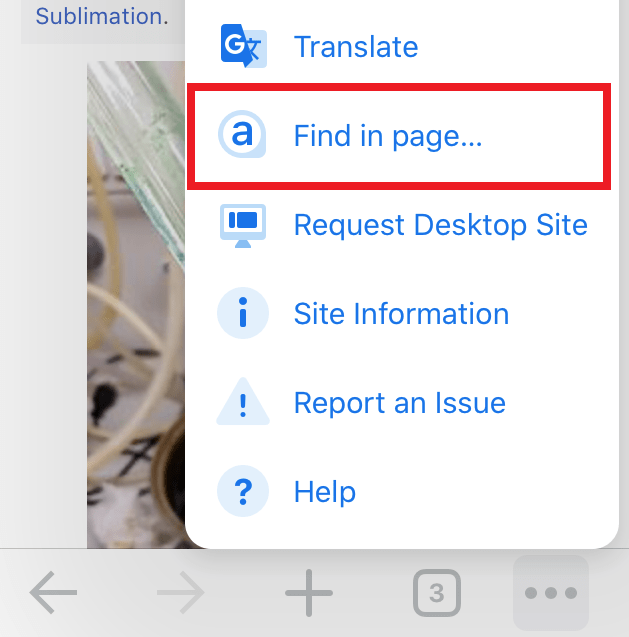
The Find in Page field opens over the top of the webpage, ready for your search term.
Enter the Word or Phrase You Need
With the field open, type what you are looking for. Chrome counts matches as you type, so a wrong word becomes obvious fast.
- Tap the Find in Page field.
- Type the word or phrase.

Matching words are highlighted on the page, and the selected match sits on a yellow background. The count in the search bar tells you how many matches exist.

A distinctive term gives a cleaner result than a common word. Searching for a name beats searching for “the” every time.

TIP: If the count stays at zero, check the spelling first, then try a shorter piece of the phrase. A short, unusual word is easier for Find in Page to hit than a long sentence.
Move Between Search Results
Several matches on a single page is normal, especially on a glossary or a long FAQ. The arrows in the bar let you walk through them in order.
- Tap the down arrow to move to the next match.
- Tap the up arrow to return to the previous match.
- Tap when you finish searching.
Tapping Done closes the bar and leaves the page sitting on the matched text, so you can read the surrounding lines in context.
When Find in Page Does Not Show Results
Sometimes the option seems to be missing, or the field opens and finds nothing. Both usually trace back to a page that has not finished loading.
- Wait until the webpage has finished loading.
- Close and reopen the menu labeled More.
- Choose Find in Page… again.
If the option opens but finds nothing, shorten the phrase and check that the text really is on the page. Find in Page is not a web search: it will not look for your text on other sites or other pages.
Can You Use a Keyboard Shortcut on iPhone or iPad?
You may be used to + on a laptop and reach for it out of habit. It does not work here, and Chrome on iPhone or iPad has no keyboard equivalent for this feature. Tap the menu labeled More, then choose Find in Page… instead.
What Find in Page Searches
Find in Page looks inside the page you have open, and nothing else. It does not touch the searches saved in Chrome’s search history. If you want to wipe the terms you typed in the address bar on your iPhone or iPad, that is a separate job: see Clear Search History from Chrome browser on iPhone & iPad.
Find in Page on Android and Computer
The feature exists in every version of Chrome, but the route to it changes with the device.
Chrome on Android
Chrome for Android tucks Find in Page into a different part of the menu. The steps are in Search Text to ‘Find in Page’ using Chrome on Android.
Chrome on Computer
Desktop Chrome skips the menu entirely and opens it with a keystroke. See Search and Find on Page in Chrome on Computer for the computer steps.

Frequently Asked Questions
Where is Find in Page in Chrome on iPhone and iPad?
Tap the menu labeled More, then choose Find in Page…. The search bar opens over the top of the current page.
How do I search for text on a webpage in Chrome?
Open Find in Page, type the word or phrase in the search field, and check the highlighted matches. The bar shows the total number of results.
Why does Find in Page show no results in Chrome?
Wait for the page to finish loading, check the spelling, and try a shorter phrase. Find in Page searches the open webpage, not the rest of the web.
How do I move to the next match?
Tap the down arrow in the Find in Page bar to move forward. Tap the up arrow to go back to the previous match.
Can I use Ctrl+F on iPhone or iPad?
No. The desktop + shortcut does not open this feature in Chrome on iPhone or iPad. Use the More menu instead, and the same find bar described above is ready for your word.


I hate google for this. This issue has been around for ages when searching PDFs. So poor.
Tap on the sharing icon. Same as safari.
It works not for pdf files in iPad but for websites it does.
scrolling down and … nada, nothing to scroll, no menu
I don’t have « find in this page » in my chrome ios version 🙁
Just try to scroll it down. I did. I just didn’t mention that there is a scrollable space down there.