

Chrome on iPhone and iPad gives you fewer privacy controls than desktop Chrome, and some labels from older guides no longer exist. The controls that matter sit under Privacy and Security. Device permissions belong to iOS Settings.
Here's where each control lives, how to delete browsing data, restrict location access, start an Incognito session, and what Chrome simply cannot change on iOS.
In this guide, I have covered:
Contents
What Chrome on iPhone and iPad Actually Lets You Control
You open Chrome’s settings on your iPhone, expect the desktop privacy panel, and find a much shorter list. That is the app, not a mistake. On iOS, Chrome hands several permissions to Apple’s system settings, so the split between the two matters more than the number of toggles.
Start in the app’s Privacy and Security menu for anything Chrome stores itself. Then use iOS Settings for device permissions. Chrome can delete browsing data and open an Incognito tab. It cannot change how third-party cookies behave, since that follows Apple’s web engine.
Open Privacy and Security in Chrome on iPhone and iPad
The labels have moved since most guides were written, and the privacy screen sits two taps deep. Here is the current route on the iOS app.
- Open Google Chrome on your iPhone or iPad.
- Tap the
 menu.
- Choose Settings.
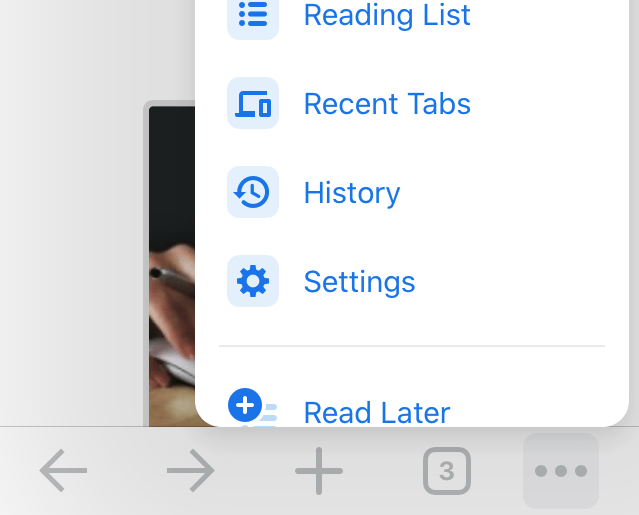
- Tap Privacy and Security.
That screen holds Delete Browsing Data on current versions. If an older guide sends you to Privacy or Clear Browsing Data, those labels are gone. Use the ones you see here.
Delete Browsing Data From Chrome on iPhone and iPad
Sharing a phone, selling it, or clearing a messy session are the usual reasons to delete data. Pick only the categories you actually want gone. Removing cookies and site data signs you out of the sites that relied on them.
- Open Google Chrome on your iPhone or iPad.
- Tap the menu.
- Choose Settings.
- Tap Privacy and Security.
- Tap Delete Browsing Data.
- Choose a Time range.
- Select the data types to remove: Browsing History, Cookies, Site Data, Cached Images and Files, and Autofill Data.
- Tap .

Passwords and passkeys are not deleted by this screen. Manage them through your Google Account under Manage other Google data, then Passwords and passkeys. Search history saved to your Google Account is separate from this dialog, too.
You’ll know it worked when a site asks you to sign in again, or when autofill has nothing for a form you have filled before. If you want a narrower cleanup, learn which browsing data types to clear before you wipe everything.
Recognize Privacy Controls That iOS Does Not Expose
You follow a desktop tutorial, then hunt for a toggle that simply is not there. Chrome for iOS keeps a shorter shelf than Chrome on Windows or macOS, and knowing what is missing saves the search.
- Third-party cookies. Chrome for iOS has no desktop-style switch. Cookie behavior follows Apple’s web engine and system rules.
- Device permissions. Location and similar access are granted in iOS Settings, not inside Chrome.
Handoff is controlled by iOS, not Chrome’s Privacy and Security screen. Look for it in iOS Settings.
Chrome on Android exposes more switches. The walkthrough of privacy settings in Chrome on Android shows the fuller control set.
Chrome on a Mac or Windows PC gives you the desktop panel. The desktop privacy and security guide covers every toggle there.
Control Location Access for Chrome on iPhone and iPad
A site asks for your location and Chrome seems to have no setting for it. iOS owns that permission, so the switch lives in the Settings app rather than the browser.
- Launch the Phone Settings app on your device.
- Scroll to Chrome, and choose to open the Chrome Settings.
- Select the Location tab from the Chrome settings.

- Select the preferred option from the available options: Never, Ask Next Time, or While Using the App.
 Device location services will be configured accordingly.
You’ll know it worked when iOS Settings shows Chrome’s Location row as Never, Ask Next Time, or While Using the App, matching the level you chose.
Check Site Security Before You Enter Sensitive Information
Privacy settings do nothing for you on a page that is not what it claims to be. Check the connection and the certificate before you type a password, a card number, or an ID number.
A valid certificate does not prove a site is honest. A missing or mismatched one is a reason to stop.

Use Incognito for a More Private Session
Sometimes you want one search or one login kept out of your local history. That is the job Incognito does.
Chrome keeps the pages you visit out of normal local history and drops the session’s cookies when the private session ends. Incognito will not hide your IP address, make you anonymous, or stop a site from recording what you do.
- Open Google Chrome.
- Tap the menu.
- Choose New Incognito Tab.
You’ll know it worked when the new tab carries the Incognito label. For the menu walkthrough and how tabs work in the app, see how to open new tabs and Incognito mode in Chrome on iPhone and iPad.
Frequently Asked Questions
Where is Privacy and Security in Chrome on iPhone and iPad?
Tap the menu, then Settings, then Privacy and Security. Current versions use Delete Browsing Data. The older Clear Browsing Data label is gone.
What data can I delete from Chrome on iOS?
The Delete Browsing Data screen offers Browsing History, Cookies and Site Data, Cached Images and Files, and Autofill Data. Passwords, passkeys, and account-level search history are not deleted there.
Will deleting cookies in Chrome sign me out of websites?
Yes. Remove Cookies, Site Data and any site that relied on its cookie will ask for your sign-in details again.
Can I control third-party cookies in Chrome on iPhone or iPad?
No. Chrome for iOS does not offer the desktop-style third-party cookies toggle, and its behavior follows Apple’s web engine and system rules.
Does Incognito mode make browsing completely private?
No. Incognito reduces local history and session-cookie traces. Your IP address and the pages you open can still be visible to websites, the network you are on, and an employer managing the device.
Chrome on iOS will not give you the desktop panel, and iOS keeps some permissions to itself. Set what you can inside the app, check the rest in iOS Settings, and the gaps this browser leaves open are covered.
I don’t see settings on the menu. I have reading list, history downloads