Microsoft Edge on Android puts back and forward arrows on the address bar row. They move you through pages in the current tab, and they grey out when there is nowhere left to go in that direction.
If you moved the address bar to the bottom of the screen, the arrows travel with it. You also get the quick fixes for when they vanish on Android.
In this guide, I have covered:
Contents
Navigate Backward and Forward between Pages in Edge on Android
You go back and forward in Edge on Android with two arrows on the same row as the address bar. They let you navigate backward and forward between pages in the current tab without retyping URLs. The left arrow takes you to the previous page. The right arrow takes you forward again after you have backed out.
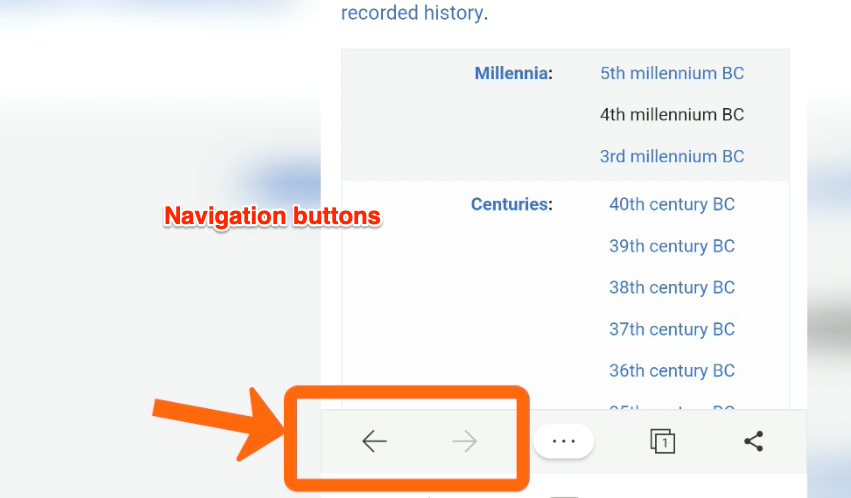
The arrows behave like Back and Forward in any other browser. They do the same job in Edge on iPhone and iPad and on the desktop. On Android, the only thing that changes is where the address bar lives on your screen.
If you moved the address bar to the bottom under Settings, the arrows travel with it. They only walk through pages you visited in the current tab. They grey out at the edges of your tab history: the back arrow when there is nowhere earlier to go, and the forward arrow when you are already on the newest page.
Go back to the previous page
You reach for the back arrow the moment you tap a link or type a new URL and want to return to where you started. The arrow lights up after that first move forward. Every tap rewinds your history one step at a time until you are back at the first page you loaded in that tab.
- Open the Edge app on your Android phone.
- Load a page, then tap a link or type a new URL to move forward in the tab.
- Tap the left-facing arrow (←) at the left end of the address bar row. The arrow sits at the top by default. If you moved the address bar to the bottom under Settings, it travels with it.
- Keep tapping the back arrow to keep going backward. It stays active whenever there is an earlier page to return to.
If the back arrow is greyed out, you are already on the first page of the tab.
Go forward to a page you backed out of
You backed out of a page and now you want to move forward again. The forward arrow only becomes active after you have tapped back at least once. It walks you forward through the steps you just undid, one page at a time, until you are back on the newest page in the tab.
- Open the Edge app on your Android phone and load a page.
- Tap the left-facing arrow (←) one or more times to move back through the tab's history.
- Tap the right-facing arrow (→) at the right end of the address bar row. If it is greyed out, you have either reached the end of the tab's history or you have not tapped back yet.
- Stop tapping once the forward arrow greys out. That means you are back on the newest page in the tab.
What to do when the back and forward arrows are missing
You look for the arrows and they are not on the address bar row. On some Android builds, the navigation arrows merge into the address bar along with the rest of the bottom toolbar. Force-quitting Edge and reopening the tab usually restores the layout.
- Swipe up from the bottom of the screen and dismiss Edge from the recent apps list.
- Relaunch Edge and reopen the same page from the Tabs icon.
The arrows can also slip out of view when the toolbar is crowded by the Copilot button or an installed extension.

TIP: If the arrows are only hidden, pulling the address bar back into view or rotating the phone to landscape often brings them back.
If the issue persists, check the site information and configuration in Edge on Android to rule out a broken toolbar layout.
Other ways to revisit a page in Edge on Android
Sometimes the arrows are not enough because you need a page from earlier in the day or a tab you closed by accident. The arrows only move within the current tab. For that, the History list is the next stop.
From the bottom toolbar, tap More  and then History to see every page Edge recorded for your account. Tap any entry to reopen it.
To reopen a tab that was closed entirely, pull up the Tabs grid, switch to Recent at the top, and tap the entry you need.
The same arrows live on the desktop toolbar too. The steps are covered in how to navigate forward and backward in Edge on the computer.

Frequently Asked Questions
Why are the back and forward arrows greyed out in Edge on Android?
They grey out at the edges of your tab’s history. The back arrow looks faded on the very first page you opened because there is nowhere earlier to go. The forward arrow looks faded on the newest page because there is nothing to redo.
How do I bring the back and forward buttons back if they disappeared?
Swipe Edge off the recent apps list, then open the app again. On builds where the toolbar merges into the address bar, opening a new tab or scrolling refreshes the row and the arrows usually reappear.
Can I swipe to go back in Edge on Android instead of tapping the arrow?
On most pages you can swipe in from the left edge to go back and swipe from the right edge to go forward.
Android’s gesture navigation conflicts with this on some devices. The arrows on the address bar row are the most reliable way to navigate backward and forward between pages in Edge on Android.
Will closing a tab lose my back and forward history?
Yes. The back and forward arrows only walk through pages visited in the tab that is still open, so closing the tab clears its history.
To get a page back after closing a tab, open the Tabs grid and switch to Recent at the top, then pick the page you want to reopen.
Do the back and forward arrows work the same in InPrivate mode?
Yes. The arrows sit in the same place on the address bar row and they walk back and forth through the pages you opened in the current InPrivate tab.
Edge does not save InPrivate tab history to your account, so once the InPrivate session ends, those pages are no longer reachable from the History list.