Microsoft Edge on Android turns into a notification machine once a few shopping and news sites get your permission. You can block every new prompt at once, or keep alerts from the handful of sites you actually trust.
The master switch lives under Site permissions. The per-site approvals sit in two clean lists, and Android's app settings page can silence Edge completely when nothing else works.
In this guide, I have covered:
Contents
Watch the Video Guide
If you prefer to watch the steps on screen, this short walkthrough covers the master toggle, the two per-site lists, and Android’s app settings page.
Block or Allow All Site Notifications in Microsoft Edge on Android
Notifications pile up fast in Microsoft Edge on Android, especially after you approve a shopping site in a weak moment. Edge hides the master switch under Site permissions, not inside a Privacy and Security menu, so you can cut off every future prompt in one tap.
- Launch the Edge app on your Android phone.
- Tap the
 menu in the bottom toolbar and choose Settings.
 - Tap Site permissions, then tap Notifications.
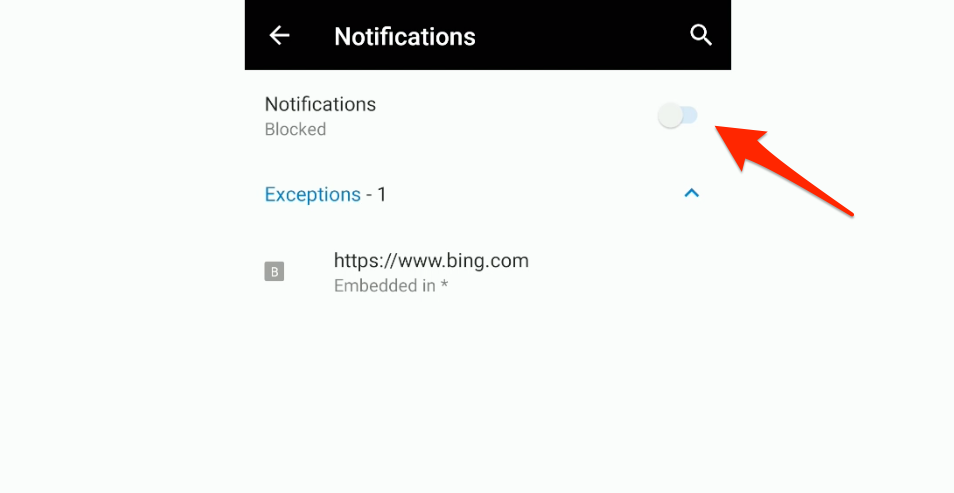
- Toggle Sites can ask to send notifications off if you want to block every new request. Leave it on if you only want to be more selective about individual sites.
Turn the toggle off, and Edge stops asking on sites you have never visited. Sites you already approved keep their permissions until you update them below.

The master switch only controls new prompts. Existing approvals keep working until you edit the per-site list.
Allow or Block Notifications for a Specific Site
When one site becomes the problem, you do not have to block everything. The same Notifications page keeps two running lists, Sites allowed and Sites blocked, so a single flip can silence a noisy domain without touching the rest.
- From Settings → Site permissions → Notifications, scroll to the Sites allowed or Sites blocked section.
- Tap the site URL you want to change.
- Switch the toggle to Allow or Block.
- Reload the site in Edge so the new permission takes effect on the next page load.

TIP: If a domain appears in neither list, Edge has never asked that site for permission. Open the site once and tap Allow on the prompt to add it to Sites allowed.
Change a Site’s Notifications From the Address Bar
Need a one-off decision on the noisy site you are already looking at? Edge opens a per-site panel from the left end of the address bar, so you can silence a single page without leaving the tab.
- Open the site that keeps asking for notifications.
- Tap the padlock
 or tune
  to the left of the address bar.
 - Tap Site settings.
- Find Notifications and pick Allow or Block.
- Reload the tab. Edge applies the change as soon as the new page loads.
That same panel controls more than notifications. If you want the full list, view site information and configure settings in Microsoft Edge on Android.
Turn Off Edge Notifications in Android App Settings
When Edge itself starts posting banners about downloads, news tips, or InPrivate warnings, Android’s app settings give you a separate off switch. Disabling it kills those system-level alerts, so treat it as a last resort rather than a first move.
- Open Settings on your Android phone.
- Tap Apps (called Apps & notifications on Android 10 to 12), then choose Microsoft Edge.
- Tap Notifications.
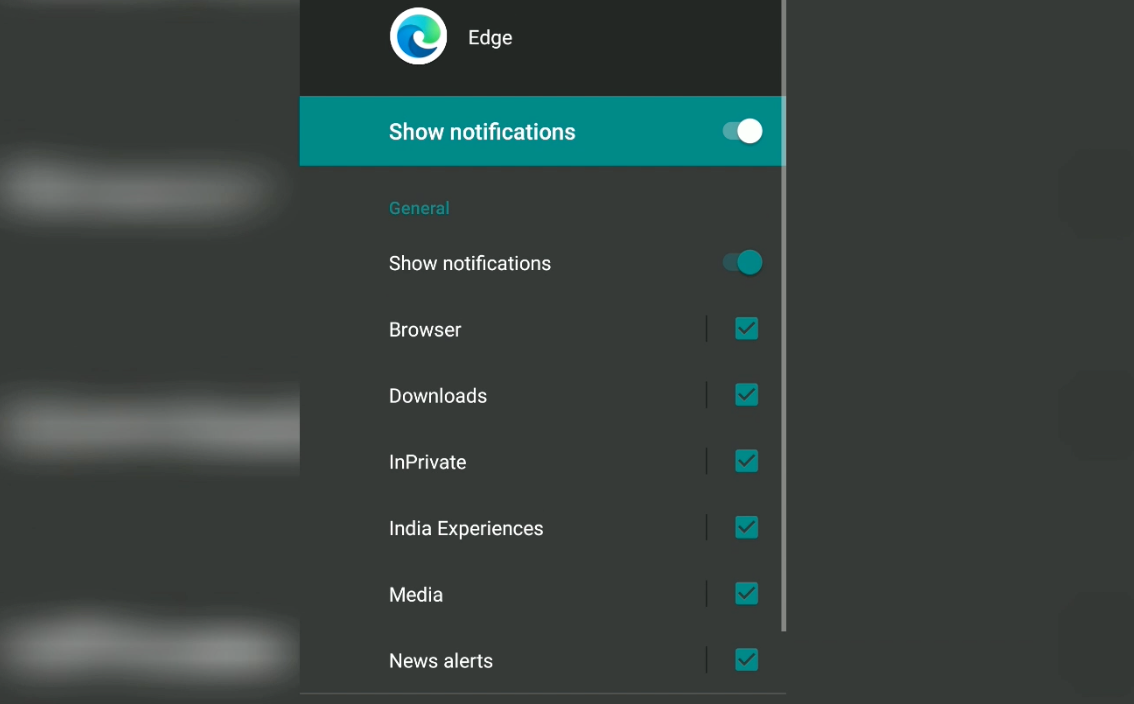
- Turn off All Microsoft Edge notifications at the top to silence every channel at once.
- (Optional) Turn Show notifications back on, then pick Silent under Importance so banners appear quietly without sound.
You can flip individual channels like Downloads or InPrivate alerts back on later without re-enabling the rest. For other site permission controls, see our guide to managing browser and site cookies in Edge on Android.
Keep the Useful Alerts Without the Noise
If only a handful of sites are spamming you, leave the master toggle on and prune the per-site list instead. A short cleanup every few weeks usually clears out the offenders without touching the alerts you actually need.
- Audit Sites allowed after each big shopping trip or sales event. Remove any URL that no longer belongs on the allow list.
- For domains you might want later, leave them unapproved. Edge remembers the choice and will not re-prompt on every visit.
- Want Edge to ask again on every new site? Flip Sites can ask to send notifications back on, then clean up whatever slips through with the per-site lists.
Microsoft’s official Edge mobile app help covers every Notifications screen on Android if you need a deeper reference.

Frequently Asked Questions
How do I stop Microsoft Edge from asking to send notifications on Android?
Open Edge, tap the menu, then choose Settings → Site permissions → Notifications. Turn off Sites can ask to send notifications and Edge will not show the permission pop-up on new sites.
Why does a blocked site still send me notifications?
Edge keeps your old approval until you remove it. Open Site permissions → Notifications, find the site under Sites allowed, and switch it to Block.
Can I allow notifications for only one site on Edge mobile?
Yes. Keep the master toggle on, open the site you want alerts from, and tap Allow when the prompt appears. Edge adds it to Sites allowed and leaves everything else at the default.
Will turning off Edge notifications affect downloads and InPrivate alerts?
Yes. The Android-level switch silences every channel Edge uses, including download progress and InPrivate warnings. If you still need download alerts, leave the global toggle on and turn off only the channels you do not want.
How do I let a site ask me again for notification permission?
Open Site permissions → Notifications, find the site under Sites blocked, and switch its toggle to Allow. Reload the page to start receiving alerts again.