Setting a custom homepage in Edge for Android is the fastest way to land on the site you open most. The Home page option now lives under Settings → New tab page → Home page in recent builds, where you can pick a specific page or go back to the new tab page.
The Home icon in the Edge menu still jumps to that URL on tap. If the icon is missing, rearrange the menu bar through More → Change menu.
In this guide, I have covered:
Contents
Change the Homepage Address in Edge on Android: Video Guide
If you want to change the home icon or homepage address in Edge on Android, this walkthrough covers the tap path. The video below shows the same steps on a current Edge build.
Set a Custom Site Address as the Home Page in Edge on Android
You want Edge to open a specific site instead of the default start page. Setting a custom homepage does exactly that. Once it is saved, the Home icon in the Edge menu jumps straight to that URL on tap.
On recent Edge for Android builds (around version 140 and newer), the Home page toggle has moved out of the General section and now lives under New tab page in Settings. If you cannot find a Home page option under General, you are on the newer path.
- Launch Microsoft Edge on your Android phone.
- Tap the
 menu and choose Settings.
 - Tap New tab page.
- Tap Home page, then switch the radio button to A specific page.
- Type the URL you want Edge to open on launch, for example https://browserhow.com.
- Tap the back
 arrow to leave the Home page screen and save the change.
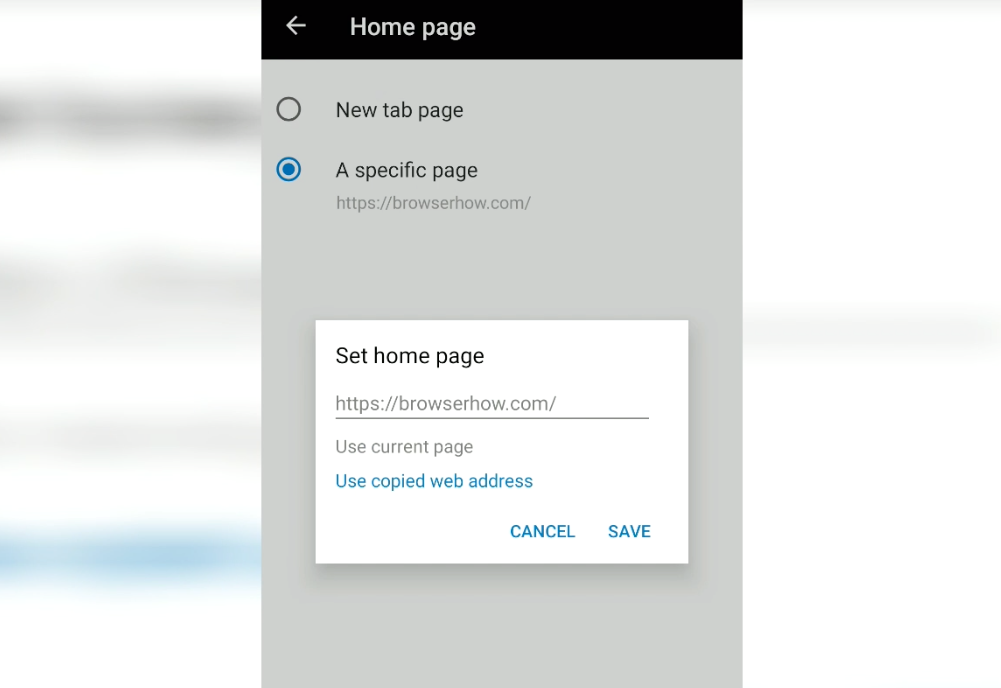
Open a new tab to confirm the change. Edge should load the URL you entered instead of the default new tab page. The Home  in the Edge menu now points to the same address.
What the Home Icon Does in Edge on Android
The Home icon is one of the shortcut tiles along the bottom menu in Edge for Android. Tapping it always loads whatever address you set as the homepage, even if you are deep inside another site.
You can add, remove, or rearrange the Home tile along with the other shortcuts. Open the menu, choose Change menu, drag the Home tile to the position you want, then tap .
You’ll know it worked when the Home tile sits in the spot you chose and opens your saved URL on the next tap.
Switch Back to the New Tab Page
If you want Edge to open the default new tab page again instead of a custom site, swapping the radio button is the only step you need.
- Open Edge and tap menu → Settings.
- Tap New tab page, then Home page.
- Switch the radio button to New tab page.
- Tap the back arrow to save.
The Home icon in the menu now opens the regular new tab page with your shortcuts and news feed.
Home Page Setting Won’t Save on Edge 141 and Newer
Some users on Edge for Android version 141.x (Android 16) have reported that the custom homepage silently reverts to chrome-native://newtab after closing Settings or restarting Edge. The same URL saves and persists normally in Edge Beta, which points to a bug on the stable channel.

The reset is most common on Edge 141.x stable. Edge Beta typically saves and syncs the same URL without the workaround.
Try these if your homepage keeps resetting:
- Switch to Edge Beta from the Play Store and set the homepage there. Settings usually sync back to the stable build.
- Open Edge, set the homepage, then leave the Settings screen open for ten to fifteen seconds before backing out. Some users report this gives the value time to write to disk.
- Make sure Edge for Android is fully updated through the Play Store, since a follow-up build may already include a fix.
If the custom URL still does not stick, the site information and settings panel for Edge on Android can confirm whether Edge is treating the homepage as a per-site permission.
Bottom Line
The homepage is the first page you see after launching Edge, so point it at the site you visit most. Set it once, and every tap on Home lands where you expect.
The same homepage and home icon setup also exists in Edge on the computer if you switch between devices.

Frequently Asked Questions
Where is the Home page option in Edge for Android settings?
On recent Edge for Android builds, open menu → Settings → New tab page → Home page. Microsoft’s Edge for mobile FAQ still lists the older General → Home page path, but the New tab page path is what current stable builds use.
Why does my homepage revert to the new tab page after I save it?
On Edge 141.x, a known bug causes the custom homepage to silently switch back to chrome-native://newtab after closing Settings or restarting Edge. Setting the homepage in Edge Beta or waiting a few seconds on the Settings screen before backing out usually works around it.
Can I use the Home icon without setting a custom URL?
Yes. Even when the homepage is set to New tab page, the Home icon in the Edge menu still loads that new tab page. If the Home tile is missing, rearrange the menu through menu → Change menu.
How do I move the Home icon in the Edge menu?
Tap menu in the bottom toolbar, choose Change menu, and drag the Home tile to a new position. Tap when you are happy with the order.
Is the homepage setting synced to my other devices?
Edge syncs the homepage preference through your Microsoft account. If you change it on Android, the same homepage appears on your computer and other signed-in devices once the sync finishes.