

Chrome slows down, tabs pile up, and the report still is not finished. The right extension removes one repeated annoyance at a time: ads, logins, screenshots, or finding the tab you opened ten minutes ago.
More than 20 desktop picks sit below, grouped by the job they do. Check the publisher, permissions, and Manifest version on each Web Store listing before you install, and turn off anything that breaks a page.
In this guide, I have covered:
Contents
Chrome Extensions That Solve Everyday Computer Tasks
You do not need twenty extensions. You need the three or four that remove a repeated annoyance from your day: the login you keep mistyping, the tab you cannot find, the ad that interrupts every video.
More than 20 practical picks are grouped by task below. Best means best fit for the job, so choose the extension that matches the problem you actually have, and check the publisher, privacy information, and update status before installing.
| Extension | Best for | What it adds |
|---|---|---|
| Adblock | Blocking distracting ads | Ad and tracking filters |
| Dashlane | Passwords and autofill | Credential storage and login automation |
| ClickUp | Projects and tasks | Tasks, notes, time tracking, and screenshots |
| Grammarly | Writing and editing | Grammar, punctuation, tone, and suggestions |
| Momentum | A focused new tab | Daily tasks, weather, progress, and motivation |
| Office Online | Microsoft Office files | Browser-based document editing |
| OneNote Web Clipper | Saving research | Page, image, and region clipping |
| Airstory | Collecting source material | Highlights, tags, and source links |
| Todoist | Personal and work lists | Tasks, subtasks, reminders, and assignments |
| Screencastify | Recording demonstrations | Desktop, tab, and webcam capture |
| Microsoft Teams Screen Share | Meeting screen sharing | Desktop or tab sharing in Teams |
| Text Mode | Reducing visual clutter | Text-focused page views |
| Dark Reader | Reading dark webpages | Adjustable dark themes |
| RescueTime | Tracking screen time | Productivity and distraction reports |
| Noisli | Masking office noise | Background sounds and playlists |
| Too Many Tabs | Managing tab overload | Tab search, sorting, and suspension |
| Scrn.li | Taking screenshots | Full-page, visible-area, and selection captures |
| Kami | Annotating documents | PDF markup, comments, and collaboration |
| Google Translate | Translating text | Selected-text and webpage translation |
| Water Reminder | Hydration reminders | Intake goals and progress reports |
| Emoji Keyboard | Inserting emoji | Searchable categories and quick insertion |
Start with the extension that solves your biggest recurring annoyance. Every add-on you install adds a toolbar button, a permission prompt, or a background process, and the toolbar fills up faster than you expect.
1. Adblock: Best Ad Blocker for Distraction-Free Browsing
Some pages load three ad frames before the article even starts, and a video ad can turn a two-minute check into a five-minute wait. Adblock filters those ads out of the page, including common YouTube and Facebook video ads.
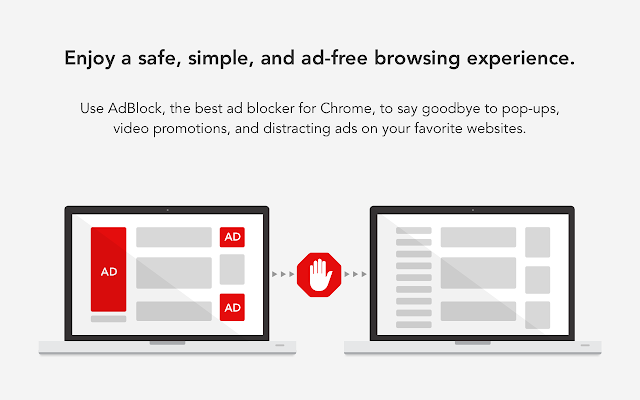
Blocked requests never reach the network, which often makes pages feel lighter. The trade-off is occasional breakage: a video player, a comment box, or a paywall check can stop working.

TIP: Use the extension’s blocking settings to allow that one site instead of uninstalling it. Your settings everywhere else stay exactly as they were.
- Blocks common unwanted ad formats on webpages.
- Can block unskippable video advertisements on sites such as YouTube and Facebook.
- Includes filtering options for known malware and tracking elements.
- Can reduce the loading demand created by blocked advertising.
Want to weigh other blockers first? Our 10+ Best Ad Block Extensions for Google Chrome covers the alternatives.
2. Dashlane: Best Password Manager for Chrome
Juggling a dozen logins gets tiring, and the shortcuts people take to cope with it cause the real damage. Dashlane stores credentials, fills online forms, and can sign you in as soon as a site opens.
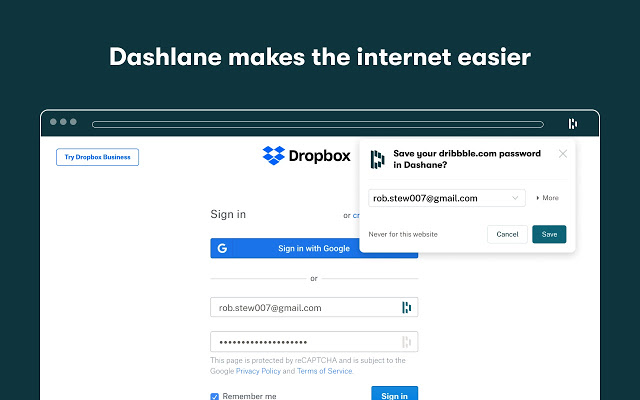
The extension generates strong passwords and syncs login details with the Dashlane desktop app and your other signed-in devices. Saved data can live locally or in the cloud, and your master password is the only key to it.
- Generates strong passwords for websites.
- Stores usernames and passwords for each site.
- Autofills usernames, passwords, and online forms.
- Encrypts saved data and offers local or cloud storage options.
3. ClickUp: Best Project and Task Management Extension
Tasks arrive from everywhere: an email thread, a screenshot, a note, a timer. Keeping each one in a separate tool is what slows the work down. ClickUp pulls those workflows into a single Chrome extension for personal lists and team projects.
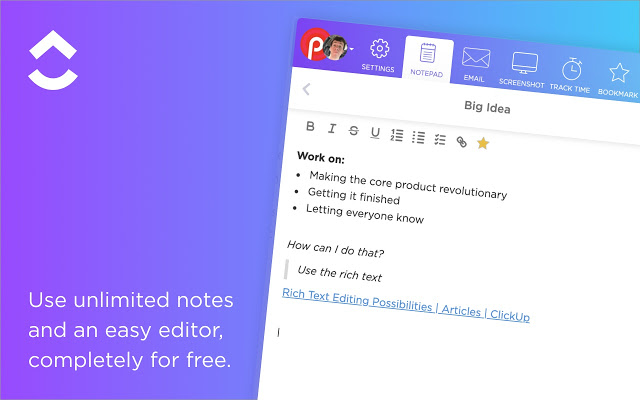
Create a workspace, add tasks and subtasks, assign an owner, capture a web page, start a timer, and attach the full HTML copy of an email. Between them, those tools cover much of what separate task, notepad, timer, screenshot, and email extensions used to handle.
- Organizes personal and work tasks in one place.
- Combines task management, notes, time tracking, screenshots, and email capture.
- Creates workspaces, tasks, and subtasks.
- Assigns work to yourself or another team member.
4. Grammarly: Best Extension for Writing and Editing
Drafting a report with the door open to typos is a strange kind of risk. Grammarly checks text while you type, correcting spelling, grammar, and punctuation, and it can flag tone before you hit send.
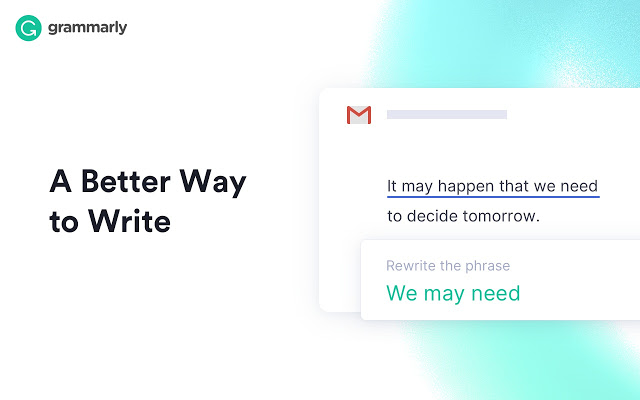
Double-click a word to see definitions and synonyms. If the suggestions get noisy on a particular site, disable correction there instead of uninstalling the extension, and switch off automatic spelling correction when it fights you.
- Checks spelling, punctuation, and grammar as you type.
- Offers definitions and synonyms when you double-click a word.
- Detects the tone of a draft so you can adjust it before sending.
- Allows correction features to be disabled for particular websites.
Studying rather than writing for work? Our 6+ Best Google Chrome Extensions for Students is the better starting point.
5. Momentum: Best New Tab Extension for Daily Focus
Every new tab is a small decision point, and the default one competes for attention. Momentum replaces it with a photograph, a daily focus, and a short list, plus the weather and forecast on the same screen.
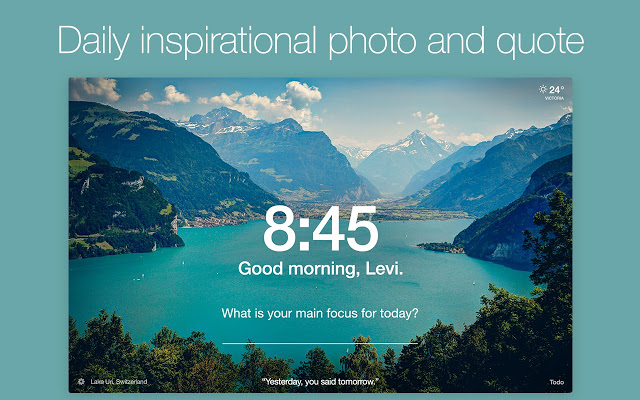
You can show the day’s progress as a percentage, set a mantra instead of your name, and keep quotes you want to see again. Sharing one sends it straight from the new tab page.
- Turns the new tab into a focus and task dashboard.
- Displays a daily to-do list, weather, and forecast.
- Shows the day’s progress as a percentage.
- Lets you save and share favorite quotes.
6. Office Online: Best Extension for Microsoft Office Files
Sometimes you need to open a Word file and the desktop app is not on the machine in front of you. Office Online puts familiar document tools inside Chrome. A Microsoft account is required, and on Linux this is often the simplest route to Word, Excel, and PowerPoint files.
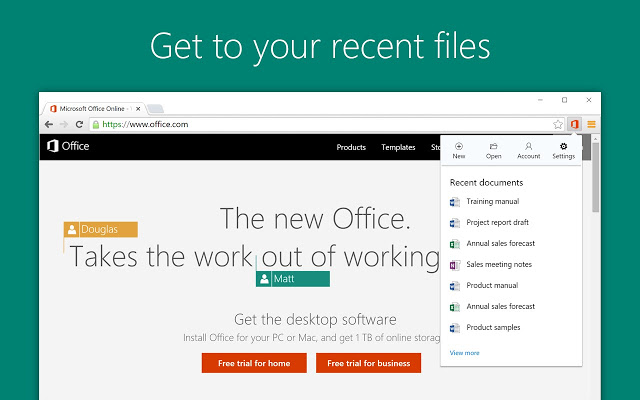
OneDrive integration lets you view or edit files from anywhere, then reopen the same document in the desktop app when you need the full version. It is an online alternative for everyday document work, not a replacement for every desktop feature.
- Views and edits Microsoft Office documents in Chrome.
- Works with files stored in OneDrive.
- Opens a browser document in the desktop Office app when needed.
- Provides a useful online option for Linux users.
7. OneNote Web Clipper: Best Extension for Saving Research
Research that lives only in an open tab disappears the moment you close the window. OneNote Web Clipper saves the part you need: a full page, a selected region, or a single image.
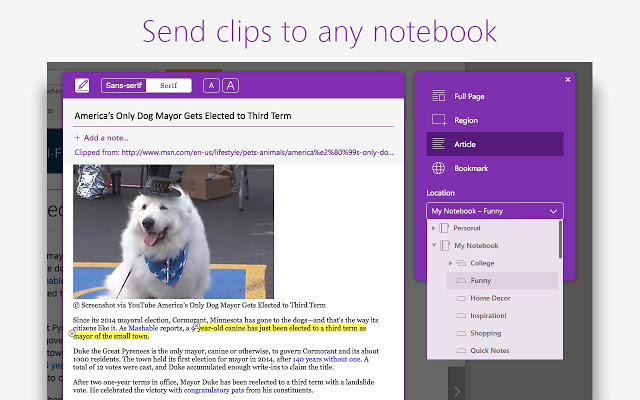
Clips land in OneDrive, so the same material opens on a phone or tablet signed into your Microsoft account. The OneNote app gives you somewhere to read it away from the desk.
- Clips an entire page or a selected region.
- Saves images and other parts of a webpage.
- Stores the material in OneDrive for access through Microsoft devices.
- Reduces the need to copy text and download images separately.
8. Airstory: Best Extension for Collecting Research Snippets
Quotes, examples, and images pile up fast during a project, and their sources disappear even faster. Airstory keeps the material in one workspace. Highlight text or an image, save it, and tag it for later searching.
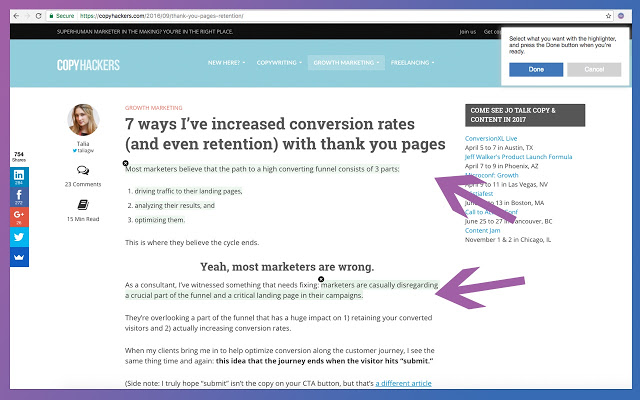
When you write, drag a saved passage into the field and Airstory merges it with the source URL. The citation trail builds itself while you draft.
- Saves highlighted text and images for later use.
- Adds the source URL when a snippet is inserted into a workspace.
- Supports drag-and-drop insertion.
- Uses tags to make a growing collection searchable.
9. Todoist: Best To-Do List Extension for Chrome
Work tasks and home tasks compete for the same attention, and splitting them across two apps means one of them gets ignored. Todoist gives both a shared checklist system.
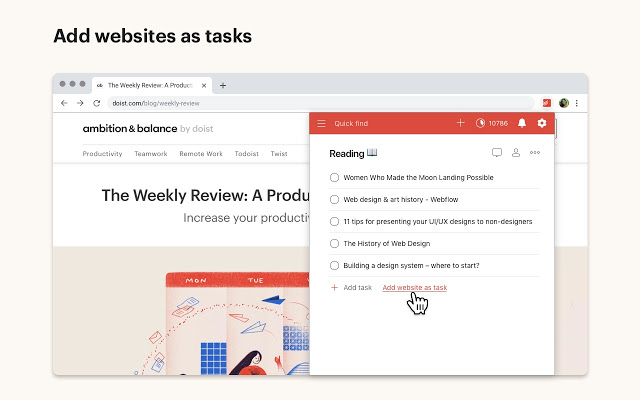
Add a website as a task, break work into subtasks, and assign items to collaborators. Recurring due dates handle weekly routines, and checking off a task does not disturb the rest of the list. It stays a task manager rather than turning into a document editor.
- Lists everyday tasks in one place.
- Creates subtasks and recurring due dates.
- Adds a website as a task.
- Lets collaborators share and complete assigned work.
10. Screencastify: Best Extension for Screen Recording
Explaining a workflow in text takes ten paragraphs. Recording it takes a minute. Screencastify captures the desktop, a single browser tab, or the webcam, which is why teachers, support staff, and remote teams keep it on the toolbar.
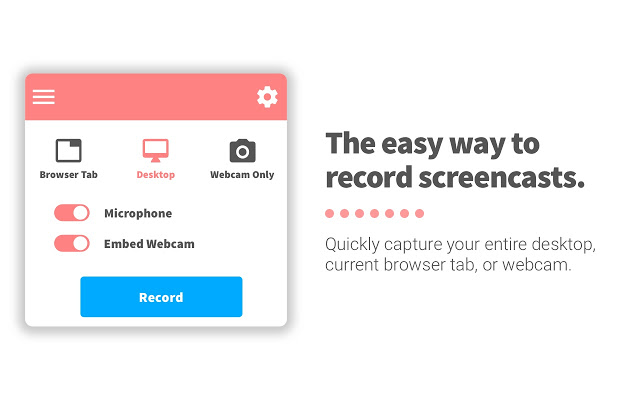
Sign in with a Google account and recordings go to Google Drive, ready to share through Google Classroom, YouTube, or a local download. Resolution, frame rate, and an automatic stop timer are all adjustable before you press record.
- Records the full desktop, a browser tab, or the webcam.
- Stores recordings in Google Drive.
- Shares videos through Google Classroom, YouTube, or local downloads.
- Adjusts recording resolution, frame rate, and stop time.
11. Microsoft Teams Screen Share: Best Extension for Sharing in Meetings
A Teams call can turn into a lesson or a troubleshooting session, and you need to show your screen without handing over everything on it. The Microsoft Teams Screen Share extension shares the full desktop or one selected tab.
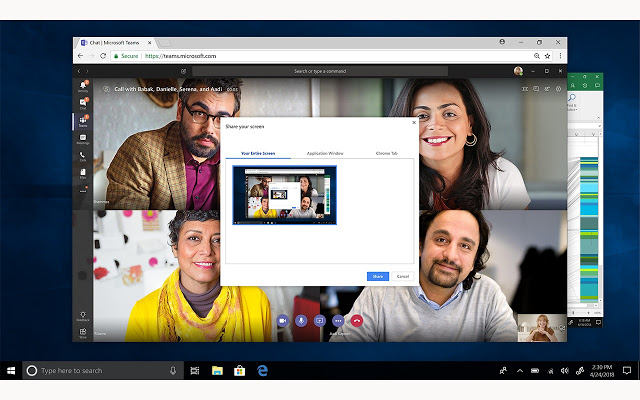
Use it when a separate screen-sharing control fits your meeting flow:
- Open the extension from Chrome’s toolbar.
- Click .
- Choose Screen share.
- Choose Full desktop or Tab for the content to present.
- Shares the screen during a Teams call or conference.
- Presents either the entire desktop or a selected tab.
12. Text Mode: Best Extension for Distraction-Free Reading
Plenty of articles are 80% images, sidebars, and ad slots. Text Mode strips a page back to the words. One toggle hides the visual clutter and reloads the page in a text-focused layout.
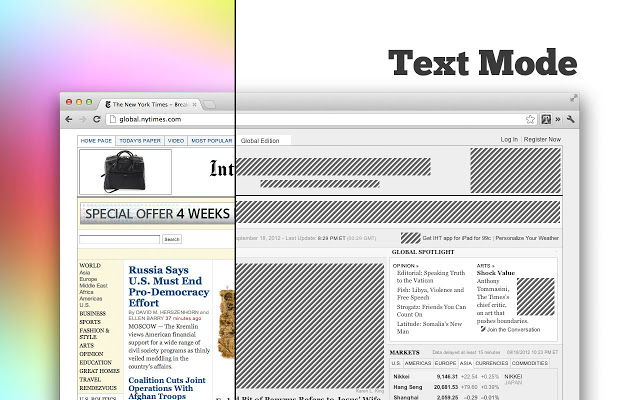
You can choose what stays visible on each site, then reload to save loading time and data. On a slow connection or a distraction-heavy research page, the difference shows immediately.
- Hides images and advertisements.
- Customizes what remains visible on each website.
- Reloads pages in a text-only mode.
- Can reduce page-loading demand and data use.
13. Dark Reader: Best Extension for Reading Dark Webpages
Bright white pages are hard on the eyes after an hour of reading. Dark Reader applies a dark theme to web pages, with brightness and contrast you can adjust for the room you are in.
Settings can apply broadly or to individual sites, which makes it a decent partner for a text-only extension: one cuts visual noise, the other changes the palette.
- Applies a dark theme to websites.
- Adjusts brightness and contrast for different reading conditions.
- Allows the effect to be changed or disabled for individual sites.

14. RescueTime: Best Extension for Tracking Screen Time
Most people cannot say where the afternoon went. RescueTime can. It records time in Chrome tabs and windows, then groups sites as productive or distracting so the pattern becomes visible.
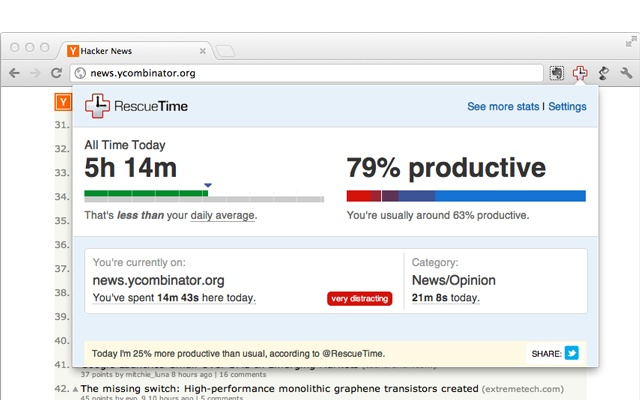
The extension stops tracking when it detects you are away, so an idle lunch break does not distort the total. Companion apps for desktop and mobile fill in the hours Chrome cannot see.
- Tracks time spent in Chrome, individual tabs, and windows.
- Categorizes websites as productive or distracting.
- Stops tracking when it detects that you are away.
- Works with companion downloads for desktop and mobile use.
15. Noisli: Best Extension for Background Focus Sounds
Open-plan offices and shared kitchens make concentration hard. Noisli covers the noise with rain, wind, a fireplace, thunder, or background music.
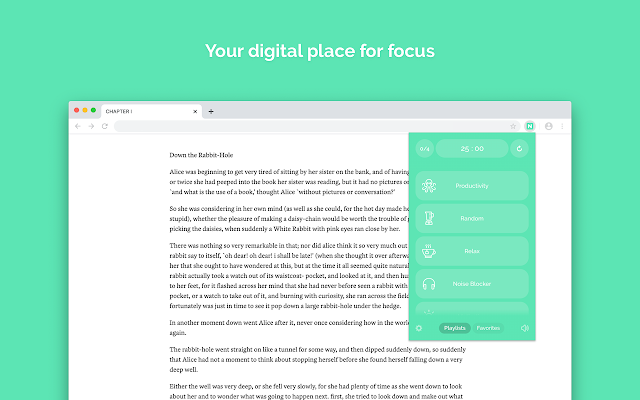
Each sound layer has its own volume, keyboard shortcuts handle mute and volume changes, and a timer stops playback after a set period. When a colleague wants the same mix, you can share the playlist.
- Plays background sounds such as wind, rain, fireplace, and thunder.
- Supports music and shared playlists.
- Controls individual sound layers and keyboard shortcuts.
- Includes a playback timer and customizable theme.
16. Too Many Tabs: Best Extension for Tab Management
Forty open tabs is not a workflow, it is a search problem. Too Many Tabs makes the clutter searchable and suspends the tabs you are not using.
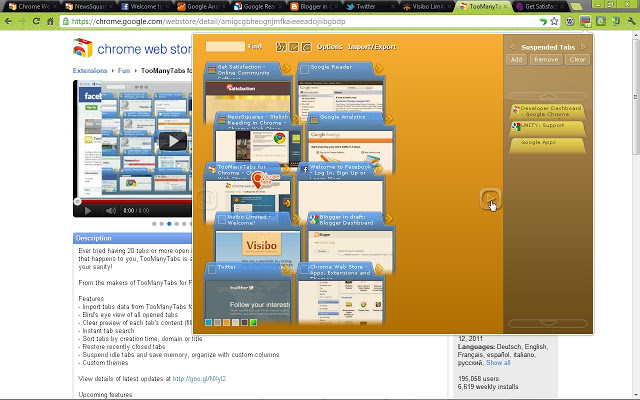
Search by title or address, sort by name, address, or creation time, and export the whole set to Google Drive when you move to another computer. Several color schemes keep the popup readable.
- Finds and opens tabs more quickly.
- Suspends inactive tabs to reduce memory use.
- Sorts tabs by name, address, or age.
- Imports and exports open tabs through Google Drive.
17. Scrn.li: Best Screenshot Extension for Chrome
Capturing a page should take one click, not a detour through a separate app. Scrn.li grabs the visible area, the full page, or a selection.

Full-page captures download straight away, shortcuts are configurable from the extension’s options, and output can be JPG or PNG. It captures supported desktop apps too, so you are not limited to browser content.
- Captures the visible page, full page, or selected area.
- Downloads a full-page screenshot in one click.
- Supports configurable shortcuts and JPG or PNG output.
- Captures supported desktop applications.
18. Kami: Best Extension for PDF and Document Annotation
Reviewing a PDF for work or study usually means printing it or fighting with a viewer that cannot comment. Kami adds markup directly to files in Google Drive or on the computer: sketches, notes, shapes, comments, and text-to-speech.
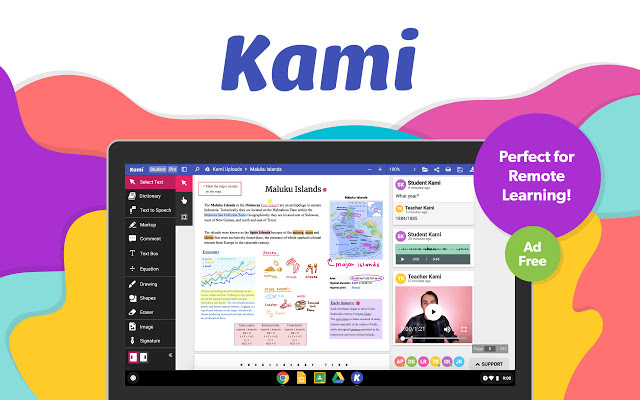
It handles PDFs, Word files, spreadsheets, and PowerPoint decks, and collaboration runs through Google Drive in real time. Need to reorganize a document? Kami splits and merges files too.
- Annotates documents with notes, drawings, shapes, and comments.
- Reads page content aloud with text-to-speech.
- Supports PDF, Word, spreadsheet, and PowerPoint files.
- Collaborates through Google Drive and splits or merges files.
19. Google Translate: Best Translation Extension for Chrome
A single paragraph in a language you do not read should not send you hunting for another tab. Select the text and a small translation icon appears beside it.
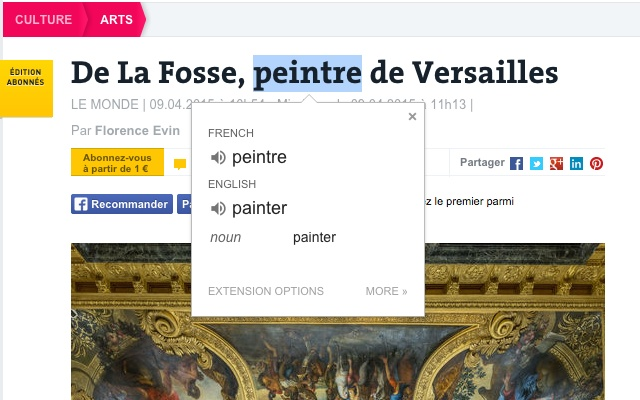
You can also paste copied text into the extension, translate a whole webpage in one click, or change the preferred language in the options. The popup icon can appear the moment you select text, or stay out of the way until you call it.
- Translates selected text through a popup icon.
- Translates copied text from the extension menu.
- Translates an entire webpage in one click.
- Supports multiple languages and a configurable primary language.
20. Water Reminder: Best Hydration Reminder Extension
Hydration reminders are the first thing to vanish in a long focus session. Water Reminder prompts you at an interval you choose and keeps a simple record against a daily goal.
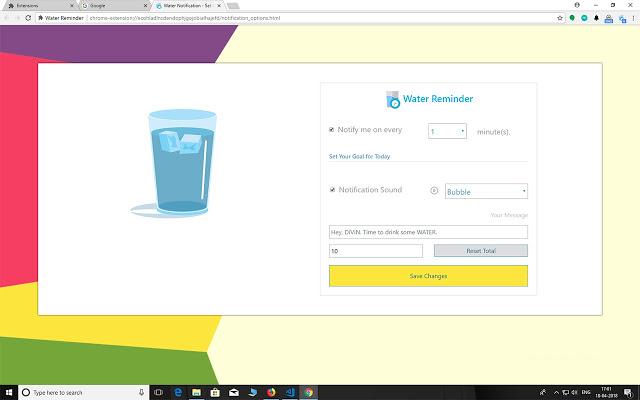
The daily report shows how today’s intake compares with that goal. Change the interval when your schedule changes, then revisit the report to see whether the routine is holding.
- Sets a daily water intake goal.
- Sends reminders at your chosen interval.
- Shows daily progress and a full report.
21. Emoji Keyboard: Best Extension for Adding Emoji on a Computer
Desktop chat has no emoji key. Emoji Keyboard puts a searchable picker next to Chrome: open it, pick a character, and it drops into the field you are editing.
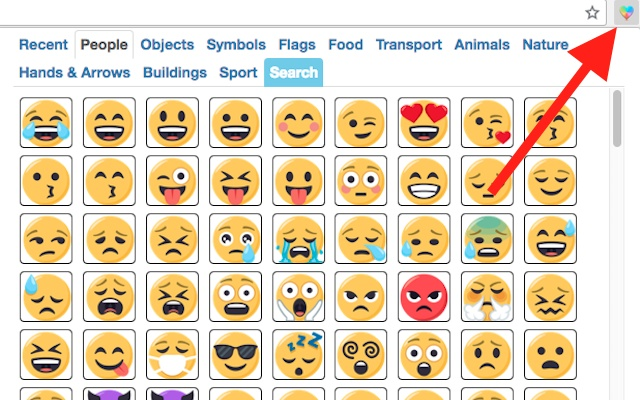
Browse by image category or search for a specific emoji by name. Either way it beats scrolling through panels for a reaction.
- Inserts an emoji into the field you are editing.
- Browses emojis by category.
- Searches for a specific character.
Update Chrome Before Installing Extensions
An extension that will not install is often a Chrome version problem, not a bad listing. Old add-ons may no longer run in current desktop builds, and a browser that has not been updated in months is a common reason a download button does nothing.
- Launch the Google Chrome on your computer.
- Click on More
 for the options list, and select the Settings menu.
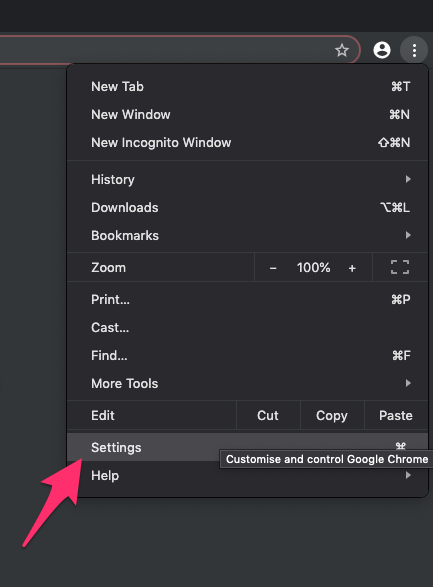
- Switch to the About Chrome tab in the left sidebar pane.
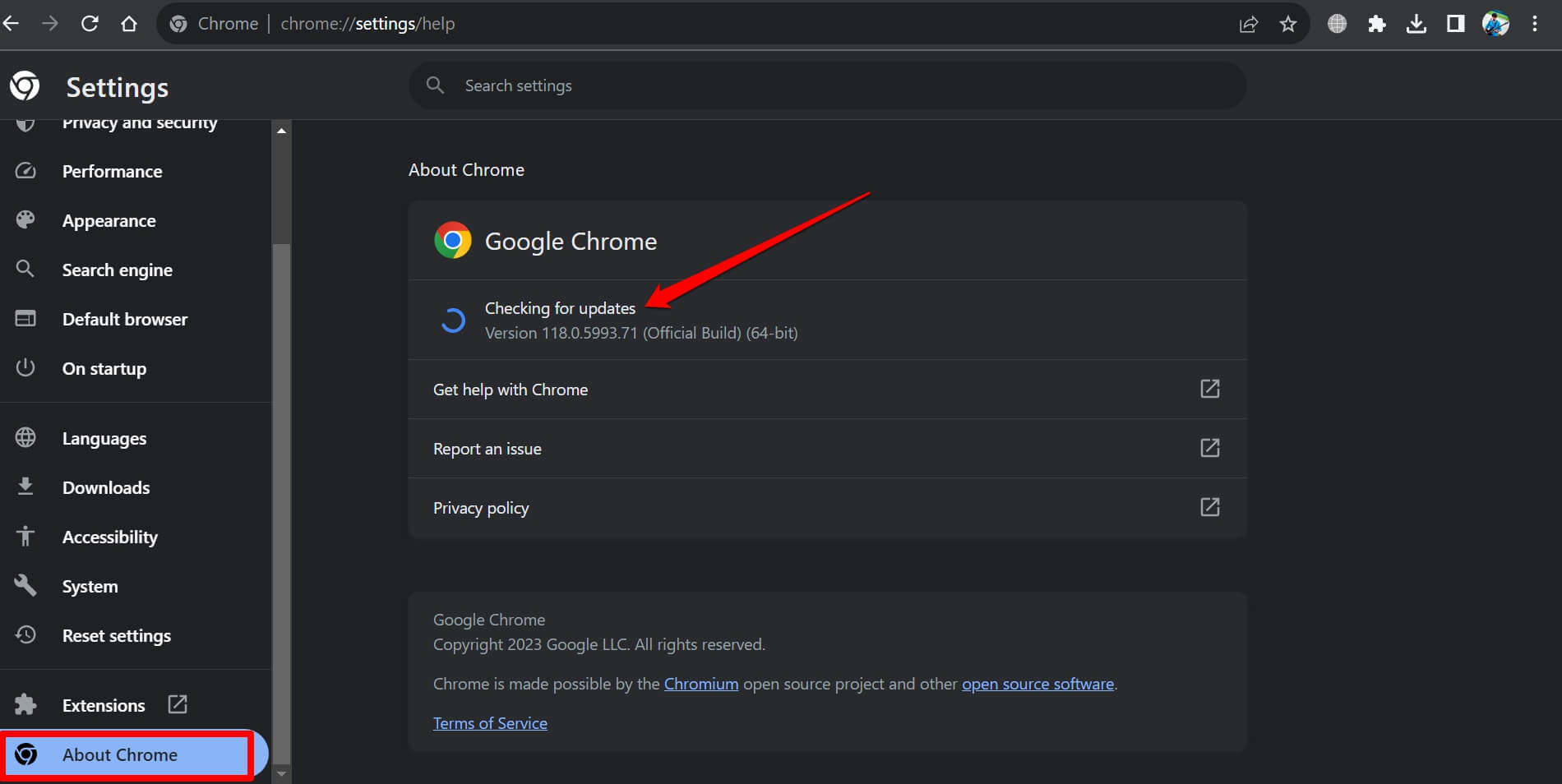 The browser should automatically start looking for the latest updates.
- Hit on the button.
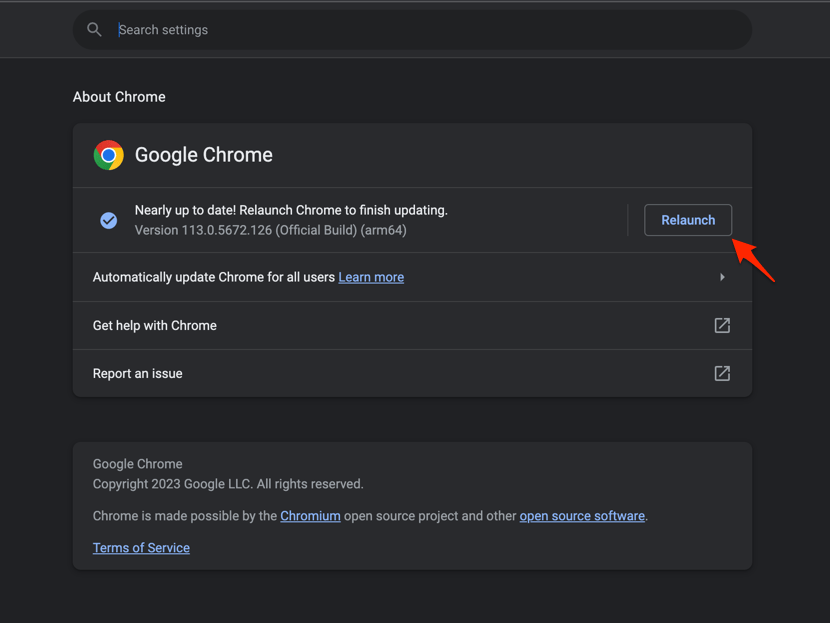 It will complete the Chrome browser update process.
After Chrome restarts, reopen the extension listing and confirm it is still offered for computer use. You’ll know it worked when the store page loads normally and the install button is available again.
Check the Listing, Permissions, and Manifest Version
A listing that looks right can still be wrong for you. Install from the Chrome Web Store, never a third-party download page, and read the details before you click anything.
- Open the extension’s Chrome Web Store listing from the download button below.
- Check the publisher, privacy disclosures, update information, and listed permissions.
- Click only if the listing and permissions fit your needs.
- Read Chrome’s access prompt and approve only the access you intend to use.
- After installation, open the Extensions menu and limit site access when Chrome offers that choice.

Manifest V2 status: Chrome 138 was the final release that supported MV2 extensions, and MV2 extensions no longer run in Chrome 139 or later. The remaining MV2 listings were removed from the Chrome Web Store on August 31, 2026. Choose a maintained Manifest V3 extension instead.
If what you want is network protection rather than ad filtering, our 7+ Best Free VPN Extensions for Google Chrome is the closer comparison.
Turn Off an Extension That Slows Chrome or Breaks a Site
When a page misbehaves right after an install, the new extension is the first suspect. Chrome can place the Extensions control on the toolbar or in its three-dot menu, depending on the build.
- Launch the Google Chrome on your computer.
- Click on the More for the list menu.
- Hover on the More Tools menu and choose the Extensions sub-menu.
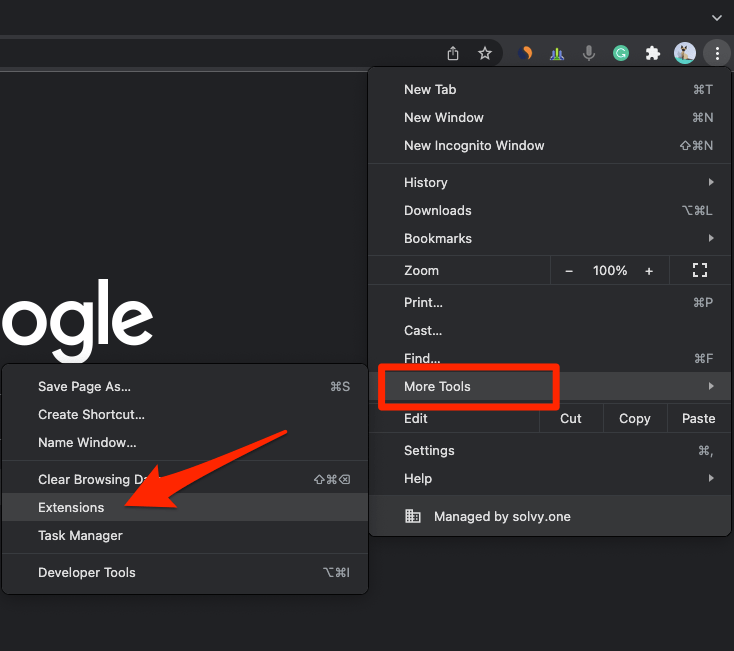 It will open the Chrome Extensions Manager page with the list of installed extensions.
- Toggle the switch to Disable the extension.
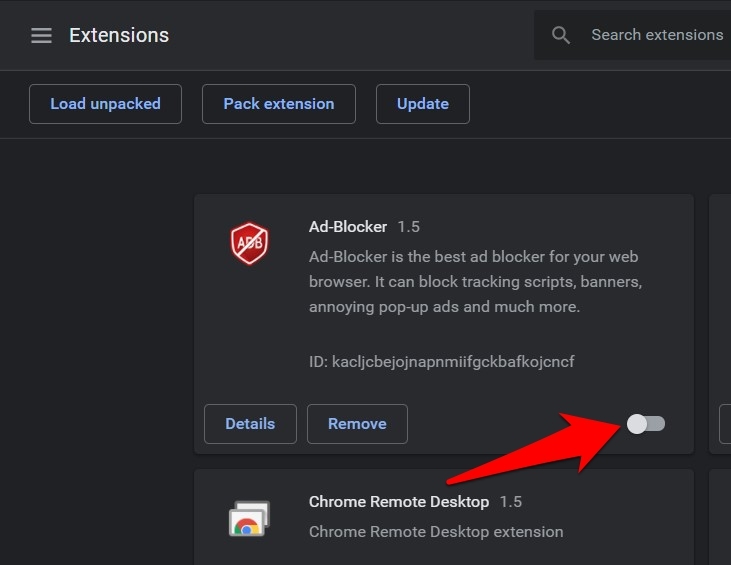
Turning it off keeps the extension installed but inactive, so you can switch it back on without hunting through the store again. You’ll know it worked when the page reloads normally with the extension disabled.
Do Not Assume Every Extension Works in Firefox or Safari
You found a good extension in Chrome and assumed it would follow you to another browser. It usually does not. Chrome add-ons lean on Chrome-specific permissions and account integration, so a port is never guaranteed.
On Mozilla Firefox, check the Firefox add-on catalog before you try to install a Chrome package. On Apple Safari, look for a Safari-compatible version. The same name in a search result does not mean the same code underneath.
Keep Chrome itself current too. Our guide to the most frequent updates and latest features walks through getting the newest version.
Frequently Asked Questions
Are Chrome extensions safe to install on a computer?
That depends on the publisher, the permissions, and whether the listing is maintained. Stick to current Manifest V3 listings from publishers you can identify, read the access prompt, and remove anything you stop using.
Which extension is best for blocking ads?
Adblock is the dedicated pick in this list. If you want to weigh other blockers first, the comparison linked in its section above covers the alternatives.
How many Chrome extensions should I install?
Only the ones tied to a recurring task. Start with one, add the next when a real gap appears, and audit the toolbar every few months.
Can I install Chrome extensions on a managed work computer?
Sometimes not. An employer can block extensions through browser policy, so if the install button is missing or the add-on is refused, ask IT whether extensions are permitted.
What should I do if an extension breaks a website?
Turn it off in Chrome’s Extensions manager, reload the page, and test again. Re-enable it only if you still need it, and if the breakage repeats, look for a different extension.

For me, TMetric is the top Chrome addon for increasing productivity. It makes it much easier to keep track of activities, manage assignments and projects, prepare reports and invoices, and capture work time.
Speed Video Control adds speed control to any online player.
Thanks for the suggestion, but I feel Video Speed Controller by igrigorik is a better alternative.
Thanks for the great list. I’ll share it with my colleagues. Grammarly for Chrome and Adblock Plus is what I use too. I’m not a native English speaker, so Grammarly is a must for me.
Other than that, I use a web highlighter tool called Glasp. I usually read a lot of articles, so it helps me to organize the articles I read and compile insights.
Thanks, Wash!
This is a great list! Thanks so much for sharing Rahul. One must-have extension to add is for instantly capturing and sharing annotated screenshots called Instacap.
It’s super simple and fast compared to other options.
We tried to test the extension, however, it doesn’t seem to be working.
Just to add on to Fay’s extra recs…
1. PureScroll: Twitter Filter for Productivity removes content that you don’t want to see on Twitter (politics, celebrities, etc) so Twitter doesn’t suck as much and doesn’t drive you crazy.
2. Toggl Button helps you time each of your activities so you stay organized and aware of your time equity.
Some great mentions! Recommend adding 2 more that have been great for increasing my productivity!!
1. Simple Tab Suspender: It suspends inactive tabs that maybe slowing down your computer, using up your battery laptop, and causing glitches in the system. Simple and easy to work with and quite useful for anyone like me 😅 that is used to opening way too many tabs at once while working.
2. Website Read Progress measures the content length and provides a progress bar to give a correct estimation of the position of your overall reading progress and remaining content. Great help for increasing your reading productivity!
Thanks so much, I will share this with my colleagues. Happy New Year!