

Google Chrome is a capable browser, but it can slow to a crawl because of outdated builds, heavy extensions, accumulated cache, background app downloads, or low disk space. Most of these are quick fixes once you know where to look.
Below are the most effective ways to speed up Chrome on Windows and macOS, starting with the highest-impact changes and moving to longer-term hardware fixes.

Note: These tips apply to Chrome on Windows and macOS. Most fixes take only a few minutes; the hardware upgrade suggestion near the end is the one exception.
In this guide, I have covered:
Contents
Why Google Chrome Is Suddenly So Slow on Your Computer
Chrome running slow usually comes down to one (or more) of these: too many tabs eating RAM, a heavy extension filtering every page request, an outdated build with known performance bugs, a stuffed cache, background updates stealing bandwidth, or an aging HDD hitting 100% disk usage.
The fixes below start with the highest-impact changes and work down to longer-term hardware suggestions. Test the page loading speed after each one so you can tell which change actually helped.
Method 1: Update Google Chrome to the Latest Version
An outdated Chrome build is the single most common cause of sudden slowdowns. Google ships performance fixes and memory leak patches with almost every release. Running the latest stable build removes a long list of known bugs that affect tab switching and page rendering.
- Launch the Google Chrome on your computer.
- Click on More
 for the options list, and select the Settings menu.
- Switch to the About Chrome tab in the left sidebar pane.
 The browser should automatically start looking for the latest updates.
 - Hit on the button.
 It will complete the Chrome browser update process.
Success check: after relaunching, the About Chrome page shows “Google Chrome is up to date” and your version number matches the latest stable release on Google’s release blog.
Method 2: Disable Chrome Extensions and Blockers
Ad blockers, privacy extensions, coupon finders, and grammar tools run on every page. A handful of poorly coded ones can double page load time without you noticing. Disabling them all, then re-enabling one at a time, is the fastest way to confirm whether an extension is the culprit behind Chrome dragging on every site.
- Launch the Google Chrome on your computer.
- Click on the More for the list menu.
- Hover on the More Tools menu and choose the Extensions sub-menu.
 It will open the Chrome Extensions Manager page with the list of installed extensions.
 - Toggle the switch to Disable the extension.

Success check: open the same pages that were slow and see if they load noticeably faster. If yes, re-enable extensions one by one to find the offender. Ad blockers and “savings” extensions are the usual suspects.
Method 3: Clear Cache and Cookies
A bloated cache and cookie store makes Chrome spend extra time scanning for valid entries on every page load. When the cache is heavily accumulated, that overhead shows up as longer wait times before content paints.
- Open the Google Chrome on your computer.
- Click on the More for menu options, and hover on the More Tools menu.
- Select the Clear Browsing Data... sub-menu from the list.
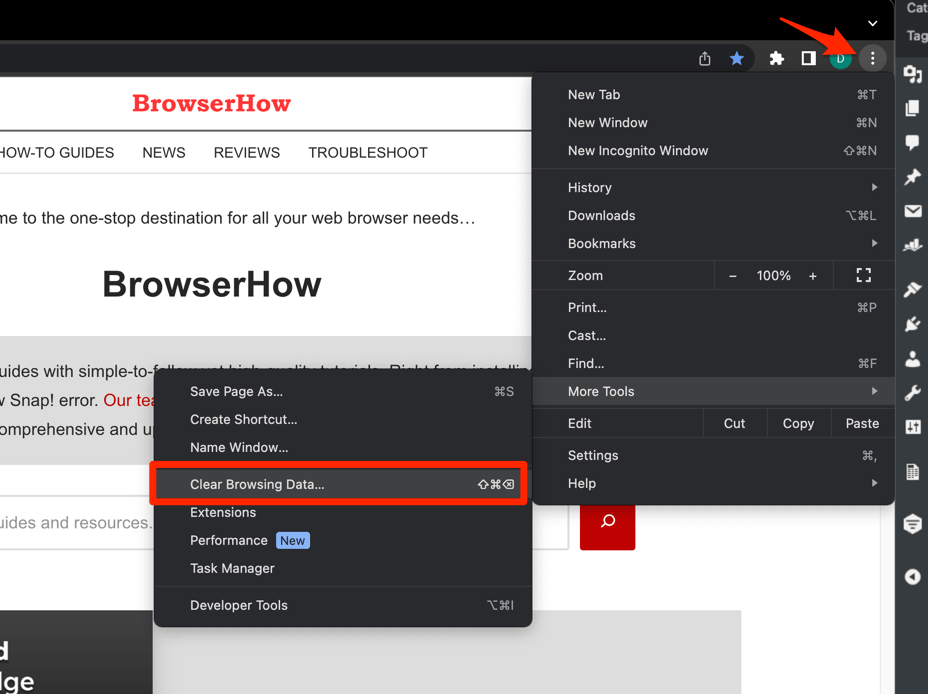 It will open the Clear browsing data settings window.
 - Choose the Time Range from the drop-down and select the checkboxes for the 'Cookies and other site data' and 'Cached images and files' options.
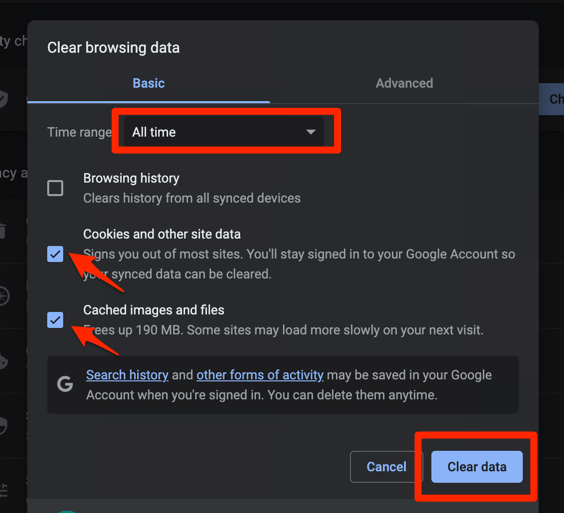
- Finally, hit the command button.
It will delete the stored cookies and cache data from your Chrome browser.
Note: Clearing cache and cookies signs you out of most websites. Make sure your passwords are saved in your Google account before you clear, or have them handy.
Success check: pages load faster on the next visit. If you were signed out everywhere, that’s the expected side effect of clearing cookies.
Method 4: Turn on Memory Saver
Memory Saver puts inactive tabs to sleep after a short timeout, freeing RAM for the tab you’re actively using. With dozens of tabs open, this is often the single biggest speed-up you can pull from a Chrome setting. If you want a full walk-through, see how to enable or disable Chrome Memory Saver.
- Launch Chrome.
- Click the three-dot menu and choose Settings.
- Select the Performance tab in the left sidebar.
- Toggle Memory Saver on. Recent Chrome versions also let you pick a mode (Moderate, Balanced, or Advanced) depending on how aggressively you want Chrome to reclaim memory.
Success check: hover over a tab you haven’t touched in a while and Chrome shows a small crescent moon icon, meaning the tab is hibernating.
Method 5: Pause Background App and OS Updates
Windows updates, macOS downloads, Office updates, creative app updates, and cloud sync clients all fight for the same network pipe. While they’re downloading, Chrome has to compete for bandwidth, which makes pages drag.
- On Windows, open Task Manager > Network to see which processes are using the most bandwidth.
- On macOS, open Activity Monitor > Network for the same view.
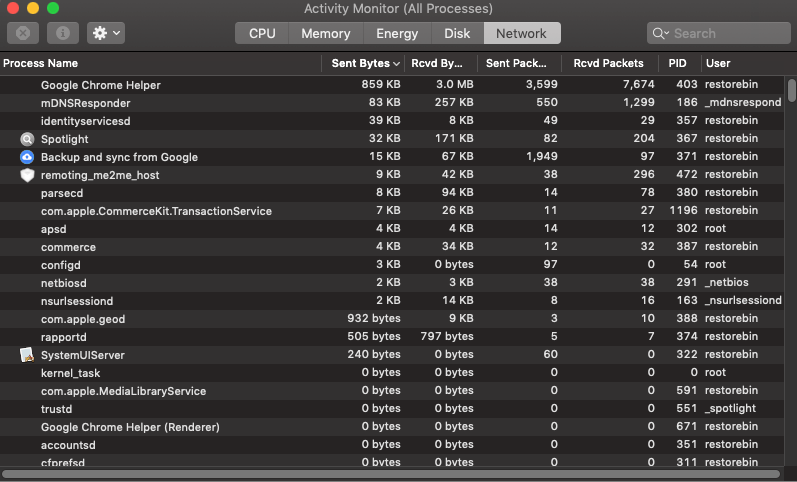
If an update or sync is hogging the connection, pause it temporarily or schedule it for overnight. Chrome should speed back up once the bandwidth clears.
Method 6: Toggle Graphics Acceleration
Graphics acceleration offloads rendering work to your GPU. On most machines this is faster, but on older GPUs or weak integrated graphics it can actually slow things down. Testing the toggle in both directions is a quick way to find which mode works for your hardware.
- Open Chrome Settings.
- Click System in the left sidebar. (If your Chrome still groups it under an expandable Advanced section, the path is Settings > Advanced > System.)
- Toggle Use graphics acceleration when available on or off, then relaunch Chrome.
Success check: compare scrolling and video playback with the toggle in each position. Keep whichever setting gives you smoother performance. If Chrome feels sluggish after toggling, switch back.
Method 7: Free Up Storage and Upgrade Hardware if Needed
If your disk is nearly full (less than 10 to 15% free), Chrome can’t write its cache efficiently and the whole system slows down. A failing or full HDD is the classic “everything is slow” cause.
On a Windows PC with an HDD, 100% disk utilization in Task Manager is the giveaway. Migrating the OS to an SSD typically cuts boot time and app launch time dramatically, and Chrome launches in a snap afterward. The old HDD can still serve as a backup drive.
Free up space first by emptying Downloads, clearing the Recycle Bin, and uninstalling apps you no longer use. If you’re still hitting a disk bottleneck after that, an SSD upgrade is one of the best hardware investments you can make for browser speed.
Bonus: More Ways to Fix a Slow Chrome Browser
If the main fixes didn’t move the needle, try these as well:
- Run a full antivirus and anti-malware scan. A background infection can grind any browser to a halt.
- Run the built-in disk cleanup utility on Windows.
- Check your ISP connection for fluctuations and run a speed test to rule out the network.
- Reinstall Chrome to start with a clean profile and no leftover settings.
- Update your operating system to the latest stable version.
Alternatives to Google Chrome
If Chrome still feels slow after everything above, switching browsers is a fast test. A fresh install of a different Chromium-based engine will tell you whether the issue is Chrome-specific or your whole system.
- Mozilla Firefox
- Microsoft Edge (Chromium-based, similar engine to Chrome)
- Opera Browser
- Apple Safari (macOS only)
Bottom Line
In most cases, a combination of updating Chrome, turning off one or two heavy extensions, enabling Memory Saver, and clearing the cache is enough to bring Chrome back up to speed. If you’ve tried all of that and Chrome is still dragging, the slowdown is usually hardware or system-level: an aging HDD, low RAM, or a background process eating CPU. Address those next.


I accidentally check the box for passwords and other sign-in data and auto-fill form data. How can I repair my mistakes?
Hello Grace, you can follow this guide on chrome passwords. All you need is to disable the autofill option.
Thank you so much! My Chrome was SO slow. I went to chrome://extensions and Developer Mode was on. I turned it off and disabled some extensions and things seem to be going better.
It turns out it was actually Hardware Acceleration. Once I disabled that, Chrome speed was REALLY fast.
If you already cleared, you’re SOL. Gone is gone.
Some suggestions might work. But the most important one is – never update great working software and OS. All those croporations are lying – their software constantly getting slower and it is fact. Just run their software on older computer where you worked normally all those years and was getting things done. And “tonnes of features” is distraction and fad. Worst is that they use artificial restrictions to force you buy new things you don’t need. Best wishes to all.
if you do download google chrome it wont mess up your stuff will it im sorry for asking this.thanks for the info.
Hello Heniretta, what kind of stuff? Do you mean bookmarks?
i have never done this. im afraid ill mess up my computer.ill try any thing once.
Thanks , your tips worked fine ! Now Chrome is smooth and fast
Hey – thanks – turning off the experimental QUIC helped me! I wouldn’t have found this otherwise. Thanks.
Windows 10 is has very slow reacting time comparing with Windows 7.
I updated to Windows 10 with fast CPU and 16 Gb Ram. I was using the same stile and noticed that the respond time of Copy/paste is very slow, almost 7 seconds when in Windows 7 less than 1 second. It is just disgrace for the Windows 10. What to do? To go back to Windows 7 / the brilliant program and the brilliant programmers left behind. Where this world is going. All around are law qualified specialists with big judgments.
Hello Andre, Microsoft has enhanced Windows 10 with tonnes of features that weren’t available in Windows 7 and earlier. These features consume RAM and CPU processes even in the background hence making a bottleneck for new processes. You uninstall the unnecessary programs and also kill the processes that are not needed. You can run ‘msconfig’ to configure the startup programs and processes.
Perhaps, you can also upgrade the hard disc from HDD to SSD, this will significantly improve the speed. I personally upgraded on my old DELL laptop and it’s running smooth.
ok its better
Nice for all suggestion s above but what can we do if we cant migrade disk and we have 4 ram . its so stupid still in myu country sale 4ram laptops and google desided to be a platform eating everything how not be slow . why we have to forced to buy new equpment juts for browsing its crazy all that and al lwas great before last upgrades this year so its their problem to fix it and not us to buy new machines i have 3 laptops in my house al l4ram it si stupid and expensive sport to buy and buy and buy every year new equipment jus tcause some developers want to tes t their knowlege to simple users . ist better to make something new only for thsoe who need it and not to make all us saffer ist cobid year noone has money to spend on anythong and will be many years that wil lbe the same . Make them give us back the light browser we loved all that years . and the ycan keep this mansters for thsoe who need them , organizations and offices .
Anyway no browser its working well interent its not free anymore for real 🙁
Turn off themes. Loading a theme into a new tab can add several seconds to your experience.