

Most sites already serve a responsive layout that fits your phone, so the full page opens without extra steps. Some pages still hide desktop-only menus, filters, or high-resolution images behind a mobile view.
Chrome on Android has a per-tab toggle that reloads the current page as the full desktop layout. You can also set desktop site as the default for every site in Chrome's Site settings.
Watch the Video Tutorial
In this guide, I have covered:
Contents
View the desktop site layout in Chrome on Android
When a site hides menu items, filters, or full-resolution images behind its mobile layout, Chrome on Android can reload that page as the full desktop version. Most modern sites use responsive design, so the page would normally fit your phone without extra steps. Some pages still serve a stripped-down mobile view.
To switch one tab to desktop view right now:
- Open the Chrome app on your Android phone.
- Open the website you want to see in desktop layout.
- Tap the More
 menu in the top-right corner (or bottom-right if you have moved the address bar to the bottom).
 - Find the Desktop site row and tap the toggle to turn it on. Turning it on makes the tab Request Desktop View, as noted in Google's Chrome help page on Desktop site.
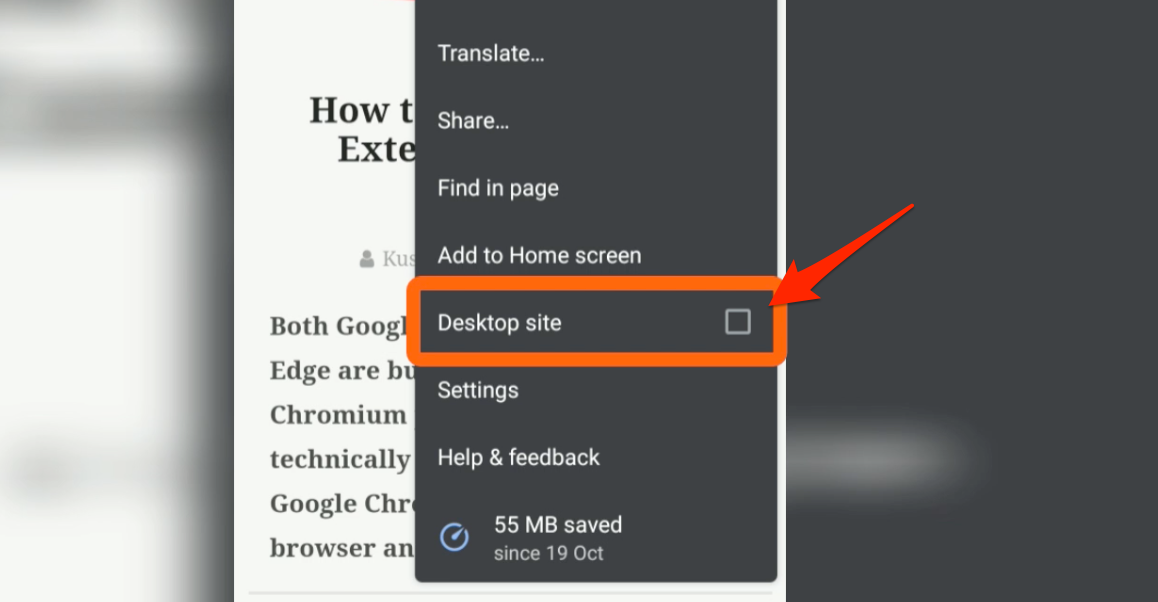

TIP: The page reloads in the full desktop layout. Text and buttons look smaller because the desktop version is rendering on a small screen. Pinch to zoom or use Chrome’s in-page zoom controls if needed. If the site still forces the mobile layout, clear its stored data and reload.
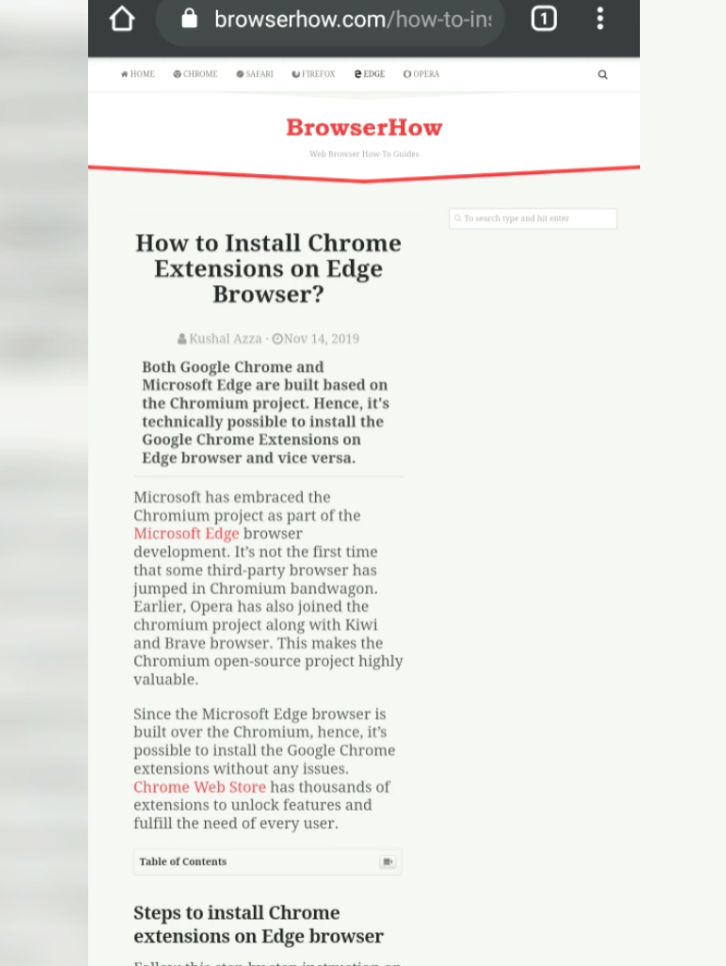
Switch the tab back to the mobile site when you’re done
When you are done with the desktop layout, flip the same toggle off:
- Tap the More menu.
- Tap the Desktop site toggle to switch it off.
Chrome reloads the tab in the mobile layout. The toggle is per-tab, so other open tabs and future visits stay on the default view until you flip it again. If you want to do the reverse on desktop Chrome instead, see how to request the mobile site in Chrome on the Computer.
Set desktop site as the default for every site
If you do not want to flip the toggle on every tab, change the global default through Chrome’s Site settings on Android:
- Tap the menu in the top right corner of Chrome.
- Tap Settings.
- Scroll down to Advanced and tap Site settings.
Tap Desktop site. Chrome shows three options under Default view:
- Mobile site: every site loads the mobile layout.
- Desktop site: every site loads the full desktop layout.
- Default view: Chrome picks mobile or desktop based on screen size and device RAM.
When your phone is connected to an external display, Chrome auto-loads the desktop version on devices with 8 GB of RAM or more. Phones with less RAM keep loading the mobile version. Google’s Chrome help page confirms this behavior.

Frequently Asked Questions
Why does Chrome still show the mobile site after I turned on Desktop site?
The toggle reloads the current tab, but some sites force a mobile layout through their own code. Clear the site’s cookies and stored data, then reload, or open the page in an Incognito tab to confirm.
Will desktop view use more mobile data?
Yes. Desktop pages download larger images, scripts, and ads. Turn the toggle off and switch back to mobile view on a slow or metered connection.
Where is the Desktop site setting in Chrome on Android?
On current Chrome versions, the toggle appears directly in the More menu as the row Desktop site. In older versions the row showed a checkbox-style icon, and the behavior is the same.
Does the Desktop site setting sync across my devices?
No. The per-tab toggle and the default under Settings → Site settings → Desktop site both stay local to the device where you change them.

This doesn’t work with any responsive sites that actually make decisions on screen layout based on the screen size, and not the desktop/mobile setting. Its frustrating as there is no way to get the same user experience given you can’t set the screensize on a mobile.
Even on a desktop if you reduce the screen realestate the layout changes to how it looks on a tablet or phone if you make the windows small enough.
“#enable-accessibility-page-zoom” flag is now available in Android Chrome browsers which solves these anoying problems completely, it adds a “Zoom” toggle slider to the 3 dot menu just under “Desktop site” which completely resizes the browser screen size/DPI.
Is this relwvant to playing on my Samsung Galaxy Tablet
Not good my browser
It worked well on twitter until today(2021.08.13)
I found my desktop option in chrome app not working on twitter.com
Now it forces me go to mobile.twitter.com even I try it on incognito mode…
How do I turn it off PERMANENTLY! Everything is too small when using it. I have to keep unchecking it. I hate it!
Did you ever get an answer to this question
Any app for this?
Not really! We can use the feature within Chrome Browser itself.
this did process edmodo can’t you help me
Is there a way to open all my tabs that I have saved in Chrome on my desktop, on my Android device. So basically I’m looking at my Chrome tabs on my computer on my phone or my Android tablet. I’m not finding way to do it
Hi Dennis, of course, you can use the chrome bookmarking feature that automatically sync the saved links between Chrome Android and Chrome computer. Alternatively, you can also use the Send to Chrome Devices feature that instantly send the links between devices. However, please note that you need to sign-in with same Google account on both devices to make this feature work seamlessly. Let me know if you’ve any other questions.
This is just a rehash of old pre 2020 instructions and only works on 10 to 20 % of sites. Since the last two updates of chrome (Sep/Oct 2020) on android this rarely works if ever, particularly on tablets. e.g. facebook.
You can enable desktop view but you are still getting a mobile version. It will not look like the real version on a computer and most often will not funtion properly.
It depends on site to site. Say suppose Twitter. If you access Twitter on Chrome Android, it will have the mobile site layout. However, if you request for Desktop Site View, Twitter will load as it looks on the desktop version.
The same applies to other major sites where they’ve different layout of desktop and mobile. And Request Desktop Site on Chrome Android mobile makes it quite easier.
I think Twitter banned an access to desktop site from mobile devices recently… so frustrating
(2021.8.13)