

Chrome on Android can put a website shortcut link on your phone's home screen from the three-dot menu. The current option is Install and create shortcut, and it works on both regular sites and Progressive Web Apps.
The old name was Add to Home screen. Google renamed it in Chrome 150 (July 2026), which is why some older guides refer to a label you can no longer find in the menu.
In this guide, I have covered:
Contents
Add a Shortcut Link to Your Home Screen with Chrome on Android
If you want a website one tap away from your Android home screen, Chrome can pin one for you. Open the site, open the menu, pick the option that reads Install and create shortcut, then choose where the icon lands. It takes about thirty seconds.
The steps below walk through the current Chrome for Android. If you opened this page because the older Add to Home screen option no longer shows up, the section after the steps explains what changed.
- Open the Chrome app on your Android phone.
- Open the website you want to pin to the home screen.
- Tap the
 three-dot menu in the top-right corner of Chrome.
 - Tap Install and create shortcut. If the site supports a Progressive Web App (PWA), Chrome shows Install app instead.
- Tap Add on the confirmation. Tap Install instead if the previous step showed Install app.
- Touch and hold the icon to drag it to a specific spot on the home screen, or tap Add Automatically to let Android drop it on the next empty slot.
Success check: the site icon now lives on your Android home screen. Tap it once to open the page in Chrome.
If you would rather keep a link without pinning it, you can open a new tab or incognito tab in Chrome on Android. To send that link to another app or contact, the share steps for Chrome on Android cover the rest of the menu.

The screenshots below come from an older Chrome build. The flow is the same, but the menu item you will see is Install and create shortcut, not Add to Home screen.
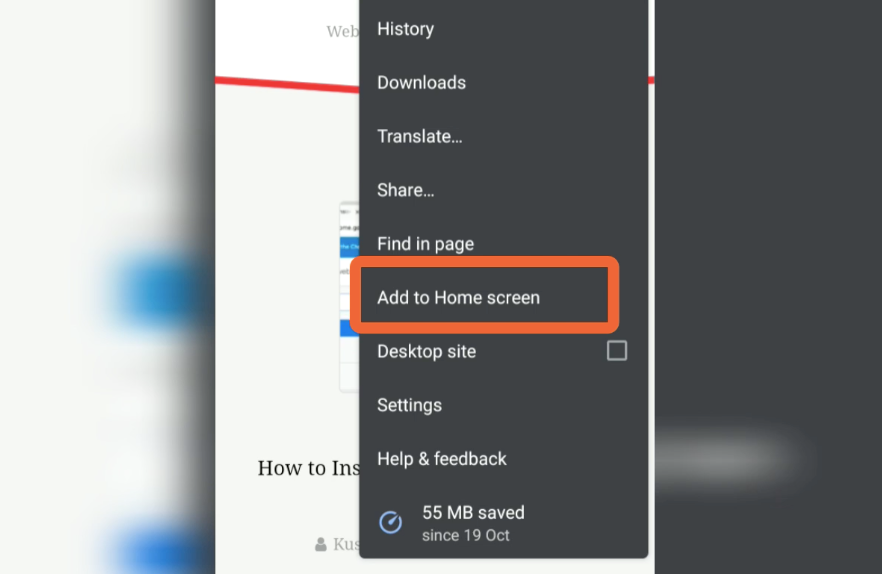
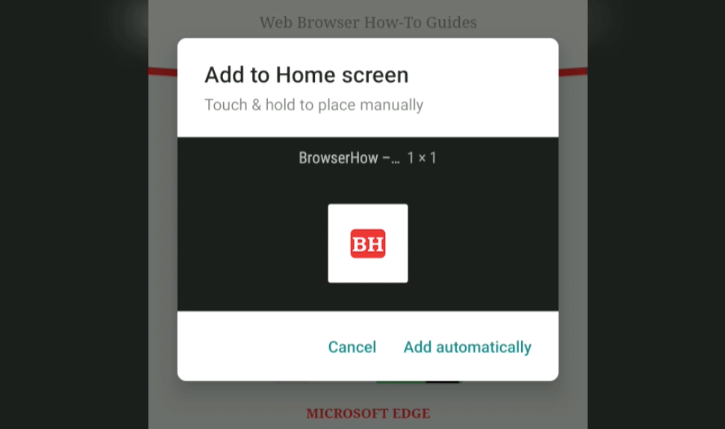
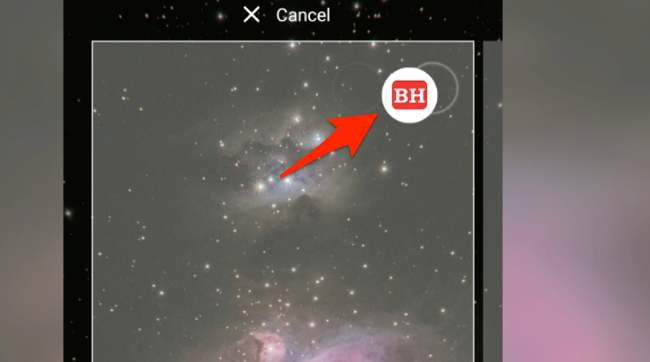
Why the Menu Now Says “Install and Create Shortcut”
Google renamed this entry in Chrome 150 (July 2026), the same release that added a dedicated back arrow at the top of the three-dot menu. The new label spells out what happens next: Chrome both installs the page and creates a shortcut for it on the home screen.
The exact wording you see depends on what the site supports:
- Install and create shortcut shows up for regular websites. Tapping the icon opens the page in a new Chrome tab.
- Install app shows up for sites with a Progressive Web App. Chrome installs the PWA and opens it in its own window, separate from your other Chrome tabs.
Google’s Chrome help page on adding shortcuts to the home screen uses the same wording, so if you want a second reference, that is the official one.
If “Install and Create Shortcut” Is Missing from the Menu
When the entry is not there, the cause is usually one of four things:
- Chrome is out of date. The new label shipped with Chrome 150. Open the Play Store, search for Chrome, and tap Update if the button is active.
- You are on a Chrome internal page. Pages such as chrome://newtab do not offer the option. Open the actual site you want to pin.
- The site is already pinned. Android hides the option once a shortcut exists for the page. Check the home screen, or remove the old shortcut first.
- You are inside a different app’s WebView. Only Chrome itself exposes this entry. If you opened the link from Gmail, Slack, or another app, copy the URL into Chrome first.
From inside the same three-dot menu, you can also open Chrome’s site settings on Android to clear the site’s data, which sometimes forces Chrome to re-offer the shortcut option.

What Happens When You Tap the Shortcut
For a regular site, tapping the shortcut opens the page in a new Chrome tab. Chrome uses your default profile, so any saved logins or cookies already on your phone work normally. Touch and hold the icon any time to rename it, or drag it to Remove at the top of the screen to delete the shortcut.
Need the same page on a laptop? You can send a link to Chrome devices from your Android phone, and then open it there.
For a PWA, tapping the shortcut opens the installed app in its own window. The PWA gets its own entry in Recents and behaves more like a native app.
To remove it, touch and hold the icon and tap Uninstall. If you also want to manage the saved logins Chrome uses to sign you in, the Chrome password guide for Android covers that flow.
Bottom Line
If the site offers a Progressive Web App, Chrome installs a lite native-style app. Otherwise, Chrome drops a shortcut icon on your Android home screen and opens the page in a new tab when you tap it. Either way, the new menu label is Install and create shortcut.
The same idea works on a laptop. You can also create a desktop shortcut link in Chrome on a computer, where PWAs install as Chrome web apps.
Frequently Asked Questions
Where did “Add to Home screen” go in Chrome on Android?
Google renamed it to Install and create shortcut in Chrome 150, the July 2026 update. The new label still creates a home screen icon and opens the site in Chrome when you tap it.
Why does my menu show “Install app” instead of “Install and create shortcut”?
The site you have open supports a Progressive Web App. Chrome installs the PWA in its own window and adds a shortcut to the home screen at the same time.
How do I remove the shortcut if I no longer need it?
Touch and hold the icon on the home screen, then drag it to Remove at the top of the screen. If the entry was a Progressive Web App, tap Uninstall instead.
Can I rename the shortcut after I add it?
Yes. Touch and hold the icon on the home screen, tap the small label under it, and type a new name. Android saves the new label right away.

it does NOT let you add them to your chrome home page. it puts them on the tablet home page as a linkshortcut
Thank you for the feedback and sorry for the confusion created. The title has been adjusted to make it clear.
The “add to Home Screen” is not there and I have the latest Chrome update.
The author needs to check his facts before posting useless blogs
You do know that this option of adding to homescreen is no longer available, no?
Hello Alex, I can see the option is available. You need to first open any webpage or site that you need to add to Home Screen. The option will be hidden when you try to access on Chrome browser’s Start Page or New Tab page.
I don’t get it. Instructions in article; “Launch Chrome…3 dots… click add to…”
Then ” The action will…hidden…from Chrone’s browzer’s….”
I used this function often, then it disappeared. I’ve since had MANY phones and looked high and low on each one for the option- zero luck. I’ve also tried any settings solutions that seemed feasible, to no avail. If I read “Restart your phone” or clear your cache one more time for a fix I think my head’ll explode. At least no one has recommended removing your battery for 15 minutes…. SSHEEESH!
At this point, I’d be content just to know why Chrome or Google, or whomever (God?!?) removed my beloved “Add to homepage” option.
Rant over.
Hi Judy, I can see the option to “Add to Home screen” on my Chrome browser on Android phone. If your browser is outdated, you can check for new Chrome updates to download and install.
Every time I restart my phone, my add to home screen shortcuts disappear and I have to re add them! What is the fix for that? It’s a lot of work!
Unfortunately, if you create one of these icons using the Add to Home Screen in the latest version of Android and then try to remove it, you will find that tap and hold no longer gives you the option to remove the shortcut.