

Chrome on Android does not include a true hard refresh command like Ctrl+F5 on desktop. The address-bar reload icon, the menu Reload option, and the pull-to-refresh gesture all reuse cached files and only reload the page.
To get the same effect, clear that site's cache and cookies first, then reload. Pick the Site Settings path or the full clear-browsing-data option, then use one of three reload methods in Chrome on Android.
Watch the Video Tutorial
In this guide, I have covered:
Contents
What a Hard Refresh Does in Chrome on Android
If you have ever pressed Ctrl+F5 on a desktop browser, you know what a hard refresh should do. It tells the browser to ignore the cached copy of a page and pull every file fresh from the server.
Chrome on Android has no built-in equivalent. What looks like a hard refresh on Android is just a regular reload. The circular Reload icon next to the address bar, the Reload entry in the  menu, and the pull-to-refresh gesture all reuse whatever the browser has cached. None of them download files from scratch.
To get the desktop-style result, clear the cache for the affected site first, then reload. You’ll know it worked when that first reload runs slower than usual and the page shows new content.
Clear Storage for Just One Site
When only one page is stuck on old content, you don’t need to wipe the whole browser. Clear just that site’s storage. The entry point inside Site Settings has moved around in recent Chrome versions, so pick whichever label you see on your phone.
- Tap the menu in the top right corner of Chrome.
- Tap Settings.
- Scroll down to Advanced and tap Site settings.
Tap either On-device site data or All sites, depending on which your Chrome version shows. Pick the site that isn’t updating, then hit .
If your Chrome build still shows the older Data Stored tab, the flow is the same: choose the site, then tap . For Google’s official current guidance on this screen, see the Chrome Help page for on-device site data.
This step removes the cache, cookies, and stored data for that one site. Other tabs stay signed in.
Return to the page you just cleared and reload it. You’ll know the clear worked when the first load takes longer than normal.
For a more detailed walkthrough of the per-site screen, see how to view and clear site storage data in Chrome on Android.
Clear All Browsing Data (Alternative)
Use the full clear-data path when several sites misbehave or when you can’t locate the right entry in the per-site list. This affects every site, so expect to sign back in afterwards.
- Open the Chrome app on your Android phone.
- Tap on the More for options and select the Settings menu.
- Open the Privacy and Security settings and select the Clear Browsing Data option.
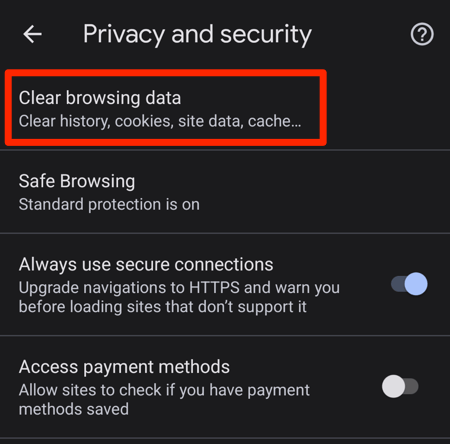
- Select the Time range from the drop-down and enable the checkboxes for the 'Cookies and site data' and 'Cached images and files' options.
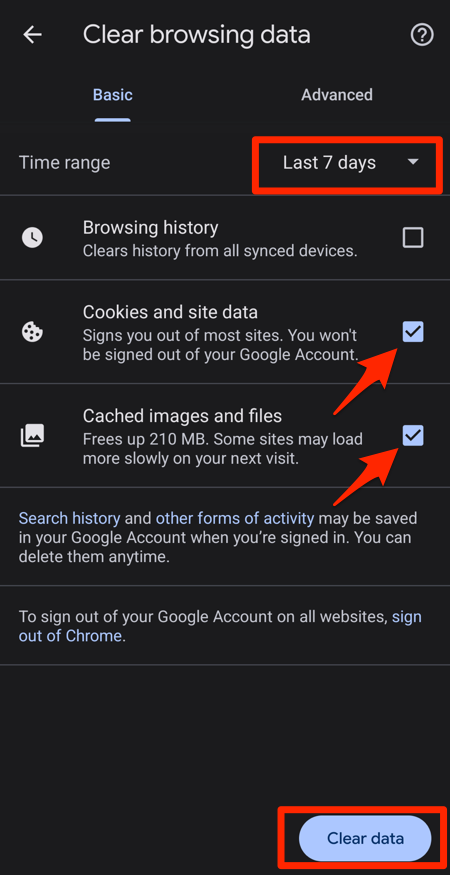
- Hit on the button.
After the clear finishes, open any page that was showing stale content and reload it. A slower first load usually means Chrome pulled fresh files.
For the full version that also covers history and saved passwords, see how to clear Chrome history, cookies, and cache on Android.
Reload the Page
With the cache cleared, any reload now pulls fresh files from the server. Try the address-bar icon first. It is the most reliable path on current Chrome on Android.
Reload From the Address Bar
Open the page you cleared, then tap the circular Reload icon at the right end of the address bar. Chrome re-downloads every file the page needs.
Reload From the Menu
- Open the Chrome app on your phone.
- Go to the page where you cleared the cache.
- Tap the More option. On newer Chrome versions, this menu can sit at the bottom of the screen instead of the top right.
- Tap Reload
 .
.

TIP: The Reload entry sometimes hides itself in the menu on the first tap. If you don’t see it, use the address-bar icon or the pull gesture instead.
Reload With the Pull-Down Gesture
Touch and hold the page, then drag down until the circular reload icon appears on the screen. Lift your finger and the page reloads. Recent Chrome versions add a small vibration when the gesture fires.
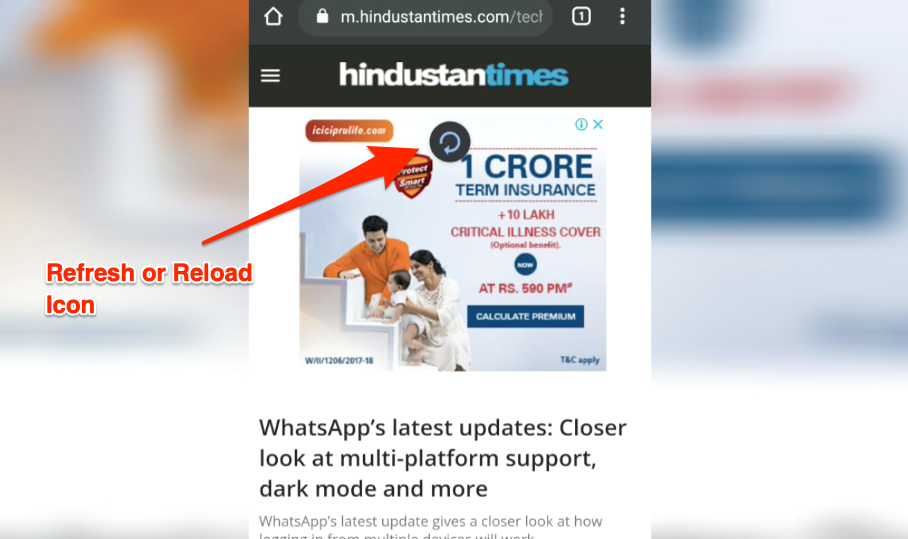
Because the cache is gone, this first load takes a beat longer than usual. That delay is how you confirm Chrome fetched new files rather than reusing stored ones.
Reloading also reconnects a downloaded offline page to the live server so you get the latest version.
The same clear-then-reload approach works in Opera on Android and Brave on Android, though the menu paths differ.
Bottom Line
Chrome on Android still has no real hard-refresh command. The working pattern is clear first, reload after. Target one site when you can. Clear all data when you can’t.
Three reload methods are available. The address-bar icon is the most reliable.
Clearing cookies signs you out of accounts. Have Google Password Manager ready so the next sign-in autofills.

You can also hard refresh on other Chrome installs. If you use Chrome on a computer, hard refresh in Chrome on a computer is a single keyboard command. On an iPhone or iPad, Chrome for iOS and iPad uses a similar clear-cache routine.
Frequently Asked Questions
Is there a keyboard shortcut for hard refresh on Chrome Android?
No. Chrome on Android has no Ctrl+F5 equivalent and no “Empty Cache and Hard Reload” menu entry. The closest workaround is to clear the site’s cache first and then reload.
Why does my page still look the same after I clear data and reload?
Most often the reload ran before the cache actually finished clearing, or you cleared data for the wrong site (for example, the www version instead of the bare domain). Repeat the steps for the exact URL shown in the address bar.
Will clearing the cache sign me out of my accounts?
Yes, when you clear cookies along with the cache. Use Google Password Manager to sign back in without typing.
Why doesn’t the Reload option appear in the menu?
Chrome on Android occasionally hides the Reload entry on the first tap. The address-bar reload icon and the pull-to-refresh gesture are more reliable alternatives.
When should I bother with a hard refresh on Chrome Android?
Only when a page is showing stale content or several sites misbehave after a deploy. Doing it daily wastes time and signs you out of sites for no real benefit.
I found (by accident) that if you tap the three dots on the page one time, the refresh option is not there. But if you close that out and tap the three dots again, then the refresh symbol appears! Go figure! And you don’t have to clear the cache or anything like that. It’s almost as easy as doing it on a real computer (once you know the trick).