

Safari shows “This Connection Is Not Private” when it cannot verify a site's HTTPS certificate, or when something on your network breaks the secure connection. It can also appear on sites with an expired certificate or plain HTTP.
Start with your Mac's date and time, then test the site with the VPN off, reload from the server, clear Safari's website data, and check security software. Only bypass the warning for a site you trust.
In this guide, I have covered:
Contents
What the “not private” warning in Safari on Mac actually means
You clicked a link, and instead of the page you got “This Connection Is Not Private” on a gray background. Safari stopped loading because it could not confirm that the site’s HTTPS certificate was valid and trusted.
That failure has a few usual causes: an expired certificate, a certificate issued for another domain, a site still served over plain HTTP, or a filter on your network intercepting the connection.
The message is about the site’s connection, not Safari’s Private Browsing mode. If every site fails, start with the Mac clock and network tools. If only one site fails, its certificate or server setup is the main suspect.

Method 1: Check Your Mac’s Date and Time
A clock that is off by a few minutes is enough to break certificate validation. Safari compares the certificate’s validity window against your system time, so a wrong date can make a valid certificate look expired.
This check is part of an essential troubleshooting guide for common browser connection failures. It also takes less than a minute.
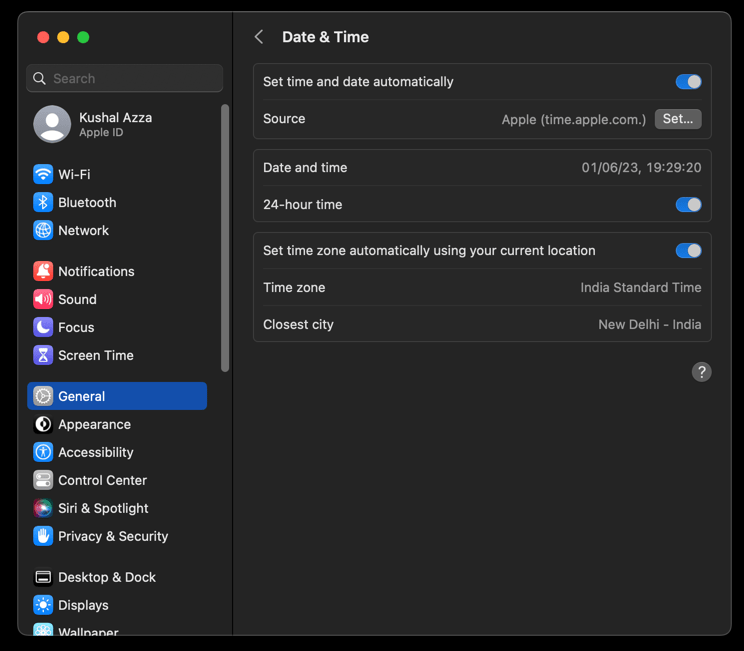
- Open the Apple menu and choose System Settings.
- Select General > Date & Time.
- Turn on Set time automatically.
- Confirm that the displayed date, time, and time zone are correct.
Quit Safari, reopen it, and reload the affected page. You’ll know it worked when the address loads without the warning. If the warning returns, move to the next method.
Method 2: Disable the VPN and Check Proxy Settings
If you use a VPN service, disconnect it before testing Safari again. A VPN or proxy can send your traffic through a server that presents a different certificate or blocks secure connections outright.
- Quit or disconnect the VPN app.
- Open System Settings > Network and select the active connection, such as Wi-Fi.
- Choose for the active connection.
- Select the Proxies tab.
- Turn off any HTTP, HTTPS, or SOCKS proxy you did not configure yourself.
Reopen Safari and try the address again. If the page loads with the VPN off, leave it off for that site or ask the provider to check the affected domain. Never leave a proxy disabled if your network requires it.
Method 3: Reload the Page and Test Another Network
A page that keeps failing may just be a stale copy sitting in Safari’s cache. Reload from the server before you change any settings.
Our guide on reloading a page in Safari on Mac covers the basic reload options.
- Click the reload arrow in Safari’s toolbar, or press + .
- Hold and press + to reload the page from its origin.
- Open the same address on mobile data or another trusted Wi-Fi network.
If it loads on another network, the Mac’s DNS cache or a local network filter is involved. If it fails everywhere, the site certificate or Safari’s stored data is more likely.
For a cleaner test, open the site in a private window to rule out saved site data. See How to Open Private Browsing Mode and New Tabs in Safari on Mac.
Keep our Safari app’s keyboard shortcuts handy if you want faster access to reload and other commands while you test.

Method 4: Clear Safari’s Cookies and Cached Website Data
When the warning survives a reload, stale site files can leave Safari stuck on an old page state. Clearing cookies and cached website data for all sites removes that variable.
- Launch the Safari app on your Mac computer.
- Click on the Safari menu from the menu bar, and select the Settings... sub-menu.
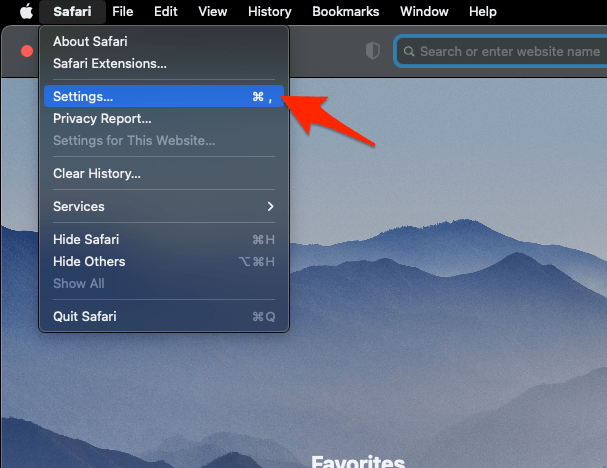 It will open the Safari Settings window.
- Switch to the Privacy tab, and click to open the button.
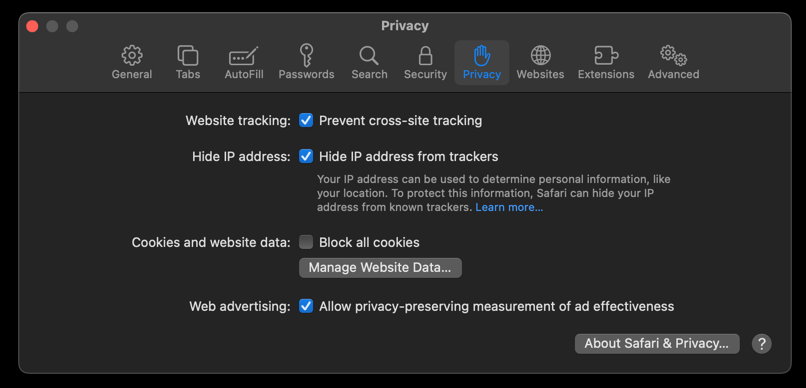 It will load the list of websites currently storing the cache and cookies in the browser.
- Hit on the command and then the button.
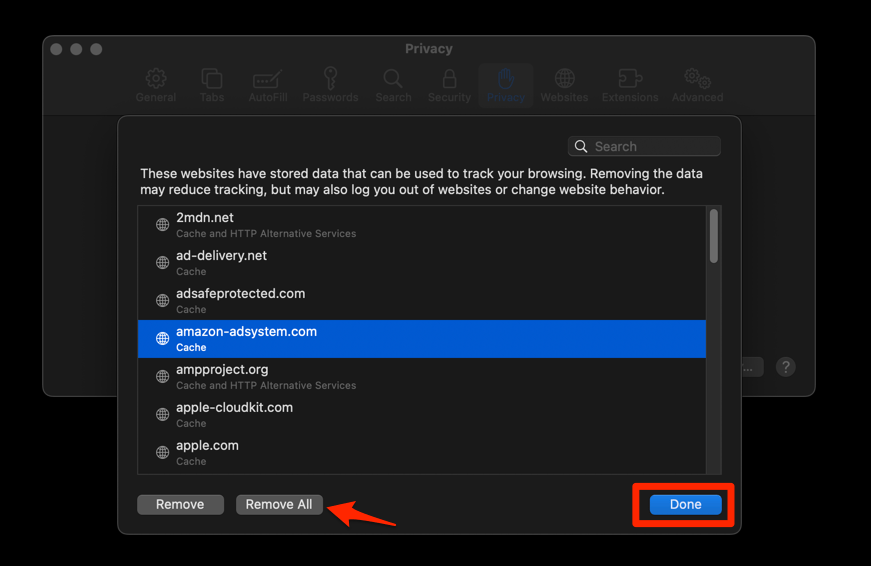 It will flush the cookies and cache for all sites in Safari.
Reload the affected site after the cleanup. You’ll know it worked when the page loads and stays loaded on a second reload. Our guide to clearing these temporary data explains the same task in more detail.
If Safari still cannot remove the stored data, use Fix Safari Website Data That Will Not Delete on Mac for that specific issue.

Method 5: Clear Safari’s DNS Cache
Still seeing the warning after the website data cleanup? Stale host information can keep sending requests to the wrong server. Emptying Safari’s DNS cache forces a fresh lookup.
- Open the Apple Safari app on your Mac, and select Safari > Settings... from the menu bar.It will open the Safari Settings window.
- Switch to the Advanced tab, and enable the checkbox for the Show Develop menu in the menu bar option.
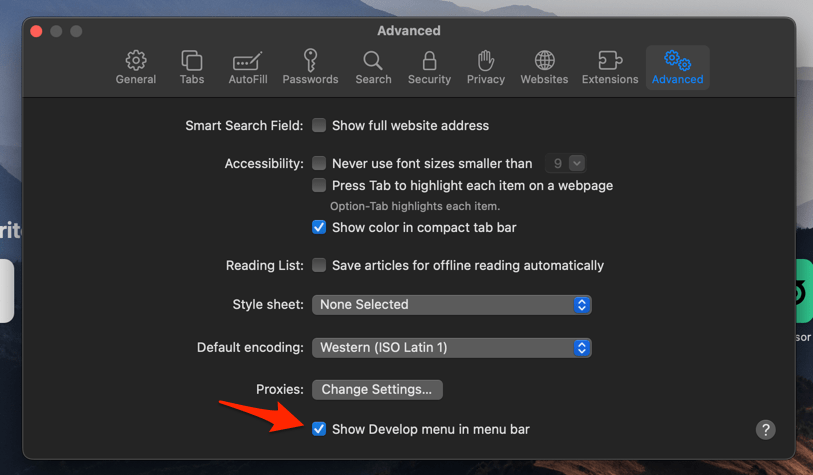 It will enable a new Develop menu in the Safari menu bar.
- Click on the Develop menu and select the Empty Caches command.
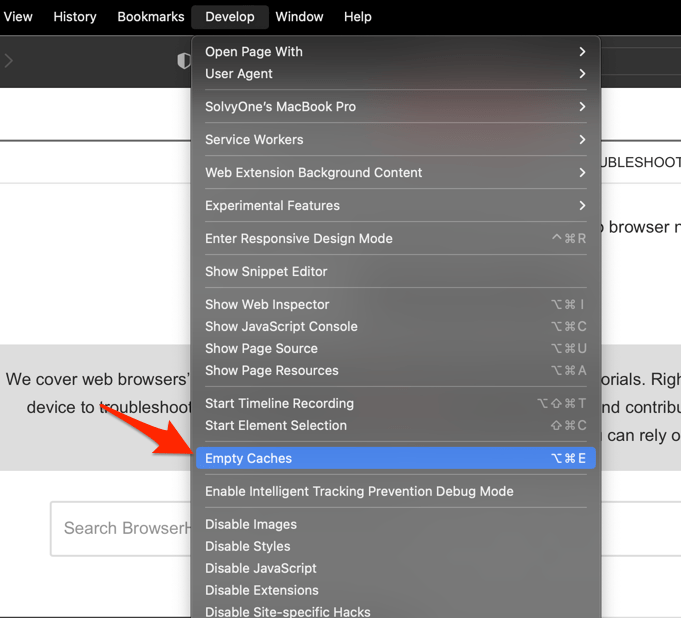 It will clear all cache, including the Safari DNS host cache.
In current Safari, open Safari > Settings > Advanced and turn on Show features for web developers. Older releases use Show Develop menu in the menu bar. After the cache is emptied, reopen the site and try again.
Method 6: Test Firewall, Antivirus, and Network Filters
Public Wi-Fi on its own does not cause this warning. It appears when HTTPS inspection, DNS filtering, a firewall rule, or antivirus web protection interferes with certificate validation.
A firewall or security suite may need a site-specific exception. Do not switch protection off permanently to get one page working.
- Open your firewall or antivirus app and pause HTTPS scanning, web filtering, or the matching site rule.
- Quit and reopen Safari.
- Reload the affected page.
- Turn the protection back on as soon as the test is done.
If the warning disappears while the filter is paused, add a narrow exception or contact the software vendor. If it stays, continue with the certificate checks.
Method 7: Update macOS and Safari
Did the warning start right after a system update, or does it now hit every HTTPS site? Install the pending macOS and Safari updates. Older installations can lack current security fixes.
- Click on the Apple
 menu from the menu bar and select the System Settings... sub-menu.
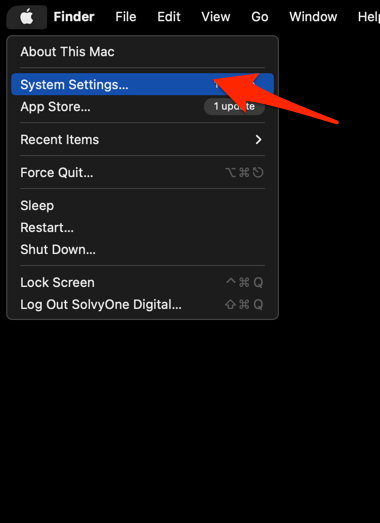 It will open the System Settings window.
- Select the General tab in the left sidebar, and choose the Software Update tab.
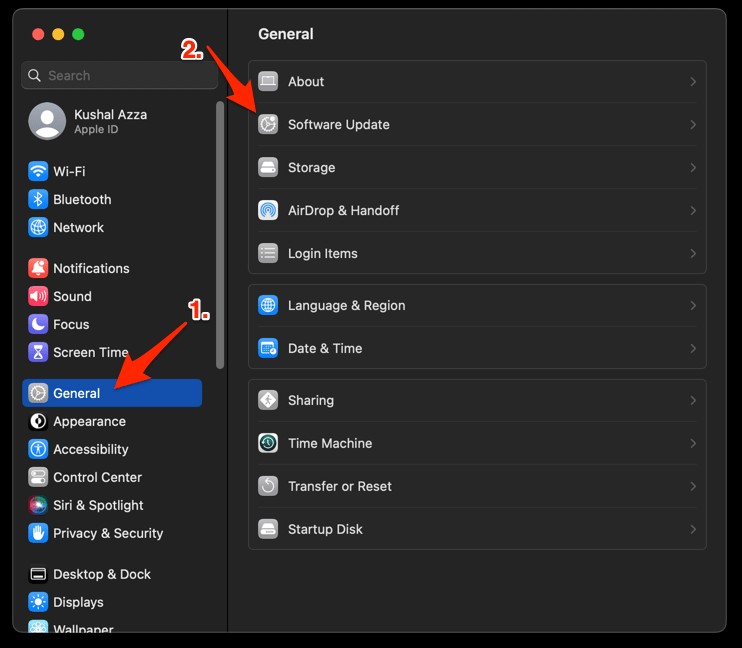 The macOS System will check for any available upgrades in the background.
- Click on the More Info... tab and enable the checkbox for Safari updates (if any are available).
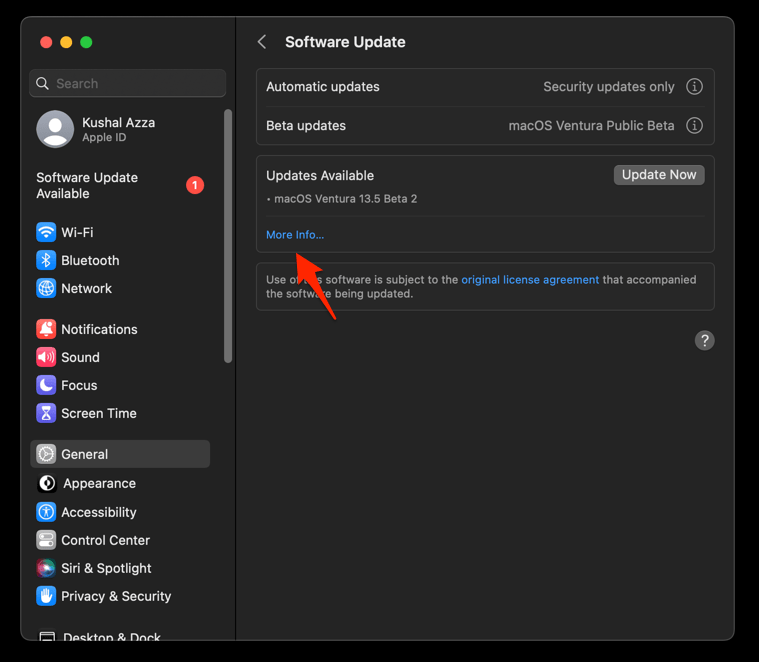
- Hit on the button.
It will update the Safari browser.
Restart Safari after updating and try the address again. If one known site still fails, ask its owner to check the certificate chain and renewal date.
Method 8: Inspect the Certificate Before Bypassing the Warning
Before you click past the warning, read what Safari is objecting to. The controls differ by macOS release, but the purpose is the same: show why the certificate was rejected and, for some errors, let you continue to a site you trust.
- On the warning page, choose or , depending on the wording Safari displays.
- Read the stated reason, such as an expired certificate, name mismatch, or untrusted issuer.
- If you can verify the site and trust it, choose visit this website when that option is offered.

ALERT: Do not bypass the warning on a sign-in, payment, or download page unless you can verify the site’s identity and understand why the certificate failed. A false certificate warning can expose private information.
Do not enter passwords or payment details when the domain is unfamiliar, misspelled, or the warning names an untrusted issuer. If Safari offers no bypass option at all, only the site owner can fix the certificate.
Use the Error Pattern to Identify the Cause
Which sites fail narrows the cause faster than the warning text does. Match your situation to one of these four patterns:
- One website only: the site’s certificate, domain name, or server configuration is likely wrong.
- Every website: check the Mac clock, VPN, proxy, DNS cache, firewall, and macOS update status.
- Only on one network: test mobile data. A router, network administrator, or internet provider may be filtering HTTPS or DNS.
- Only in Safari: clear Safari data, test a private window, and compare another browser.
Our list of alternative Safari browsers helps you isolate a Safari-only problem. Switching browsers does not make an invalid connection safe.
About the September 2021 Safari Certificate Issue
Older forum threads blame a macOS update from September 2021. That update did break certificate checks in Safari for a lot of people, and a later update fixed it.
A warning today is far more likely tied to the site you are visiting, your network, or local settings than to that old system-wide incident.

Note: If the error is still there after the steps above, the video below walks through the warning page.
Frequently Asked Questions
Still stuck? These are the details worth double-checking before you give up on the site.
Why does Safari say “This Connection Is Not Private” on Mac?
Safari could not validate the site’s HTTPS certificate or secure connection. Common causes include an expired or mismatched certificate, plain HTTP, an incorrect system clock, VPN or proxy interception, stale site data, and security software filtering the connection.
Does the warning mean my Mac has a virus?
No. The warning is a certificate or connection-validation failure, not proof of malware. If every site is affected, check the clock, VPN, proxy, and security filters first.
Should I bypass the Safari “not private” warning?
Only for a site you can identify and trust, and only after reading the certificate reason. Do not bypass warnings on login or payment pages, or when you cannot verify the domain.
Will clearing Safari cookies and cache fix the error?
It can when stale site data is preventing the page from loading, but it cannot repair an invalid certificate. The cleanup removes data for all sites and may sign you out.
Why does the warning happen only on my Wi-Fi?
The router, network administrator, internet provider, or another device may be filtering HTTPS or DNS. Test the site on mobile data. If it loads elsewhere, reconnect the network or ask its administrator to check the filtering settings.
When I used a VPN it worked perfectly
Is it possible that am being monitored by the government and they are trying to access my emails😒
Thank you for this fix! This issue has had me flummoxed since it started – we didn’t know if we had a virus, or some other problem, or what. Going through the instructions in the video now has our old (2009) iMac working correctly once again.
I am sorry to say that this did not work on my macOS Monteray despite the fact that I have allowed the ISRG Root X1 certificate access for all users in Key Chain.
This is especially annoying as it ONLY pops up when I try to log in to a paper via my university library proxy, hence this is invariably safe but I still have to click through half a dozen links to open a page.
This worked for me so very grateful!! Many thanks
All thanks go to the original video creator!
Thank you!!! I am not computer savvy and was able to do this. I had almost given up using my MacBook out of frustration with this issue and you solved it! I am so thankful!!
I had tthe “connection is not private” issue on my Mac (running El Capitan). I followed the instructions on the video (download the certificate on another computer and then trust it from the key chain manager) and it worked like charm 🙂
Mil Gracias !!!! Thanks a thou from Mexico !
All the best !
G